
Reuse a request for your next clients
You just sent a request you will need again? Save it as a request template. On your next request, choose that request template: the title, the instructions, the items and the delivery settings are already filled in.
Before you start
Section titled “Before you start”- Save as a request template shows for the owner and administrators, after sending a request that does not already come from a request template.
- The request template is saved in the request’s space. To offer it in all your spaces, create it in the organisation catalogue instead. See Create a request template.
Save the request
Section titled “Save the request”-
Compose and send the request as usual. See Send a request to a client.
-
On the final screen, “Request sent” or “Request created”, click Save as a request template.
-
Enter a name that is clear for your team, for example “New file”, then click Save.
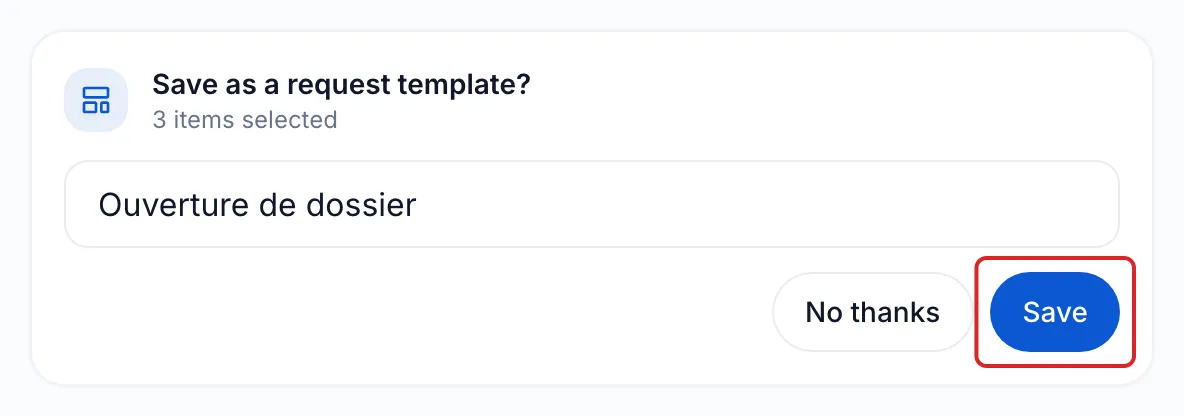
meo shows “Request template saved”. The request template keeps the items in their order, the purpose, the instructions, the due-date offset, the reminders and the end of collection. It does not keep the people.
Start from the request template
Section titled “Start from the request template”-
Click New at the top of the left menu, then New request. In the Participants card, add your client, then click Next.
-
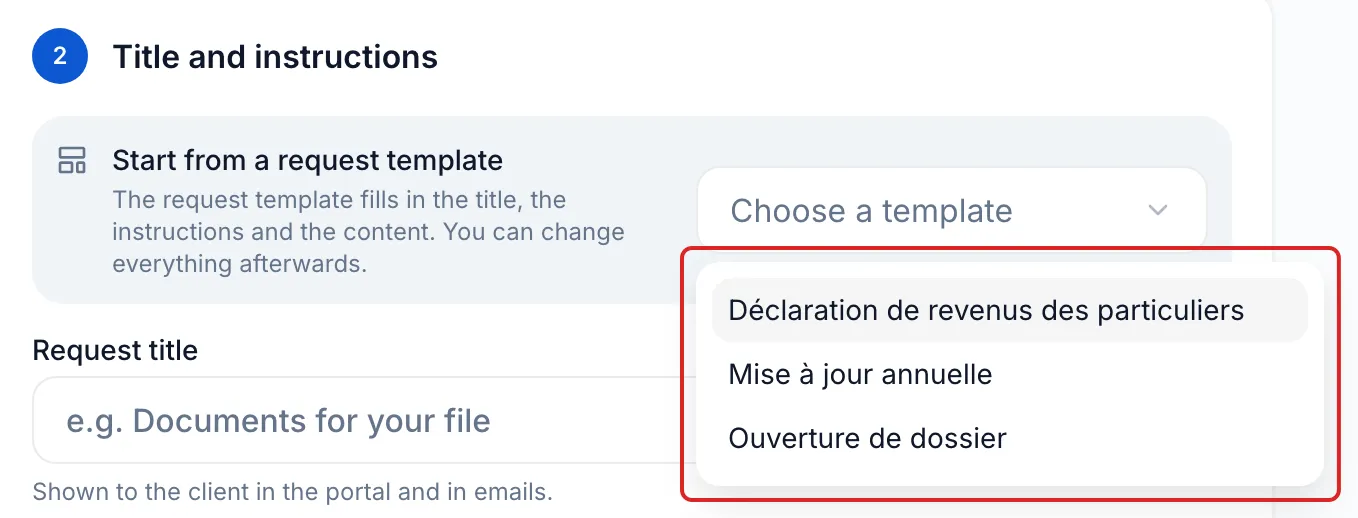
In the Title and instructions card, under Start from a request template, open Choose a template and click your request template.
-
If the request already has a title, instructions or items, meo asks “Replace the current request content?”. Click Replace content.
-
Adjust what changes for this client, then carry on until you send.
Result
Section titled “Result”The card shows “Request template:” followed by its name, then “(edited)” as soon as you change something. The request template itself does not change.
Good to know
Section titled “Good to know”- The request template also fills in the Delivery step: the purpose, the due date, the invitation and the reminders.
- The Choose a template list offers the space’s request templates and the organisation’s.
- You find the saved request template in Settings, Space section, Catalogue, Request templates tab. Click its row to rename or edit it.
- A request created from a request template does not offer Save as a request template. To keep your changes for later, edit the request template in the catalogue.
Frequently asked questions
Section titled “Frequently asked questions”- Can you change a request created from a request template?
- Do you have to rewrite the purpose and instructions for every request?
- Should you create your request templates in the space or in the organisation?