
Import your contacts from other software
The import creates your space’s contacts in one go from a file exported from your other software. Before creating anything, meo shows you how it reads each column and asks what to do with contacts that already exist. Each imported contact gets their folder in Documents > Clients, like a contact created by hand.
Before you start
Section titled “Before you start”- Export your contacts as Excel (.xlsx) or CSV: one row per contact, the column titles on the first row. An Excel file must have only one visible sheet.
- Each contact needs a name and an email or a phone number. A file holds at most 5,000 contacts.
- The contacts are created in the space on screen. If you have several, choose the right one first: see Switch from one space to another.
- The Import button appears if you are allowed to create contacts in this space.
Import the file
Section titled “Import the file”-
Click Contacts in the left menu, then Import. The Import contacts window opens.

-
If needed, under No file yet?, click Download the Excel template or CSV template: their columns are already named correctly. The Expected formats section sums up the rules, for example a Canadian phone number in any common format.
-
Drag your file into the drop zone, or click it to choose the file. meo reads it and moves to the Column mapping step.
-
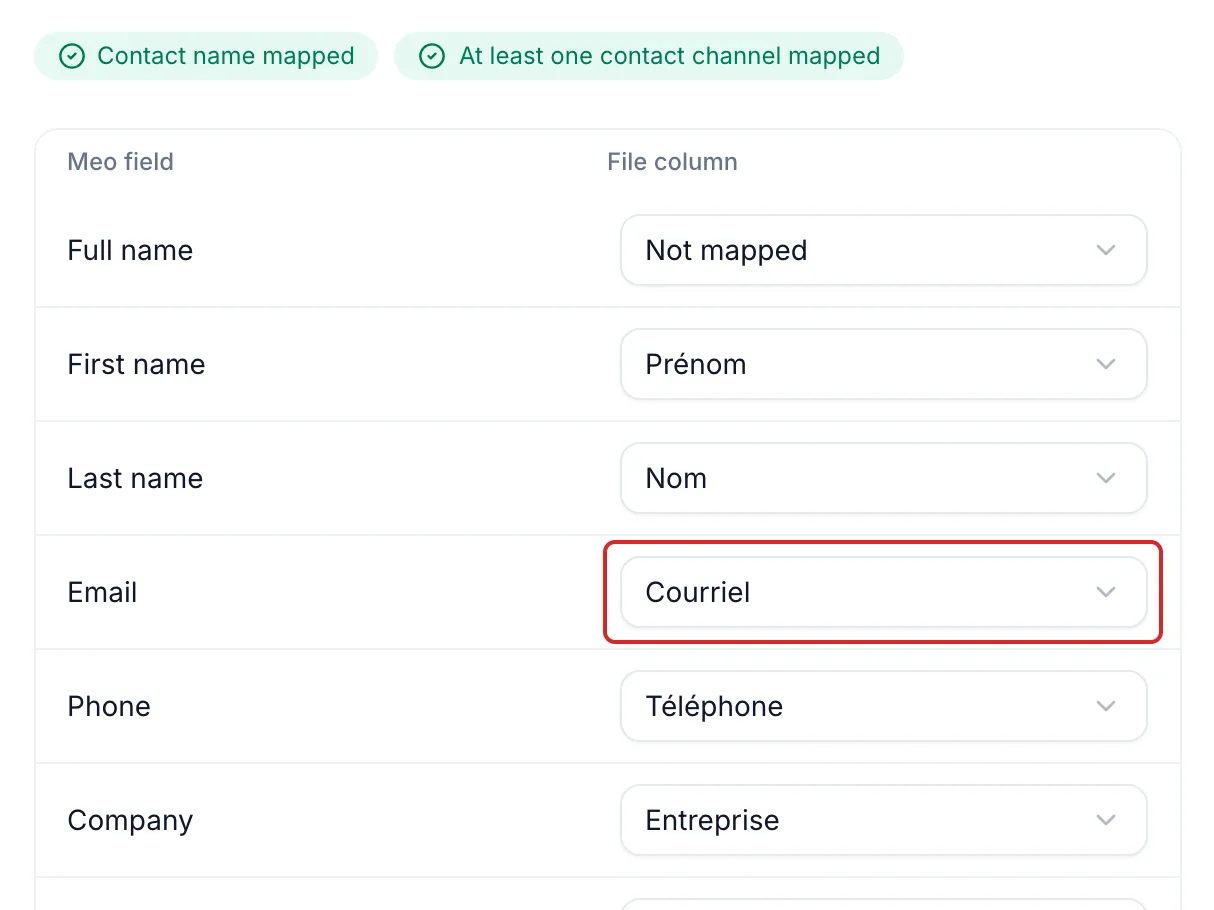
For each Meo field, check the File column meo suggests. Change it if needed, or choose Not mapped. The table starts with Full name: if your file splits the first and last name, this field stays Not mapped and meo uses First name and Last name. At the top, the badges must read “Contact name mapped” and “At least one contact channel mapped”. Check the Preview of the first rows, then click Continue.
-
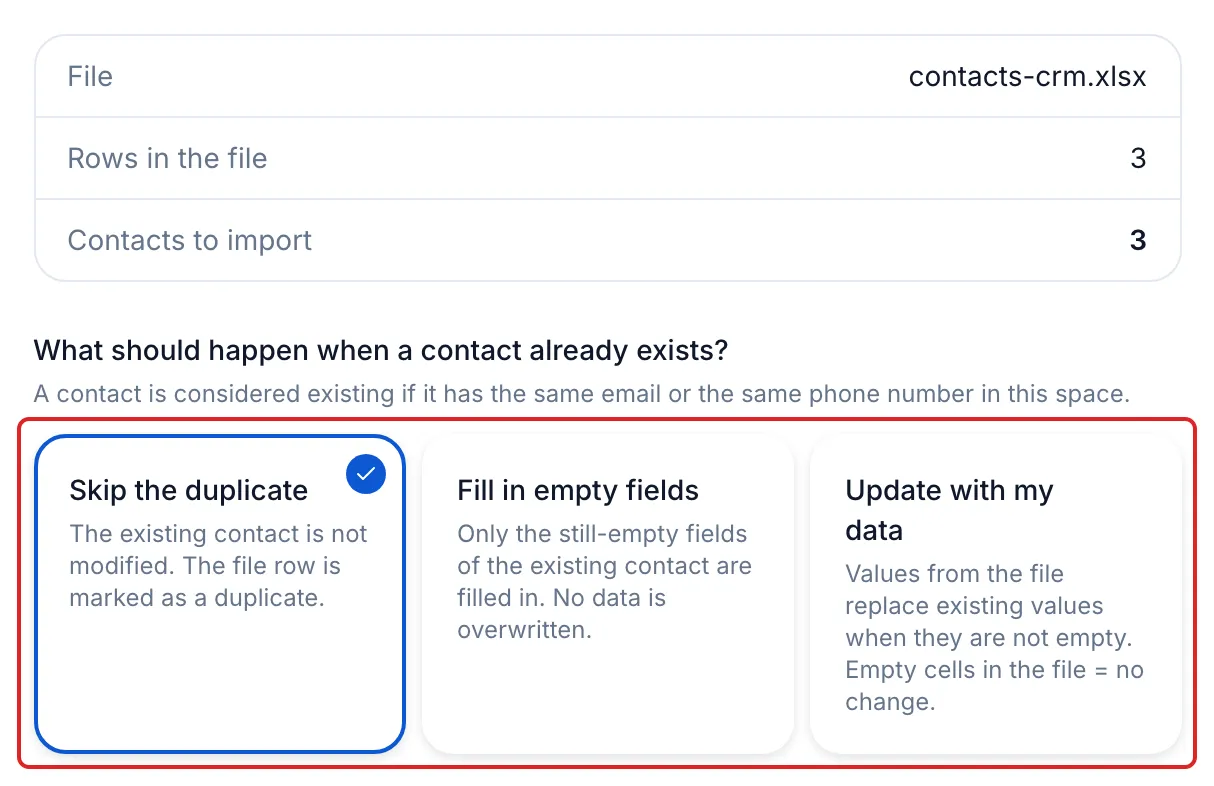
On the Confirmation step, check the number of Contacts to import and, if there are any, the skipped rows. Under What should happen when a contact already exists?, choose:
- Skip the duplicate, the default: the existing contact stays as it is;
- Fill in empty fields: meo only fills in the still-empty fields of the existing contact;
- Update with my data: the file’s non-empty values replace the existing values.
-
Click Start the import. Keep the tab open during the Import in progress step.
Result
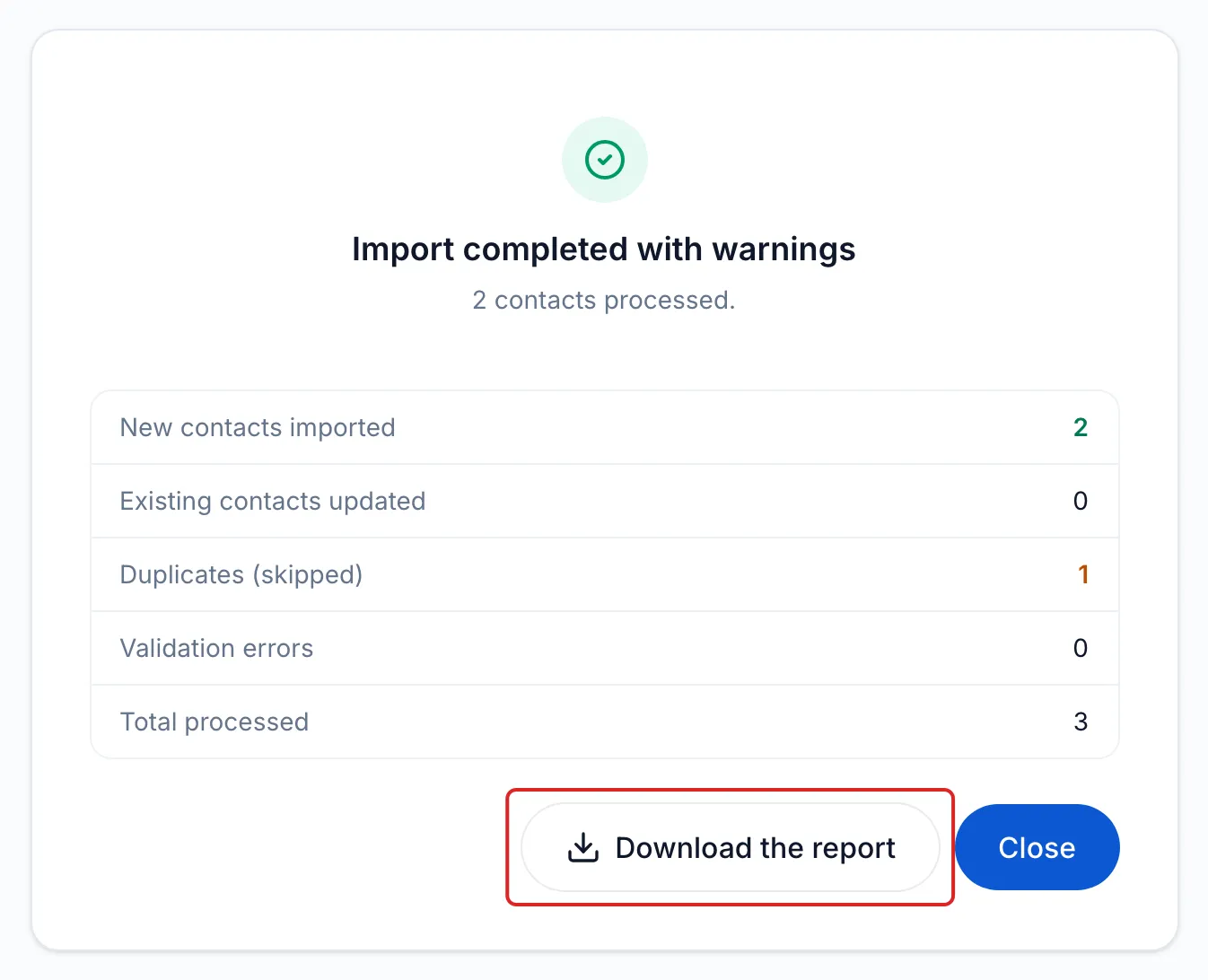
Section titled “Result”meo shows “Import complete”, or “Import completed with warnings” when there are duplicates or errors, with the number of contacts created, updated, skipped and in error. Click Close: the new contacts are in the list.
Rows that are not imported
Section titled “Rows that are not imported”-
A row without a name, or without an email or a phone number, is not imported. An unreadable phone number is ignored: the row is imported if it has an email.
-
A contact is a duplicate if it has the same email or the same phone number as a contact of this space. meo also compares the file’s rows with each other. A row whose email and phone number lead to two different contacts is never merged: handle it by hand.
-
Click Download the report: each of these rows appears with its number, its type (Doublon or Erreur) and the reason. Its columns match the template’s: correct the rows, then import the file again.
Good to know
Section titled “Good to know”- The Notes column goes into the contact’s Internal notes, in the Contact details card.
- The Status column accepts the five statuses, in French as listed in the window or in English (New, Onboarding, Active, On hold, Completed). Any other value becomes New.