
Set up the privacy tools
The Privacy page brings together the tools that help your organisation document its personal information practices. You set them up once, for the whole organisation.
Before you start
Section titled “Before you start”- You must be the owner or an administrator of the organisation. Other users see Activation required by an administrator.
- Use a computer: on a phone, the page shows Screen too small.
- Have your website address and the direct link to your privacy policy at hand.
Turn on the tools
Section titled “Turn on the tools”-
In the left menu, click Privacy, then Get started.
-
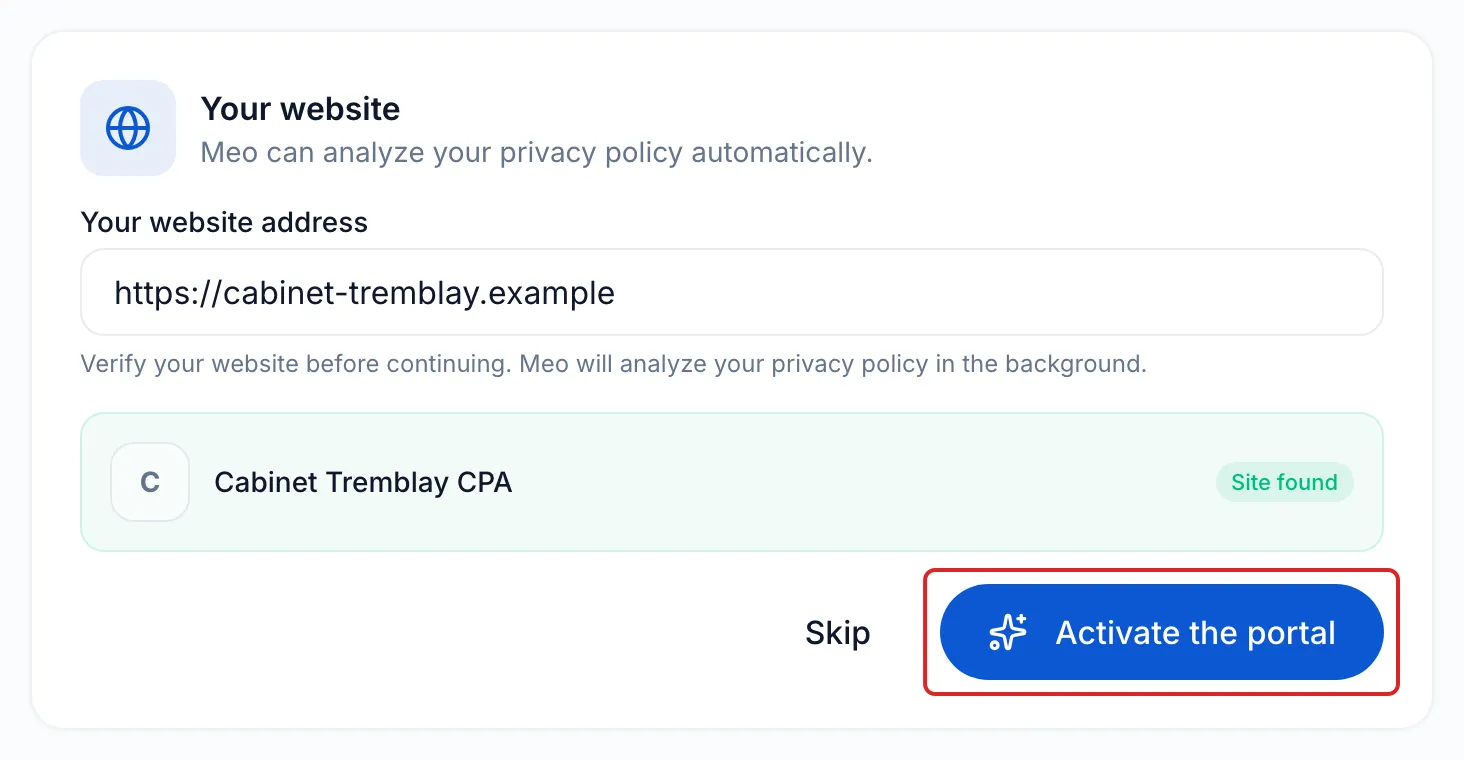
At the Your website step, enter Your website address, then click Verify. When meo shows Site found, click Activate the portal. Without a website, click Skip.
This button sets up your tools and starts the analysis of your policy. It publishes nothing: your public portal is published at the end.
The Privacy tools page then shows your progress out of 100 and your tools. Those marked Meo, such as Consent & rights, are covered by meo. Still check the retention period of your document types.
Name your privacy officer and analyse your policy
Section titled “Name your privacy officer and analyse your policy”-
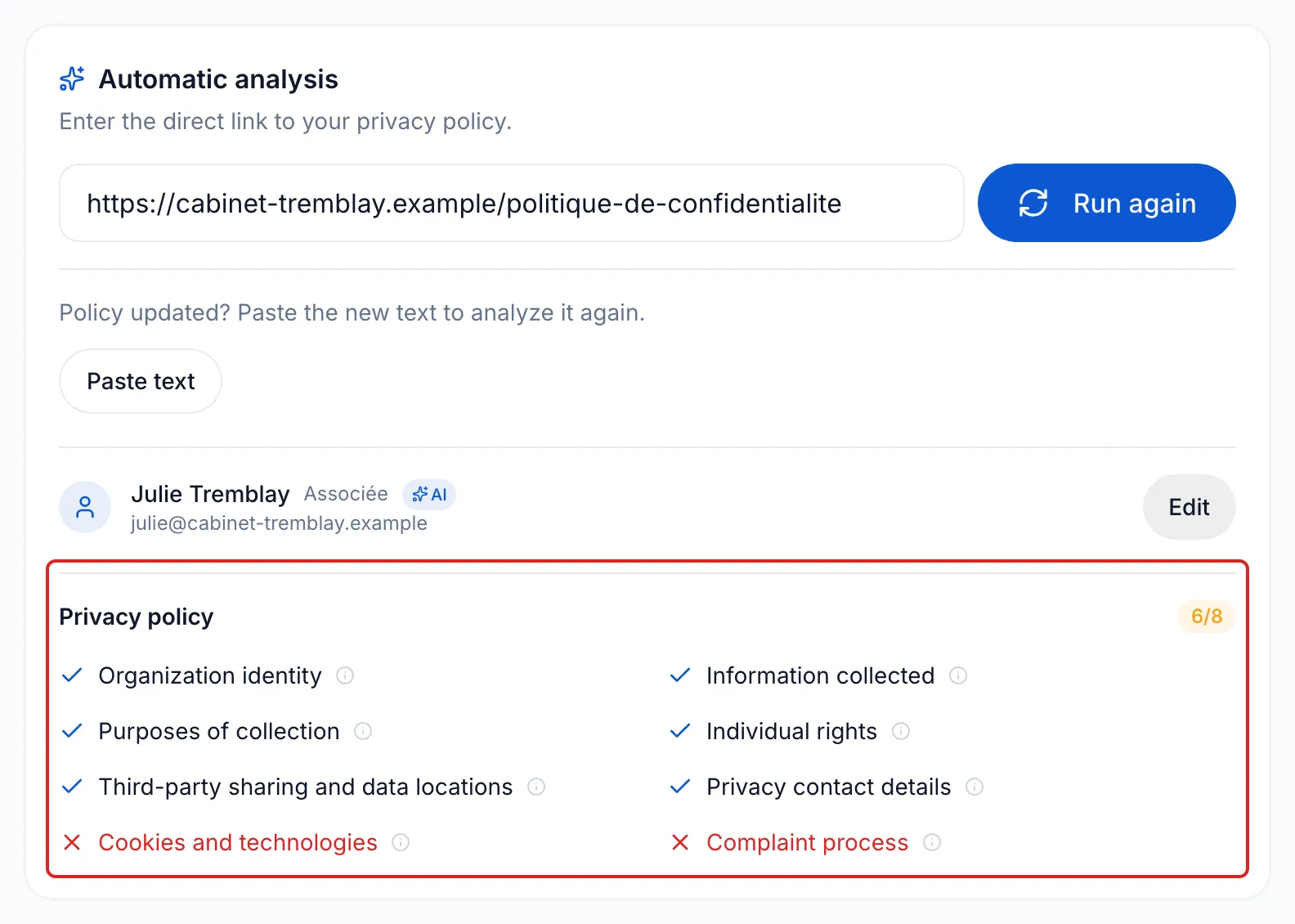
Click Privacy officer & privacy policy. Under Automatic analysis, paste the direct link to your policy if needed, then click Analyze (or Run again). You can also click Paste text to have the text of your policy analysed, for example after an update.
-
Check the Privacy officer. If meo found them on your website, they carry the AI mark. Otherwise, click Add or Edit, fill in Full name, Title / Role, Email and, if needed, Phone, then click Save.
-
Under Privacy policy, read the eight topics: a check mark means a topic is addressed, an X a topic not clearly addressed, and the i icon explains each result. Update your policy if needed, then run the analysis again: the step is complete when all eight topics are addressed.
-
Under Remaining actions, look at the Contact details published on the website row. If meo found your privacy officer’s contact details on your website, the row is checked on its own, with “Automatically detected on your website.”, and no longer counts as a remaining action. Otherwise, publish your privacy officer’s title and contact details on your website, then click Done. If you edit your privacy officer later, the row is unchecked: click Confirm.
-
On the Internal governance policies row, click Guide, then Download a starter document (.docx). It is pre-filled with your information. Adapt it, then drop it under Upload your completed document (PDF or Word, 10 MB at most): the step checks itself.
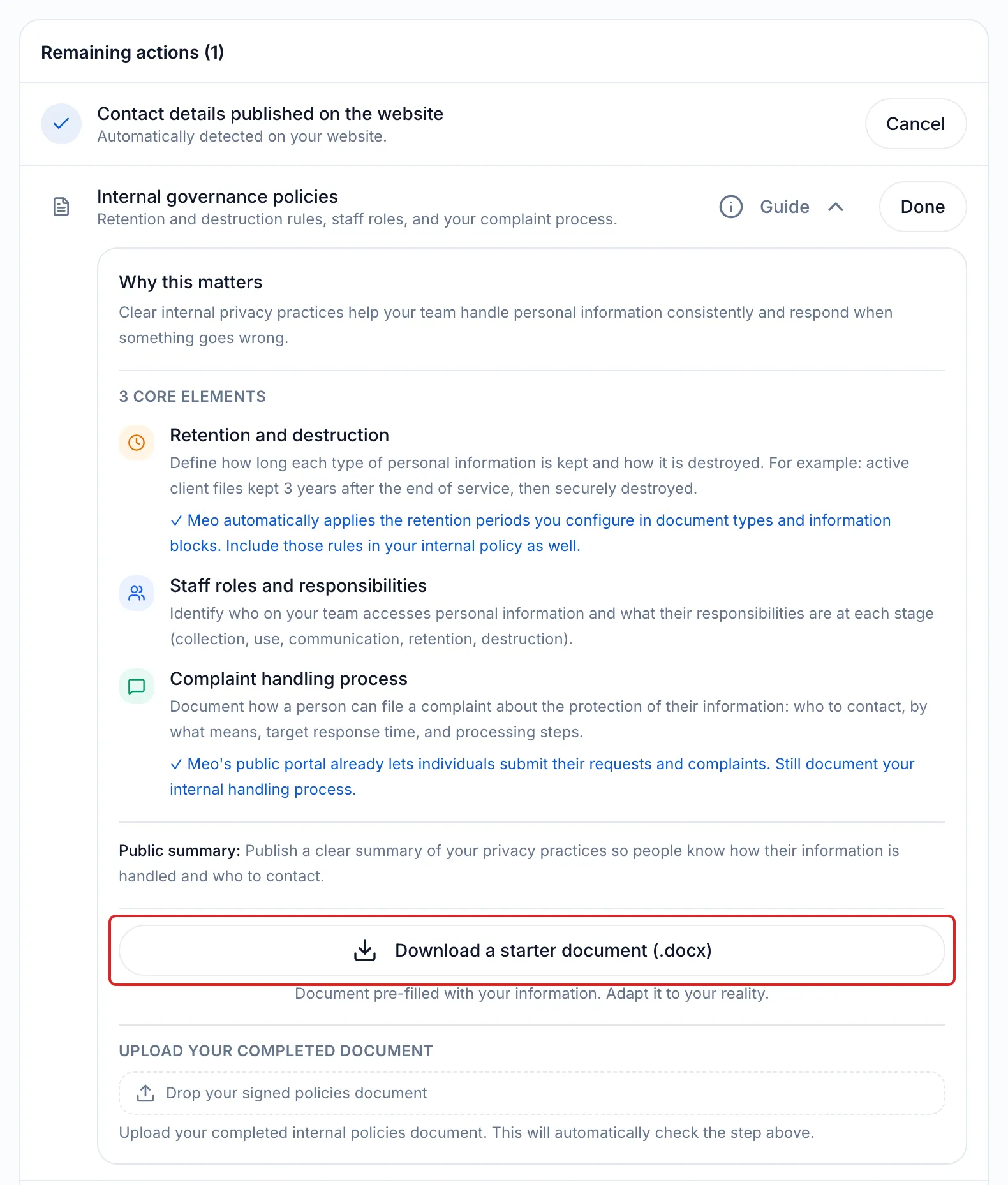
If your privacy officer is not the person who runs your organisation, you can drop the letter that gives them this role under Written delegation (optional).
Activate your registers
Section titled “Activate your registers”-
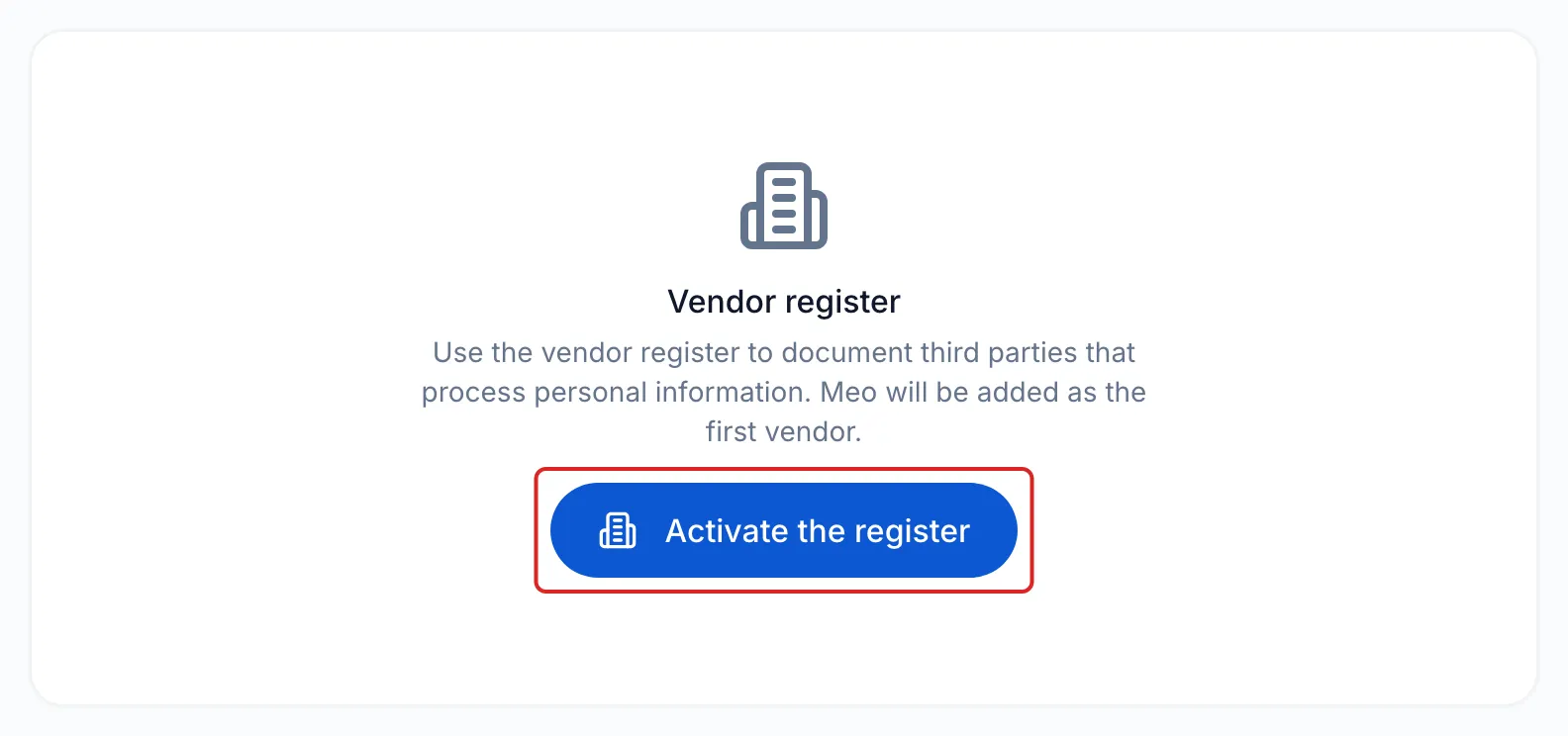
Go back to Privacy, click Service provider register, then Activate the register. meo adds itself as the first vendor, with its assessment. Click Add to list your other vendors.
-
Click Incident management, then Activate the register. Do the same in Requests and rights.
Result
Section titled “Result”Your tools are in place. Once all these steps are complete, the Public privacy portal card, at the bottom of the Privacy page, offers Activate.
Frequently asked questions
Section titled “Frequently asked questions”- Is compliance managed at the organisation level or for each space?
- Which vendors should you list in the subcontractor register?
- What does the analysis of your privacy policy check?
- Is meo enough to make your organisation compliant?