
Secure your account
The Security page of your settings brings together the protection of your meo account. Each person sets it up for their own account. To open it, click Settings, at the bottom of the left menu, then Security, under Account.
Turn on two-factor authentication
Section titled “Turn on two-factor authentication”-
Under Two-factor authentication, click Enable 2FA.
-
If you like, type an App name, for example “My iPhone”, then click Continue.
-
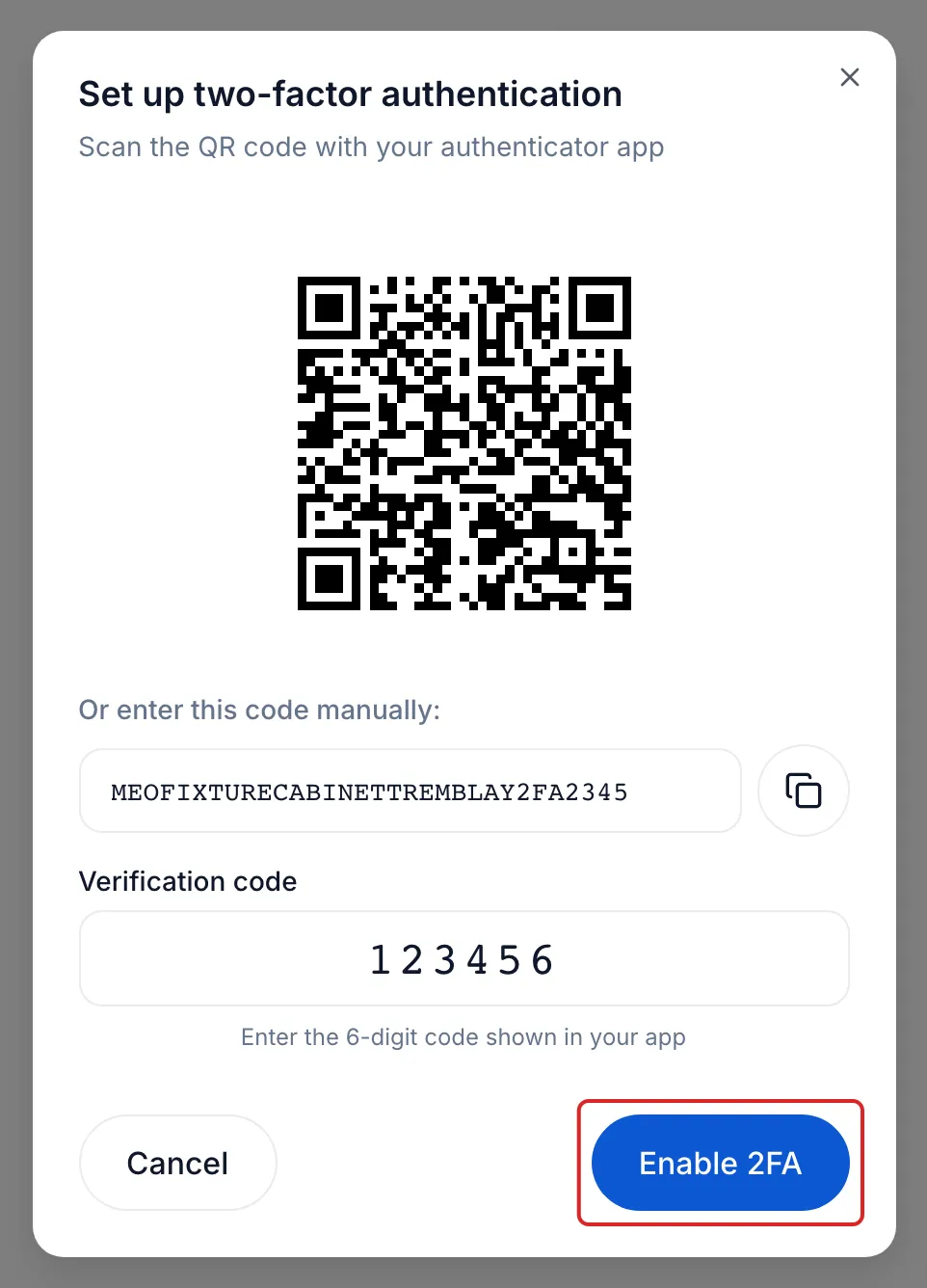
With your authenticator app, such as Google Authenticator, 1Password or Authy, scan the QR code. If you cannot scan it, enter in the app the code shown under the QR code.
-
Under Verification code, type the 6-digit code the app shows, then click Enable 2FA. Your other devices will need to sign in again.
From then on, meo asks for the code from your app at every sign-in. To turn 2FA off, click Delete, next to the app, type your current password and a code, then click Disable 2FA.
Add a passkey
Section titled “Add a passkey”A passkey signs you in without a password, with Face ID, Touch ID, Windows Hello or a security key. Under Passkeys, click Add a passkey, then follow your device’s window. At sign-in, click the Sign in with a passkey button, the fingerprint icon. A passkey speeds up sign-in; if 2FA is on, meo still asks for its code.
Change your password
Section titled “Change your password”-
Under Password, click Change password.
-
Type your Current password, then the New password twice. It must have at least 8 characters, including an uppercase letter, a lowercase letter, a digit and a symbol. meo refuses a password already exposed in a data breach.
-
Click Change password. Your other devices are signed out; this one stays signed in.
Keep an eye on your sessions and devices
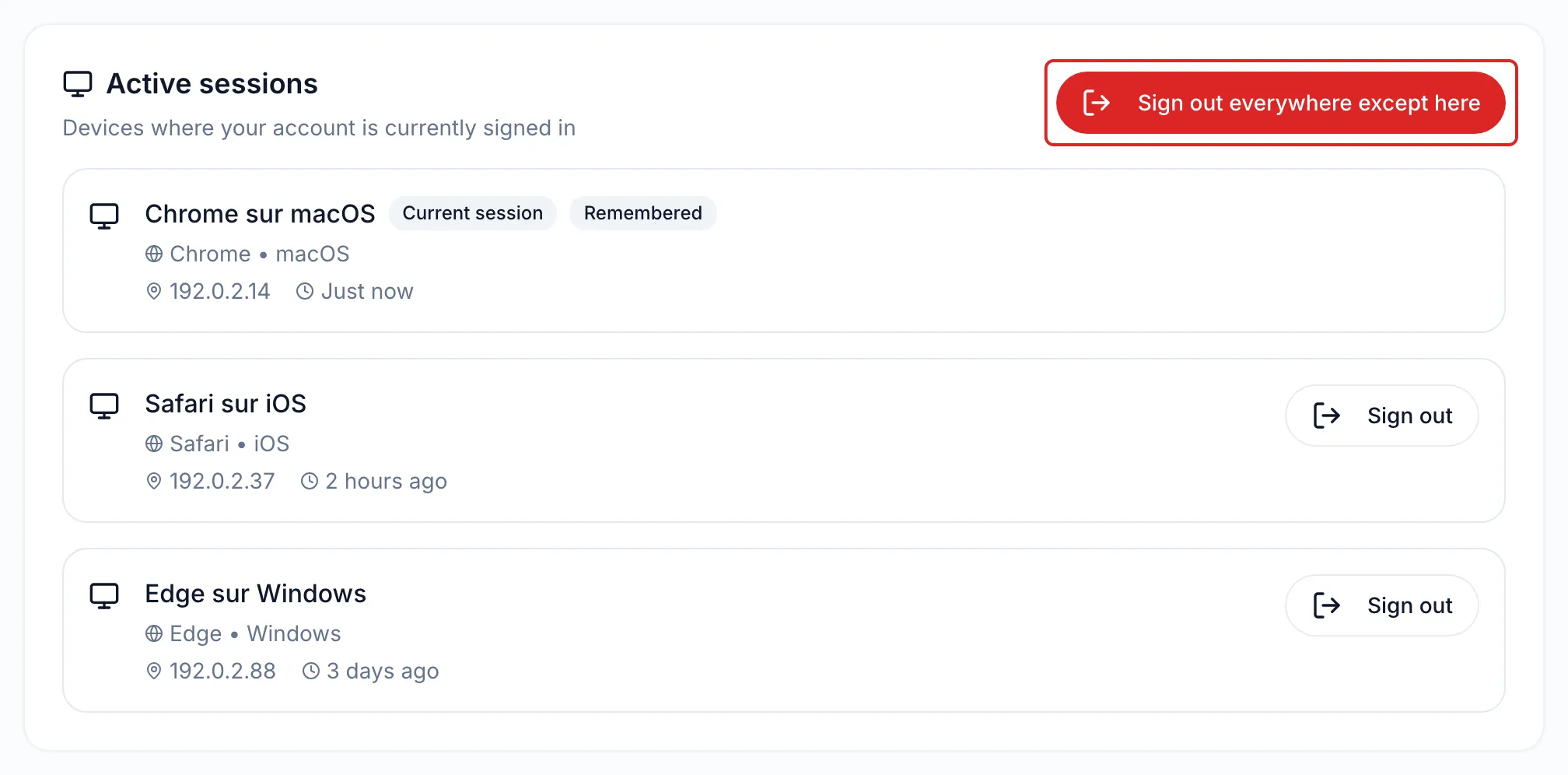
Section titled “Keep an eye on your sessions and devices”- Active sessions lists each device where your account is signed in, with its browser, its IP address and its last activity. Current session marks the one you are using; Remembered, a session opened with Stay signed in on this device. Click Sign out to close a session, or Sign out everywhere except here to close all the others. The device is signed out as soon as it is used again.
- Recognized devices lists the browsers known to your account, for 90 days after their first sign-in. A sign-in from a new device sends you a “New sign-in from…” email, with the Manage my devices button. If that sign-in was not you, change your password and close the session. Remove makes meo forget a device: its next sign-in will trigger a new alert.
Result
Section titled “Result”Your account asks for a code on top of the password, and you know where it is signed in.
Frequently asked questions
Section titled “Frequently asked questions”- Is two-factor authentication available?
- After how long of inactivity does meo sign you out?
- Can you access meo from abroad?
- Can you sign in to meo with your Google account?
See also
Section titled “See also”- Understand the left menu
- Security, privacy and Law 25, for Canada’s privacy laws, including Quebec’s Law 25, the most demanding, which meo is built to meet