
Move a user to another space
A user’s spaces are set with checkboxes. There is nothing to send and nothing to accept: the person gains or loses access as soon as you check or uncheck a space.
Before you start
Section titled “Before you start”- You need organisation access, as the owner or an administrator. The checkboxes are on the organisation’s Users page.
- You can only change users whose role is lower than your own.
Move a person to another space
Section titled “Move a person to another space”-
Click Settings at the bottom of the left menu, then Users in the organisation section.
-
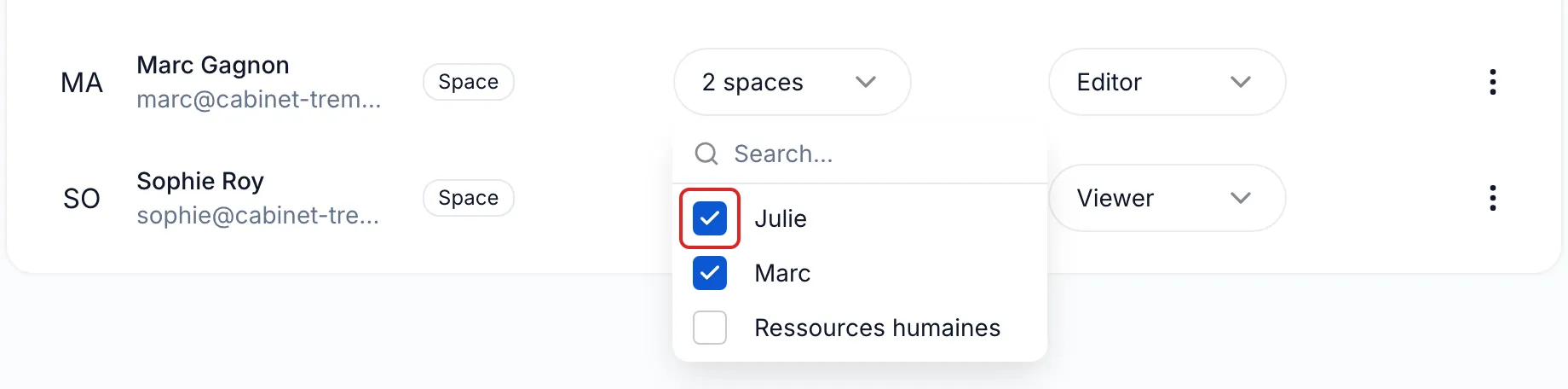
Find the person. Their Scope column shows Space. In the Spaces column, click the button that shows their space, or their number of spaces.

-
Check the new space. meo saves right away and shows “Spaces updated”.
-
To remove the old space, uncheck it.
Result
Section titled “Result”The person has access to the new space, with the role shown in their Role column.
Good to know
Section titled “Good to know”- If the person is signed in, the new space appears in their menu once they reload the page.
- Contacts, documents and requests belong to the space, not to the person. They stay in the old space. For a colleague to take them over, check that space for the colleague.
- The same method covers a temporary replacement: while an advisor is on holiday, check her space for a colleague, then uncheck it when she returns.
Special cases
Section titled “Special cases”- Organization scope: the Spaces column shows All and has no checkboxes. To limit this person to some spaces, use Demote to space in the ⋮ menu. See Organisation access or space access.
- Greyed-out space: you do not manage this space. The message “You do not manage this space” appears on hover.
Frequently asked questions
Section titled “Frequently asked questions”- What happens when an employee leaves your business?
- Can you merge two spaces?
- Does a person invited into one space see the other spaces?