
Create a reusable signature document
A signature document saved in the catalogue keeps its PDF, its fields and its roles, one per person who signs. You then add it to any request, and meo matches each role to a person on the request. Its fields can also be used on another PDF.
Before you start
Section titled “Before you start”Only the owner and administrators save items in the catalogue. Saved in the Organization, the document is offered in all your spaces; in a Space, it stays in that space.
Create the document in the catalogue
Section titled “Create the document in the catalogue”-
Click Settings at the bottom of the left menu, then Catalogue in the Organization or Space section.
-
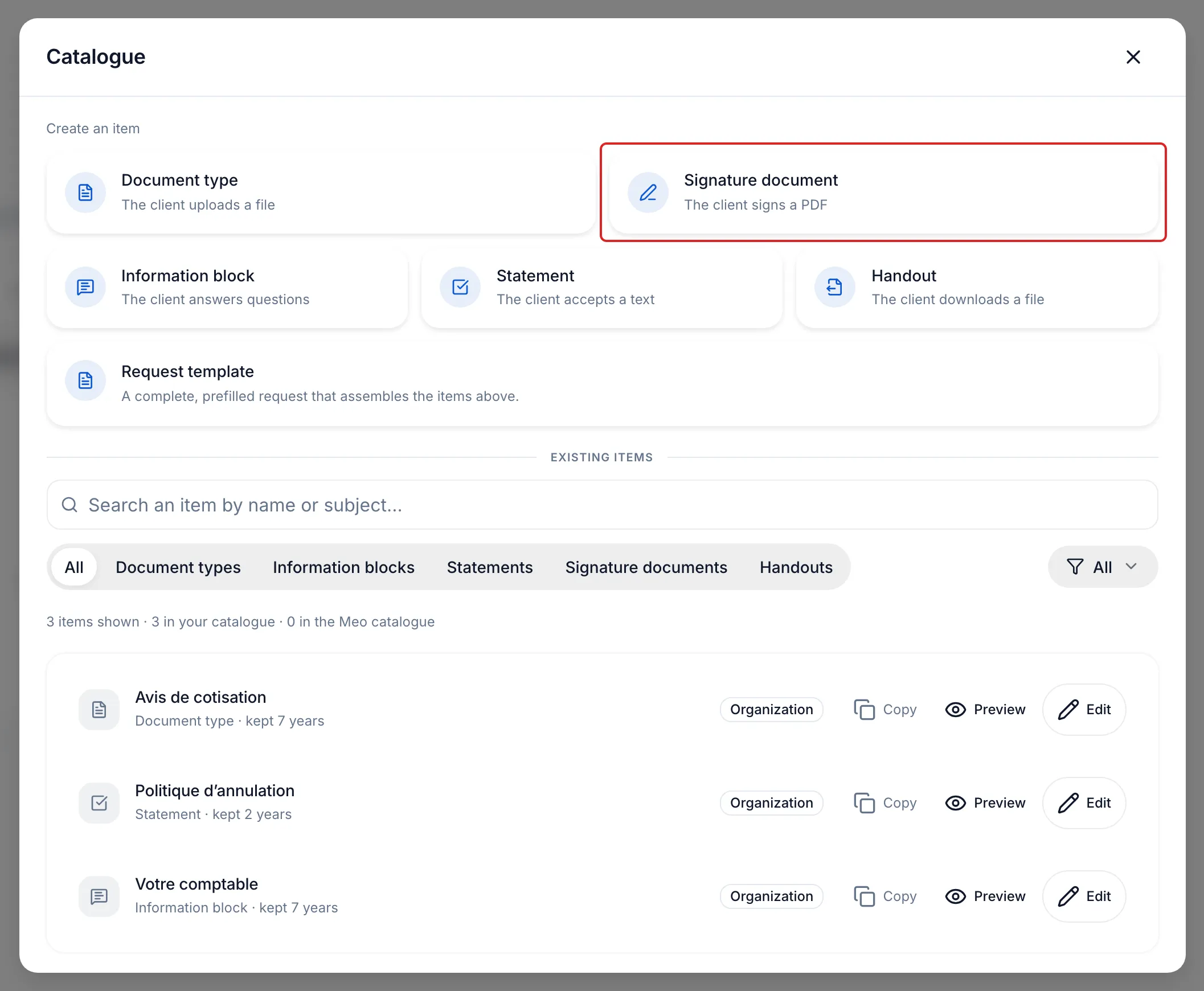
Click Manage elements, then Add an item. Under Create an item, click the Signature document tile.
-
Enter the Signature document name and, if useful, Instructions (optional). Under PDF document, add your file.
-
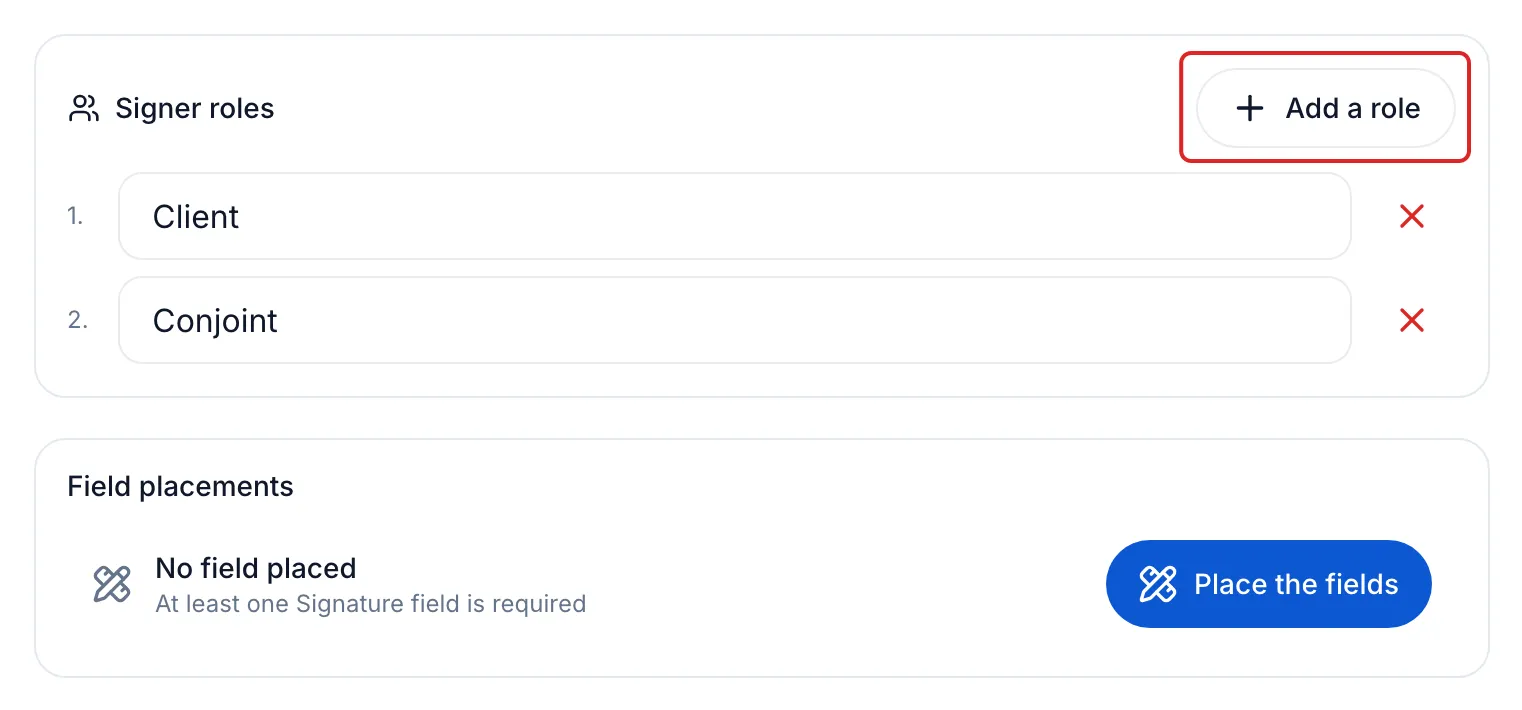
Under Signer roles, Signer 1 is already there. Click Add a role for each other person who signs, up to five. Rename the roles if needed, for example “Client” and “Spouse”.
-
Under Field placements, click Place the fields. With several roles, choose under Place fields for the role to prepare, then place its fields. Click Save in the editor, then Save.
meo shows “Item saved”. You can also save a document prepared in a request: turn on Save to the catalogue, then click Add and save. Each person who has fields becomes a role: Signer 1, Signer 2, and so on.
Use it in a request
Section titled “Use it in a request”-
In the Request contents card, click Add an item. Choose the Signature documents filter, click Add next to the document, then the button at the bottom.
-
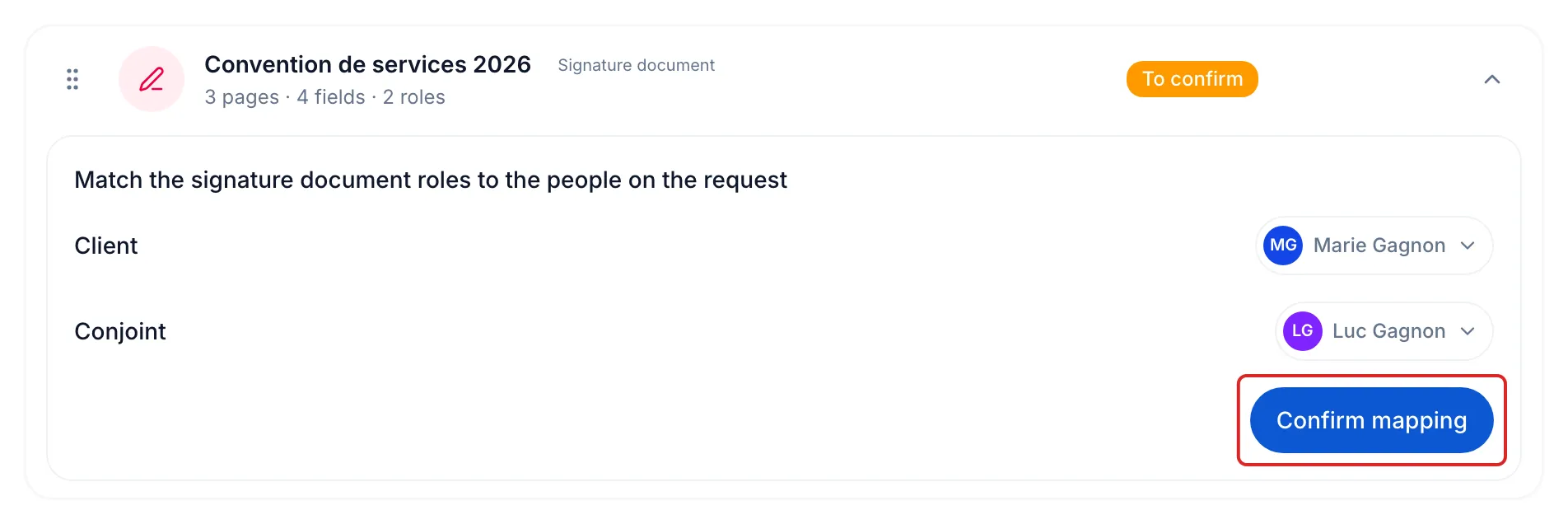
With a single role, meo assigns it to the first person in the Participants card. With several roles, the document’s row shows Match the signature document roles to the people on the request. Check the person suggested for each role, then click Confirm mapping.
Reuse its fields on another PDF
Section titled “Reuse its fields on another PDF”For a PDF uploaded in this request, you can take the fields of a signature document from the catalogue instead of placing them again.
-
Add your PDF with the Signature document tile. A Signature field is required to add it; it will be replaced.
-
In Request contents, expand the document’s row, then click Apply a template’s layout. Choose the signature document from the catalogue.
-
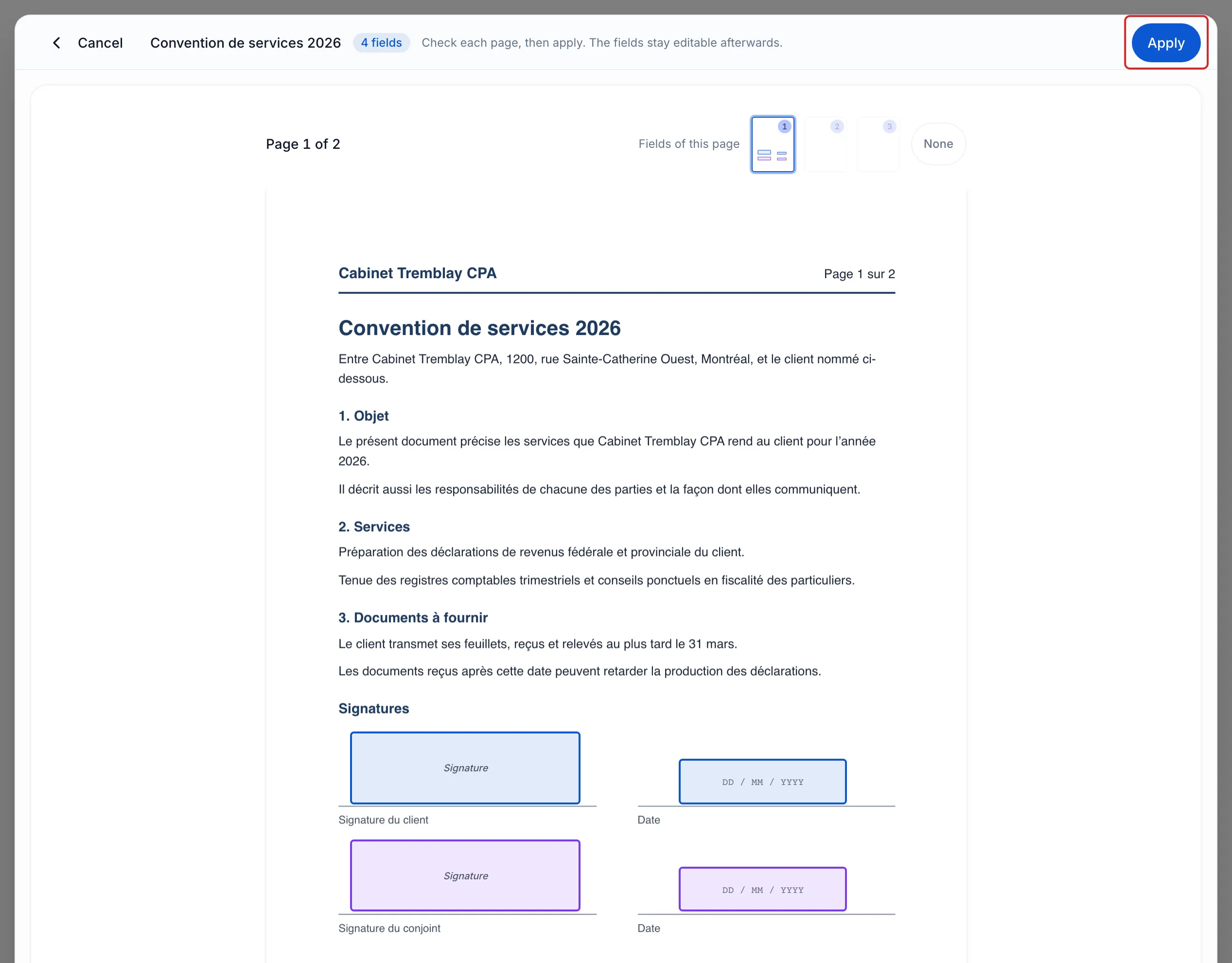
meo lays its fields page by page. Above each page, under Fields of this page, check the page chosen or click None. Click Apply.
-
With several roles, confirm how the roles are matched to people. Then adjust if needed with Edit fields.
The fields keep their position on the page: check them if your PDF has a different layout.
Good to know
Section titled “Good to know”- Edit fields in a request changes that request only. The catalogue document does not change.
- In the catalogue, a change applies to future requests. The PDF cannot be replaced: to use another one, create a new signature document.
- In a request template, the document keeps its roles; you choose the people when you create the request. See Create a request template.