
Check who has access to each space
meo offers two views: the organisation list, which shows each person’s spaces, and a space’s list, which shows everyone who has access to it.
For the whole organisation
Section titled “For the whole organisation”This view is reserved for users with organisation access.
-
Click Settings at the bottom of the left menu, then Users in the organisation section.
-
Read the columns on each row:
- Scope: Organization or Space.
- Spaces: All for the Organization scope; otherwise, the name of the space or the number of spaces.
- Role: Owner, Administrator, Editor or Viewer.
-
To see the spaces of a person who has several, click the button in their Spaces column. The checked spaces are theirs.
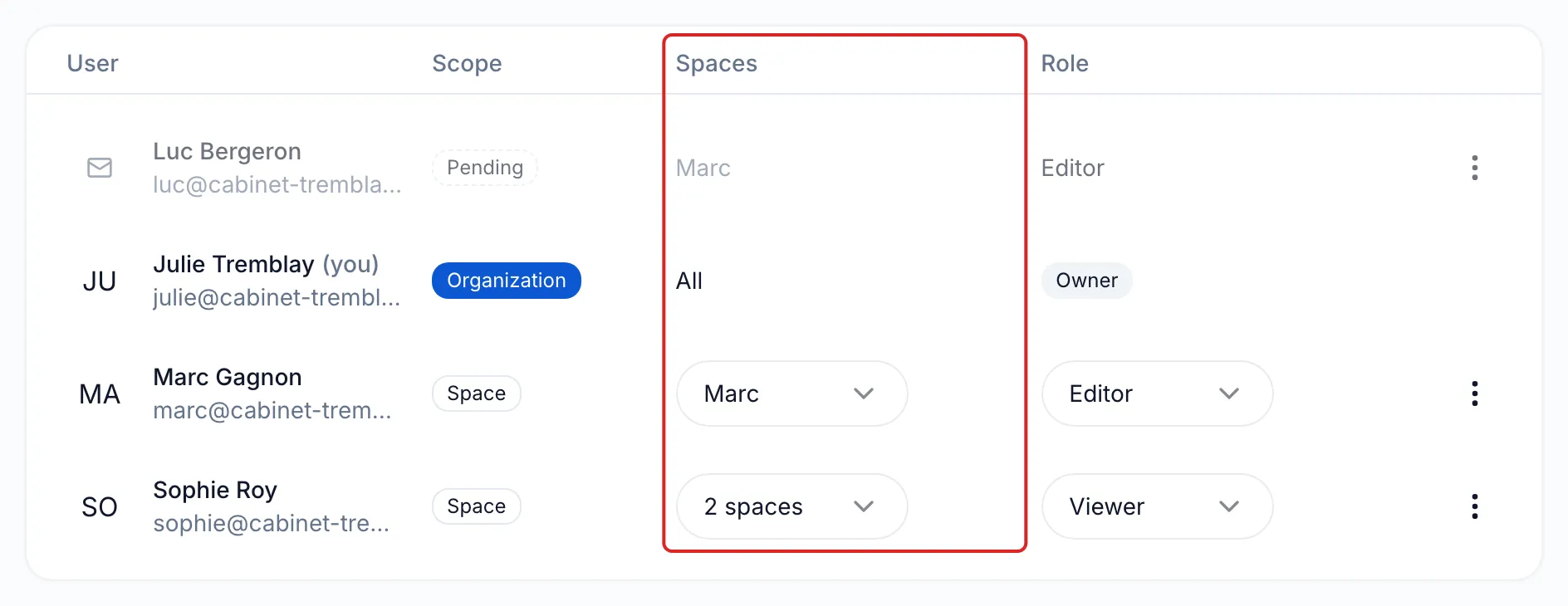
Invitations that have not been accepted yet appear at the top of the list, marked Pending or Expired.
For a single space
Section titled “For a single space”Every member of a space can see this list.
-
If you have access to several spaces, select the space in the space menu at the top left.
-
Click Settings at the bottom of the left menu, then Users in the space section.
-
The list shows everyone who has access to this space, including people with the Organization scope.
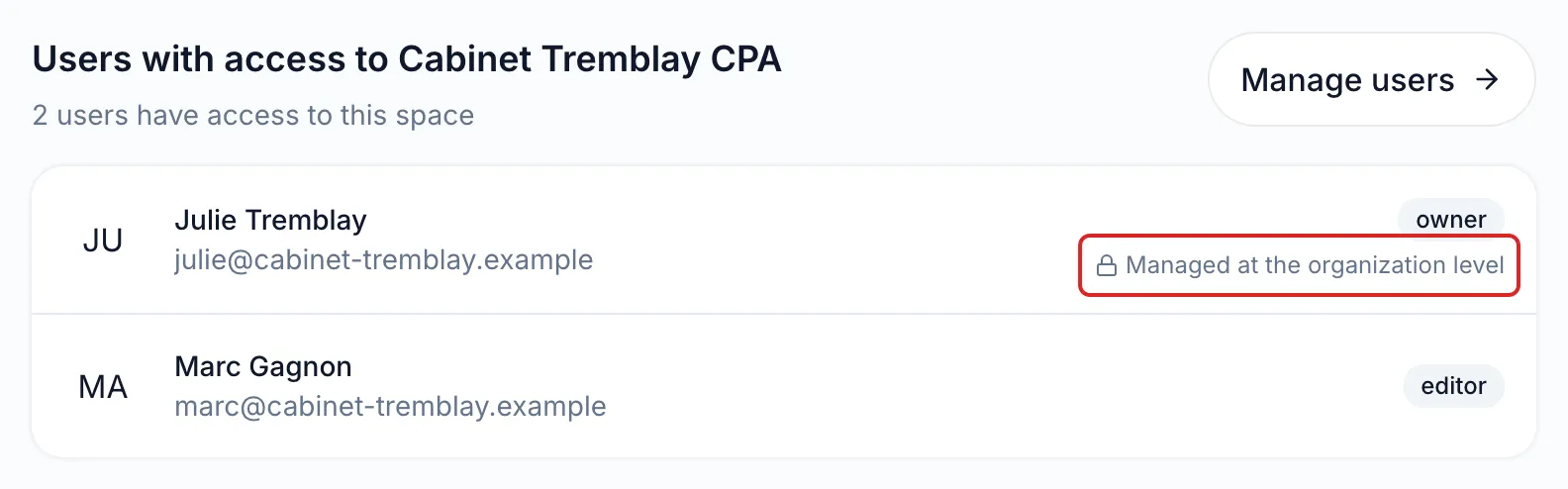
You also find a summary in the Users tab of the space’s General page. It shows how many people have access; those with the Organization scope are marked Managed at the organization level.
Result
Section titled “Result”You know who sees each space and you can fix an access with Move a user to another space.
Frequently asked questions
Section titled “Frequently asked questions”- Does a person invited into one space see the other spaces?
- Do members of the same space see all of its content?
- What happens when an employee leaves your business?