
Answer a request
A firm sent you a request through meo to receive your documents securely. There is no account to create and no app to install.
Answer
Section titled “Answer”-
Open the email or text message of the request and click View my request or the link.
-
Click Sign in, then By email or By text message.
-
Enter the code you received and click Verify. The code expires after 10 minutes.
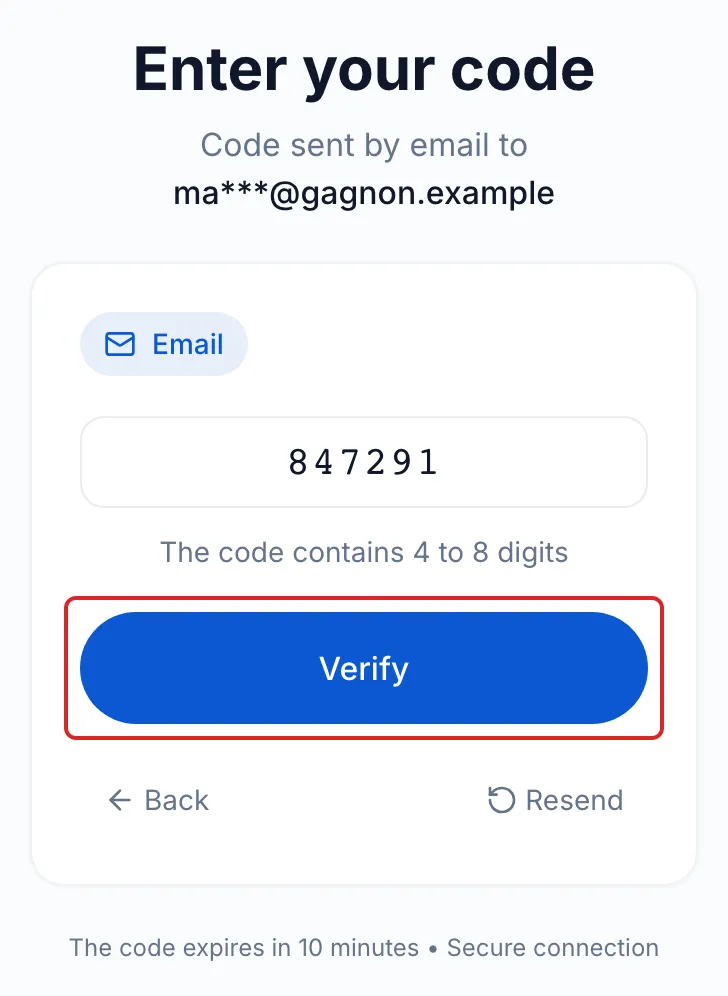
-
Read the consent, tick the box and click Accept and continue.
-
Provide each item: upload your files, answer the questions and, if needed, click Sign, then Finish.
-
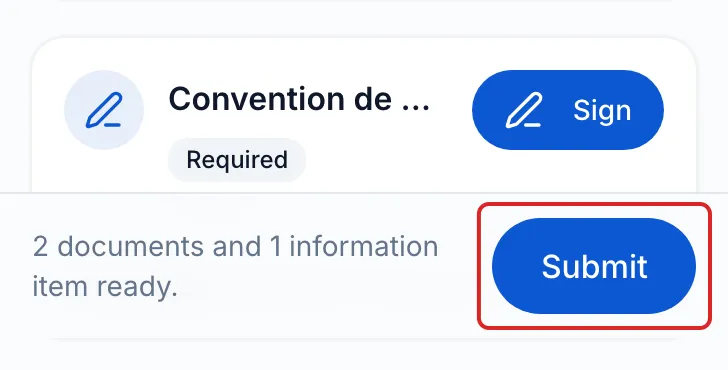
Click Submit, then Submit again to confirm. You can submit what is ready and come back for the rest.
The code does not arrive
Section titled “The code does not arrive”- Look in your junk mail: the code comes from “Documents Meo” and the email’s subject starts with the code.
- Wait a minute, then click Resend. Always use the last code you received.
- If the address or number shown is not the right one, write to the firm: they are the ones who can correct it.
The screen disappears
Section titled “The screen disappears”On a phone, the page can close when you go to read your code. Reopen the request link: as long as your code is valid, you go straight back to the Enter your code screen. Enter the code on that screen; do not send it back by email. If the page keeps closing, open the link in your phone’s browser, such as Safari or Chrome.
Come back later
Section titled “Come back later”Your progress is saved as you go. Close the page whenever you like: come back with the same link and a new code, then click Resume. What you have not submitted is kept for 30 days. After 30 minutes without activity, meo signs you out for your security; click Sign in again to continue.
To read the portal in French, click FR at the top of the screen.
A question?
Section titled “A question?”Write to the firm that sent you the request: reply to its email, or use the address shown under its name when the portal opens. They are the ones who can change the request, your email address or your phone number.