
Organise your contacts
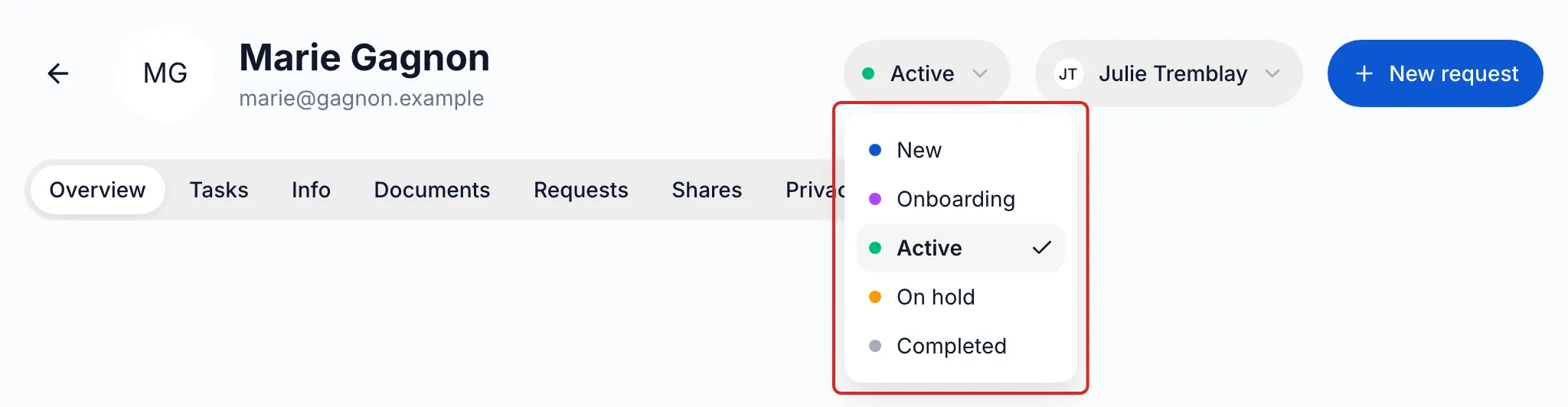
A contact’s record opens from the Contacts page. Its header shows their status and their owner; seven tabs follow: Overview, Tasks, Info, Documents, Requests, Shares and Privacy. What you set here sorts the contact list and stays within your team: your client does not see it.
Classify the contact
Section titled “Classify the contact”-
In the record’s header, next to the name, open the status menu and choose one of the five values: New (the value of a new contact), Onboarding, Active, On hold or Completed. The change is saved at once.
-
Right next to it, open the Owner menu (Unassigned at first) and choose a member of the space. A task created from the record is assigned to them by default. When you reopen the record, this menu reads Owner; the owner’s name shows in it as soon as you open the menu.
-
In the Overview tab, Tags card, click + Tag. Choose an existing tag or, under Search or create…, type a new name, choose a Color and click Create ”…”. A tag’s × removes it from the contact.
Tags belong to the space: every member finds them for their other contacts. The status triggers nothing on its own; it shows where the relationship stands.
Keep the details up to date
Section titled “Keep the details up to date”In the Overview tab, Contact details card, click Edit. Correct the name, email, phone, company, address or Internal notes, then click Save. The language of the emails is chosen in the Communication language card.
If your client, when answering a request, enters an email or a phone number different from the one on their contact page, meo does not replace the saved value: the Submitted contact details to review panel shows at the top of the Contact details card, with the old value and the new one. Click Update to keep the new one, or Ignore.
Keep notes for your team
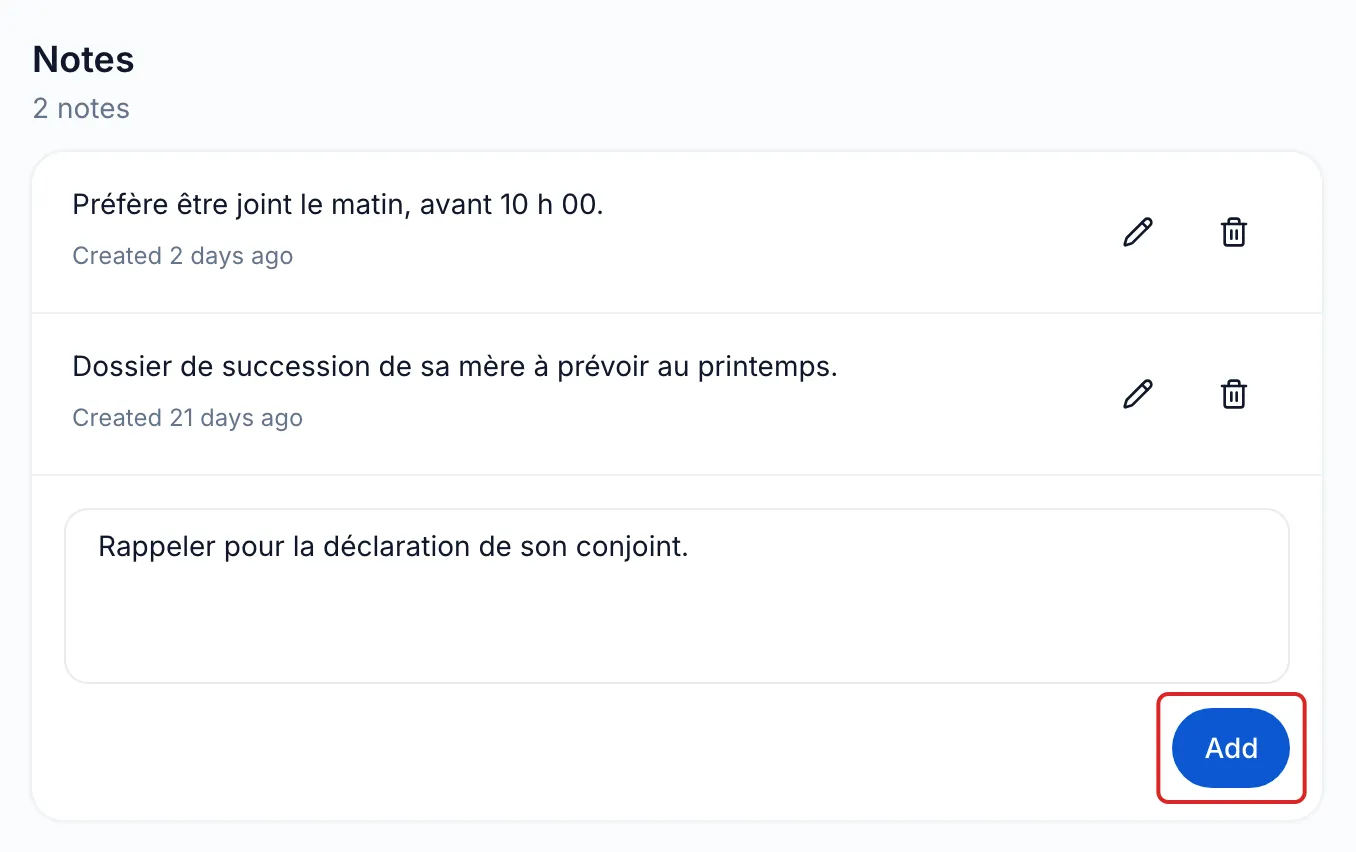
Section titled “Keep notes for your team”In the Overview tab, Notes section, write in Add an internal note…, then click Add. Each note shows when it was created. The pencil icon edits it, the bin deletes it after a confirmation. Your team reads the notes in the same place; your client never sees them.
Sort the contact list
Section titled “Sort the contact list”On the Contacts page, open the filter above the list. Choose the Display (Active, Anonymized or All), a Status, an Owner (or No owner) or Tags, then click Close. Reset removes the filters.
Result
Section titled “Result”Your contacts are organised your way, and the list shows in a few clicks those of an owner, a status or a tag.
If the menus are greyed out or Edit does not show, your role does not allow editing the contacts of this space.
Frequently asked questions
Section titled “Frequently asked questions”- How do you display encrypted information on a contact record?
- What is the difference between a note and a task?
- Can you enter yourself the information a client gives you by phone?
- Do your clients see your tasks or notes?