
What your client sees
Your client answers a request in the client portal, on their phone or their computer. There is no account and no password: a link, a one-time code, then a single page that gathers everything you are asking for. Here is each screen, in the order they see it. Each person on the request gets their own link and only sees what is assigned to them.
The invitation
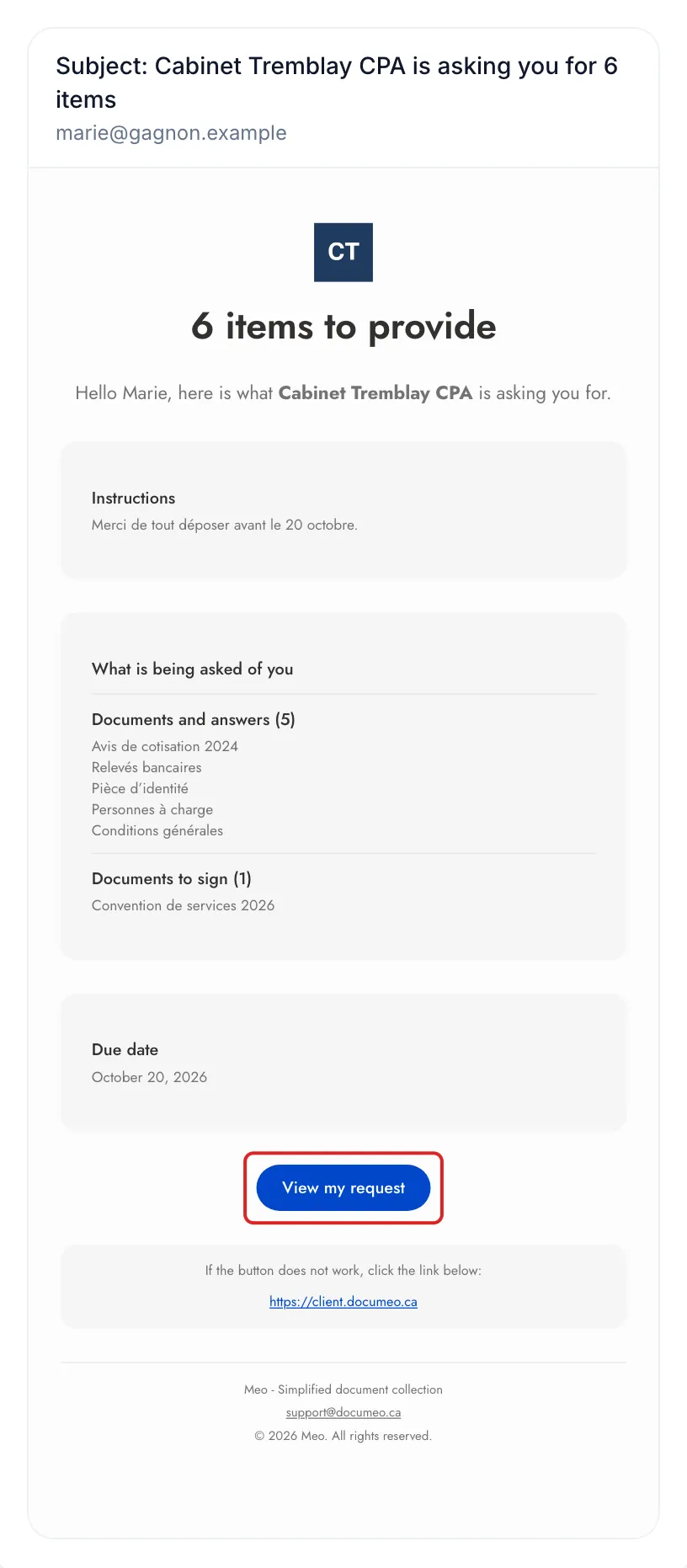
Section titled “The invitation”The email arrives in your space’s name: the sender shows its public name followed by “via Meo”, and your logo appears at the top. A headline gives the number of items to provide, for example “6 items to provide”, and the email’s subject repeats that number. Then come a greeting with the person’s first name, your instructions, the What is being asked of you list and the Due date. The View my request button opens the portal.
By text message, the text starts with the space’s public name and contains the link. Reminders follow the same pattern and list what is left.
The welcome page
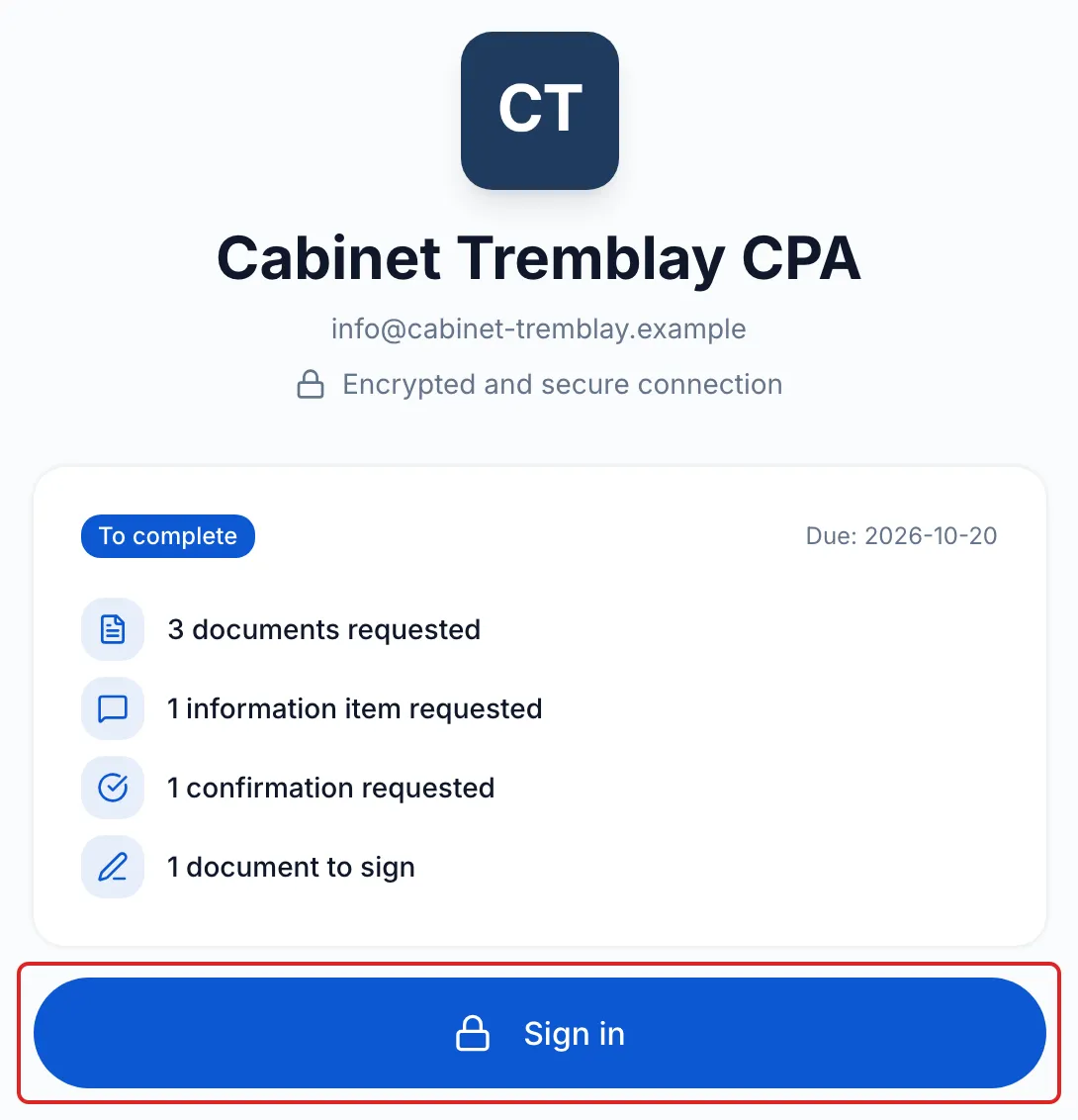
Section titled “The welcome page”The link opens a page with your branding: your logo, the space’s public name and email address. Your client sees the status of the request, such as To complete, the due date and the number of items per type, for example “3 documents requested”. The content of the request only appears after verification. They click Sign in.
The one-time code
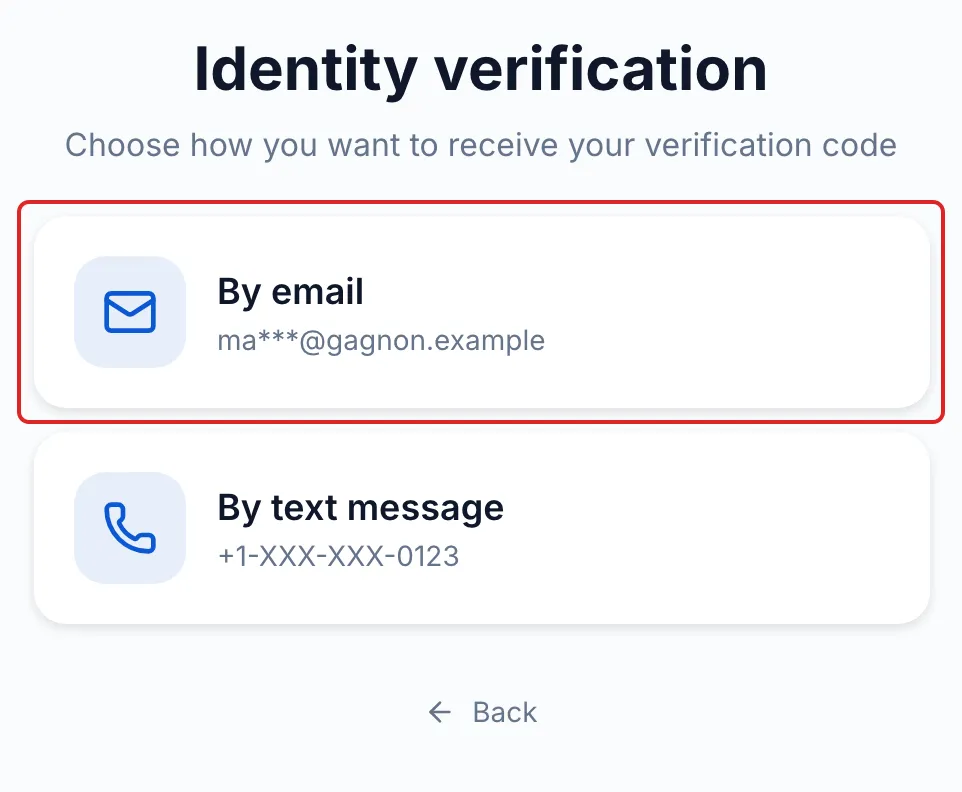
Section titled “The one-time code”On the Identity verification page, your client chooses By email or By text message. The text message option only appears if their contact has a phone number. The address and the number are partly masked.
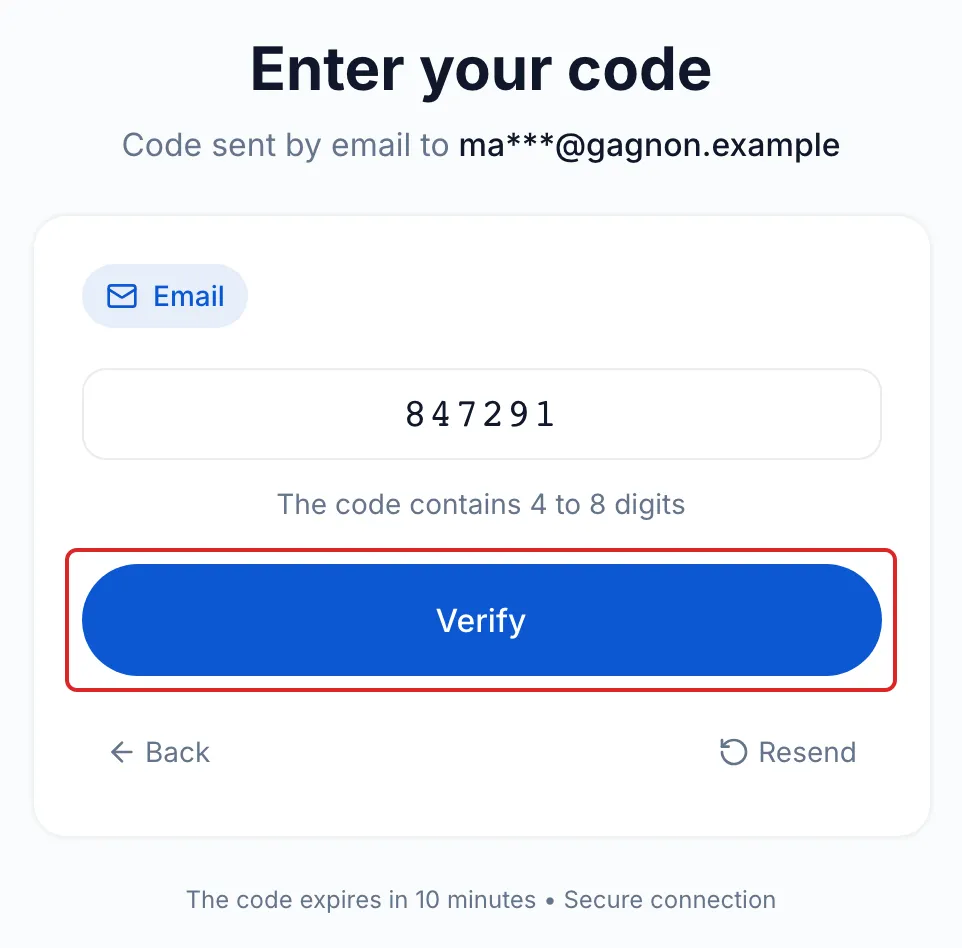
On the Enter your code screen, they enter the code they received and click Verify. The code expires after 10 minutes, and Resend sends a new one after a minute. By email, the code has 6 digits, the email’s subject starts with the code and each new code replaces the previous one.
On a phone, the page can close when your client goes to read their code. They then reopen the link: as long as the code is valid, meo takes them straight back to this screen.
The consent
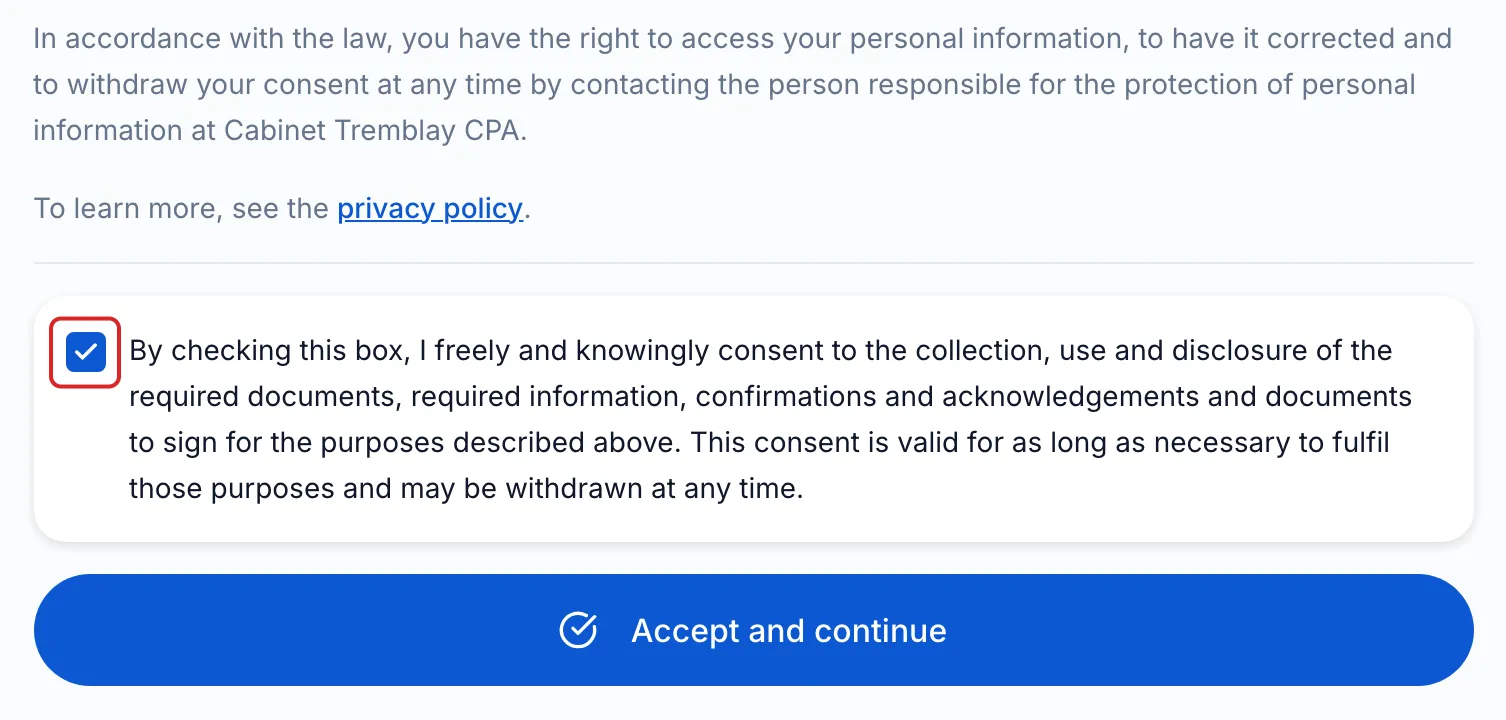
Section titled “The consent”At every visit, before seeing the request, your client reads a consent: your space’s public name, your Request purpose, each requested item with its retention period, then their rights. They tick the box and click Accept and continue. In the request’s history, you see “Gave their consent”.
The request page
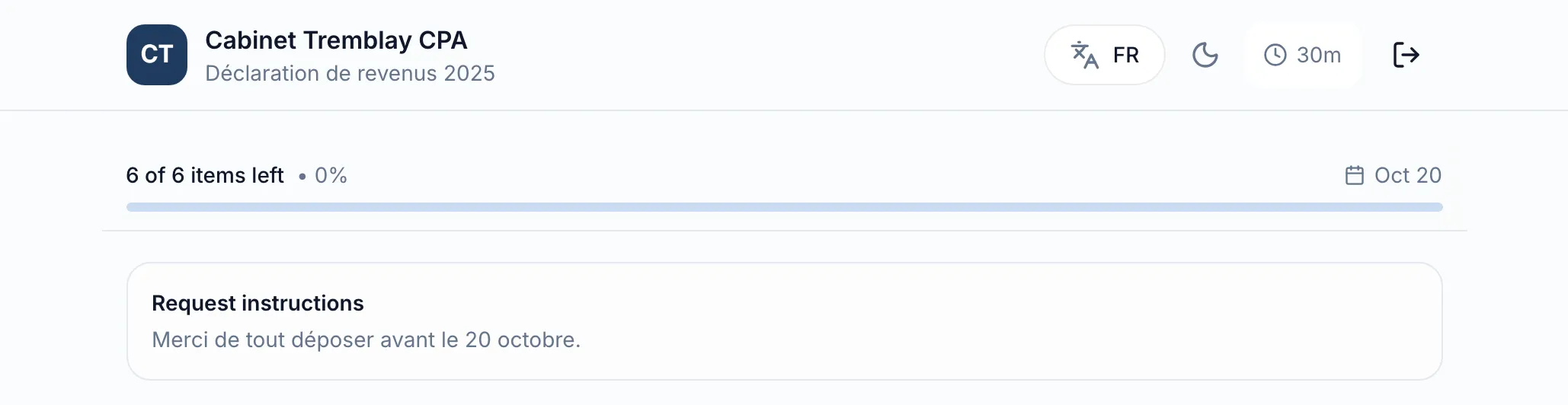
Section titled “The request page”At the top, your logo, the space’s public name and the request title. Below, a summary of what is left with the due date, then your instructions and the items to provide. The documents you hand over are under Documents for you. Completed items fold into a group they can show.
Progress is saved as they go. After 30 minutes without activity, meo signs your client out for their security; the Your session is about to expire notice first offers Extend session.
Upload a document
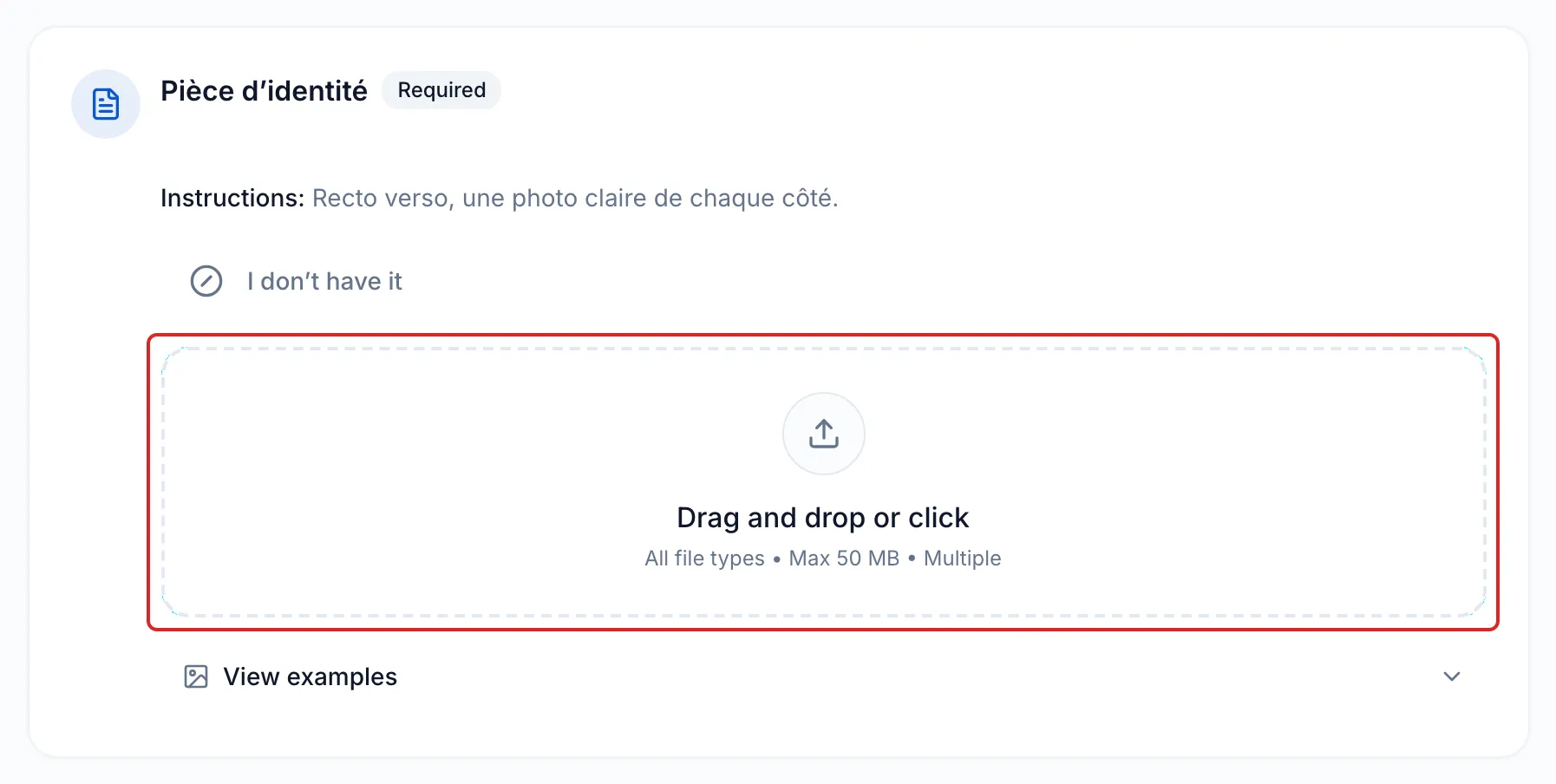
Section titled “Upload a document”Each requested document has its card: its name, the Required or Optional label, your instructions and, if any, View examples. Your client drags their files into the Drag and drop or click area, or clicks to choose them; the area shows the accepted formats and the maximum size. When the option is offered, I don’t have it lets them say they do not have the document, with an optional note.
Answer an information block
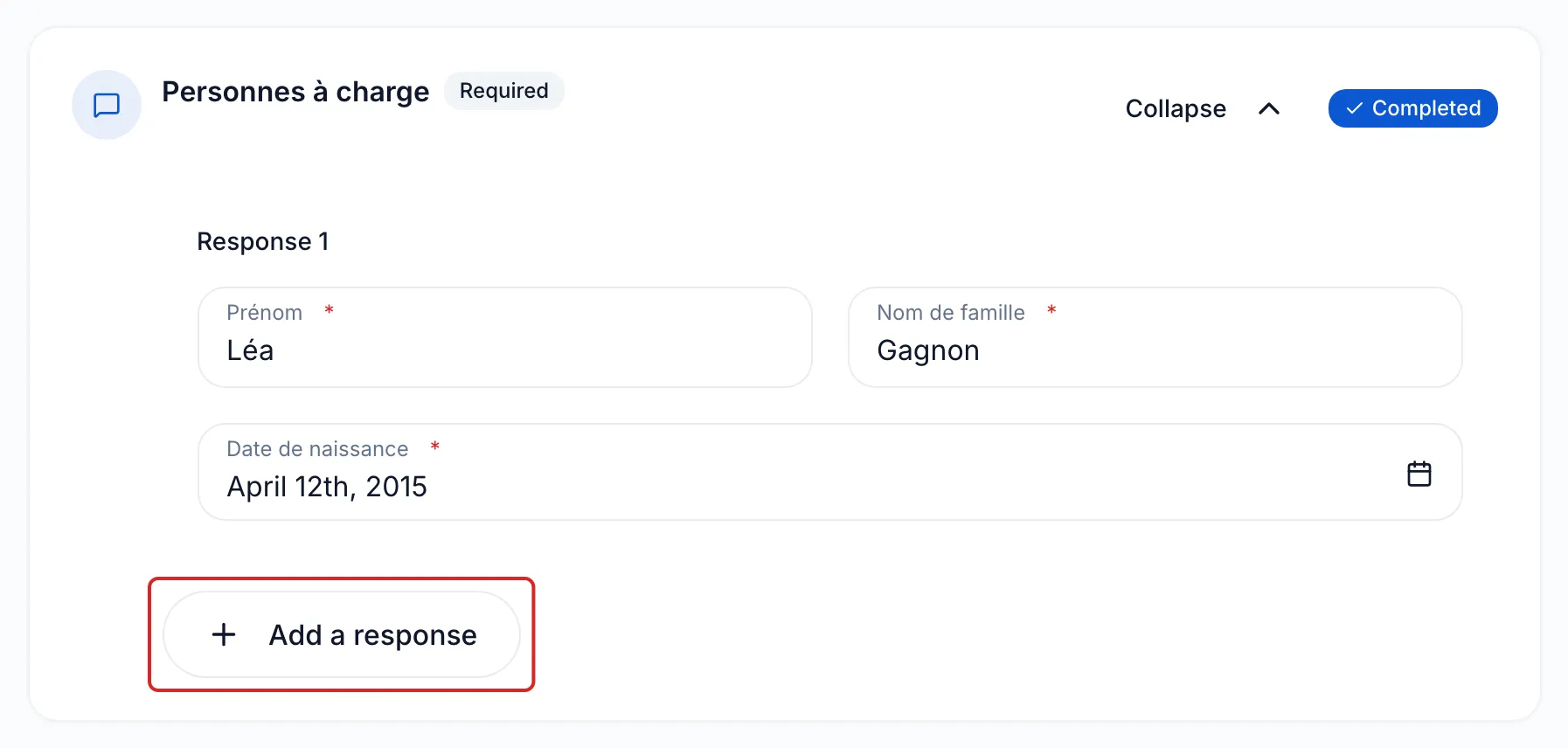
Section titled “Answer an information block”An information block shows your questions as fields. Once the required fields are filled in, the card shows Completed: Collapse folds the block, and Edit opens it again to go back to the answers. If the block accepts Multiple responses, your client clicks Add a response for each person concerned.
Accept a statement
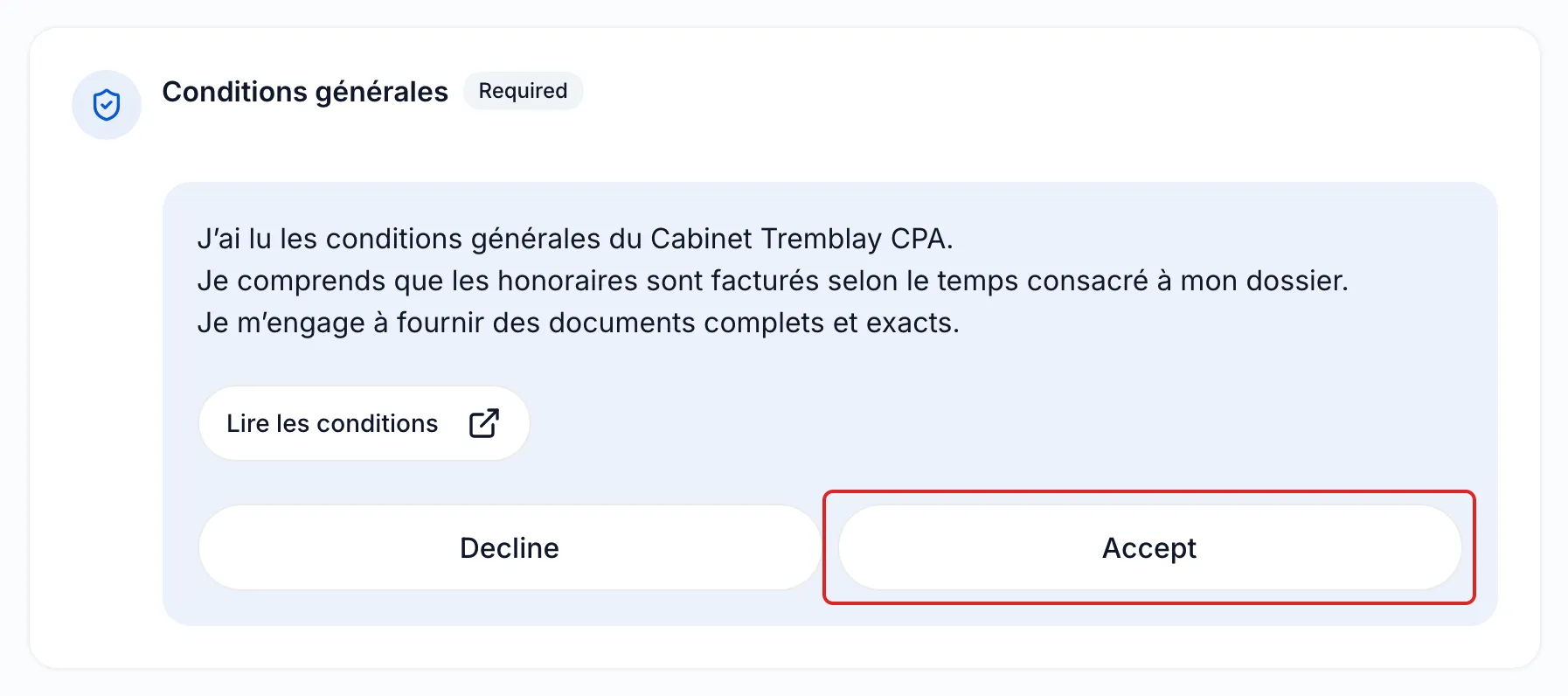
Section titled “Accept a statement”Your client reads the text of the statement and opens your link if there is one. Depending on your setting, they tick a box, click Accept or Decline, or Yes or No, then confirm in the Confirm your choice window. Their answer goes with the rest, when they submit.
Sign a document
Section titled “Sign a document”A signature document carries the To sign label and the Sign button. The document opens over the page: your client accepts the Electronic Signature Terms, fills in their fields, adopts their signature and clicks Finish. The signature is recorded right away, without waiting for the submission. When signatures happen one after the other, the card shows “Waiting for” followed by the name of the previous person. See what the person who signs sees.

Submit, even with items left
Section titled “Submit, even with items left”The bar at the bottom shows what is ready. Your client clicks Submit as soon as they have something to send: they do not need to have provided everything. The Confirm submission window sums up what they are sending and says that their visit ends after sending and that they can come back with the same link. If they still have a document to sign or a handout to download, the window tells them. They click Submit again.
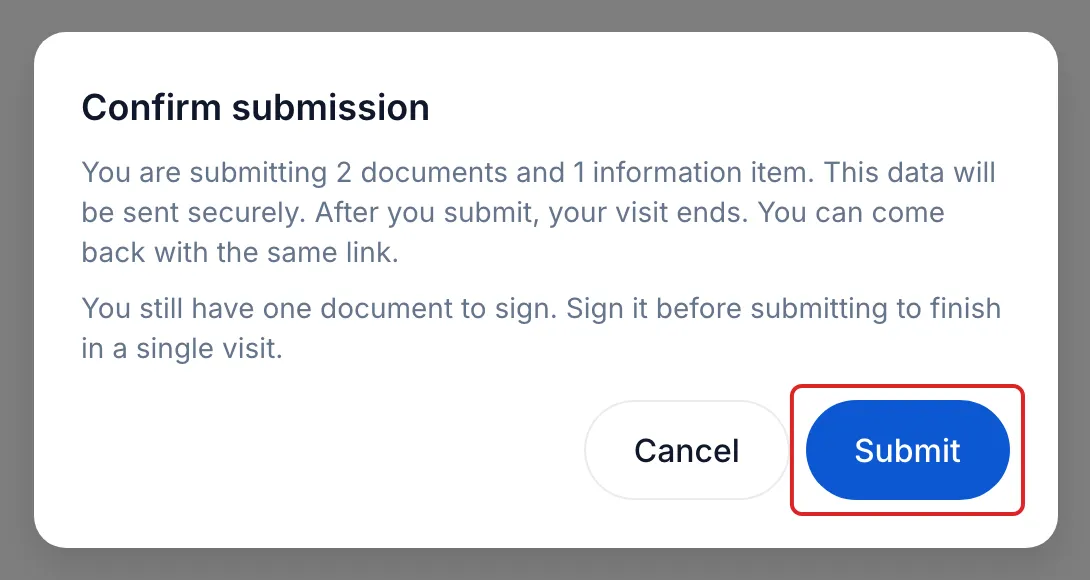
If you added items during their visit, the window shows “New items have been requested” instead. A block that was started but is incomplete blocks the submission until its required fields are filled in.
After the submission
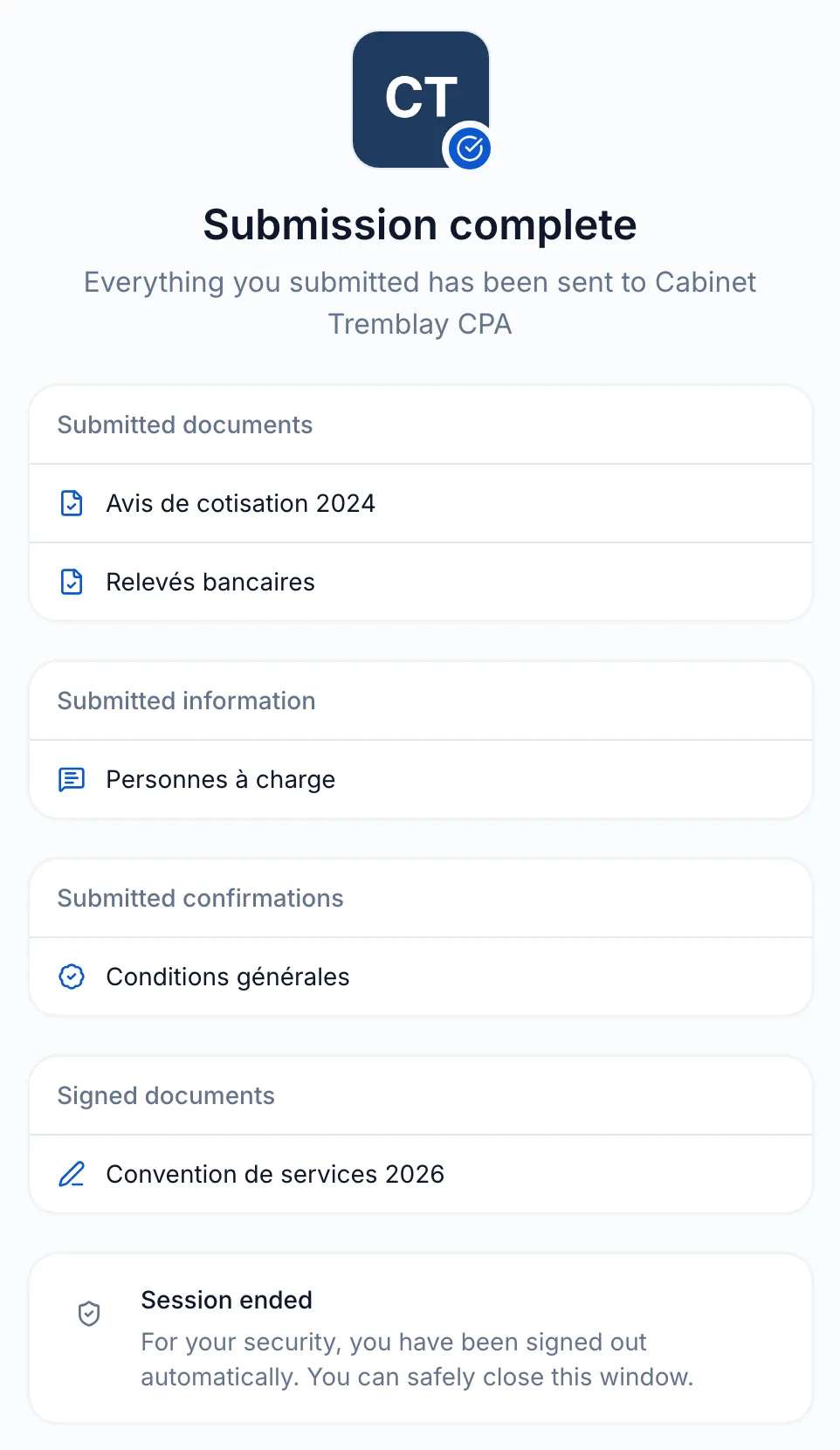
Section titled “After the submission”A confirmation page, with your logo, says for example “Everything you submitted has been sent to” followed by the space’s public name. It lists what was sent by type (documents, information, confirmations, signed documents), then says the session has ended. Your client also receives a “Confirmation - ” email followed by the same name, summing up everything you have received for their request. What they did not provide is still to do, and the request’s automatic reminders only cover what is left.
Come back and view a finished request
Section titled “Come back and view a finished request”Your client comes back with the same link and a new code. While the request is open, they find their completed items and provide the rest. What they had prepared without submitting is kept for 30 days: they get it back with Resume.
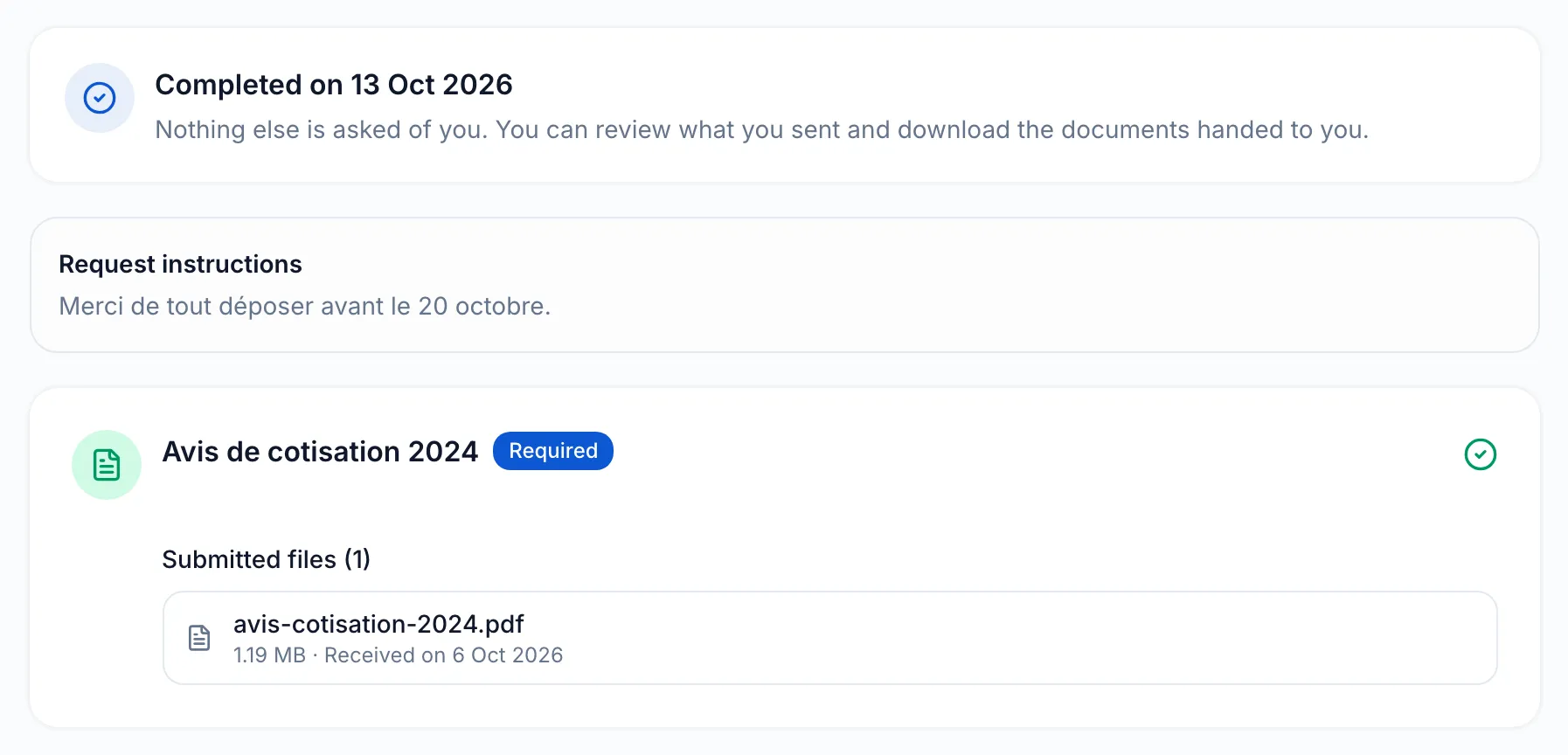
When the request is completed, the same link opens it read-only: “Completed on” followed by the date, your instructions, then each item as it was received. Your client sees the names of their files and the date they were received, without being able to open them again; their answers are shown as sent, without their content. They can download the signed documents and the documents you handed over. A request closed without being completed appears the same way, under “This request is no longer active”. A cancelled request no longer opens.
Frequently asked questions
Section titled “Frequently asked questions”- How does your client receive their verification code?
- Can your client come back later to finish their request?
- Can your client review their past requests?
See also
Section titled “See also”- Customise the portal with your branding
- Answer a request, the page to send to your clients
- Send a request to a client