
Create a request template
A request template prefills a new request: its items, its purpose, its instructions, its due date and its reminders. Your team only has to choose the client, adjust if needed and send.
Before you start
Section titled “Before you start”- Only the owner and administrators see Catalogue in Settings.
- Choose where to create it. In the Organization catalogue, the request template is offered in all your spaces, including the ones created later. In a Space catalogue, it stays in that space. See Should you create your request templates in the space or in the organisation?
Create the request template
Section titled “Create the request template”-
Click Settings at the bottom of the left menu. In the Organization section, click Catalogue.
For a single space, click Catalogue in the Space section instead.
-
The Request templates tab opens. Click Create a template. The New request template window opens on the Content step.

-
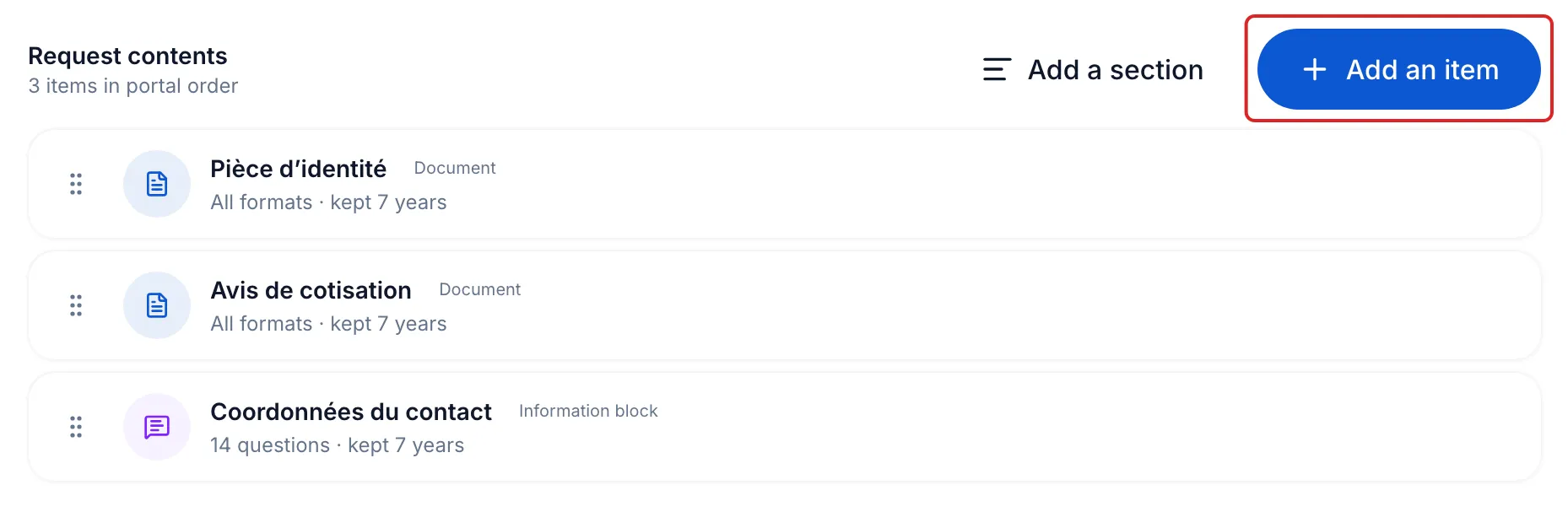
Click Add an item. In the Add items window, click Add next to each item you want, then the button at the bottom, for example Add 3 items. Items marked Provided by Meo come from the meo catalogue.
An item is missing? Click a tile at the top of the same window to create it.
-
Drag the items into the order your client will see. An item’s ⋯ menu lets you Remove it, open its Settings and, depending on the item, Make optional or Make required. Click Continue.
-
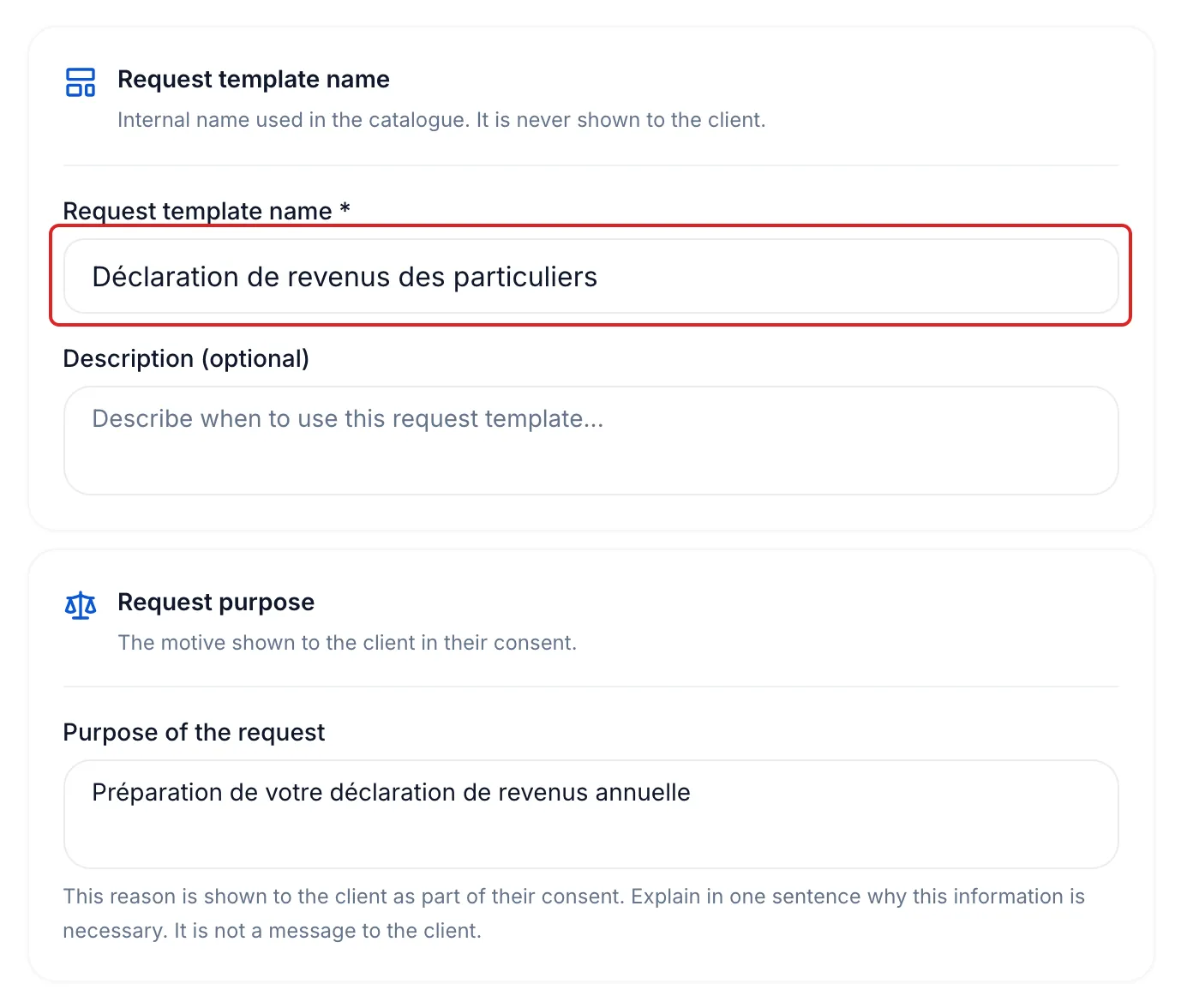
On the Values step, enter the Request template name, for example “Personal income tax return”. Fill in as needed:
- Request purpose: the sentence your client reads in their consent;
- Instructions for the client: your message, shown in the portal and repeated in the invitation email;
- Initial invitation, Proposed due date and end of collection and Automatic reminders.
-
Click Continue. On the Review step, check each card; clicking a card takes you back to its step. Click Create request template.
Result
Section titled “Result”meo shows “Request template saved”. Click Create a request to use it right away, or close the window: the request template is in the Request templates tab.
Good to know
Section titled “Good to know”- The request template name also fills in the Request title, which your client sees. Change that title before sending if needed.
- People are not part of the request template: you choose them for each request.
- An item’s Settings change this request template only, never the catalogue item.
- To edit the request template later, click its row. Requests already created with it do not change.
- In a space, an organisation request template shows a lock. Open its ⋮ menu and click Copy to make a version for that space.
Frequently asked questions
Section titled “Frequently asked questions”- What is the difference between an item and a request template?
- What should you write in the request’s purpose?
- Who can edit request templates?