
Information block
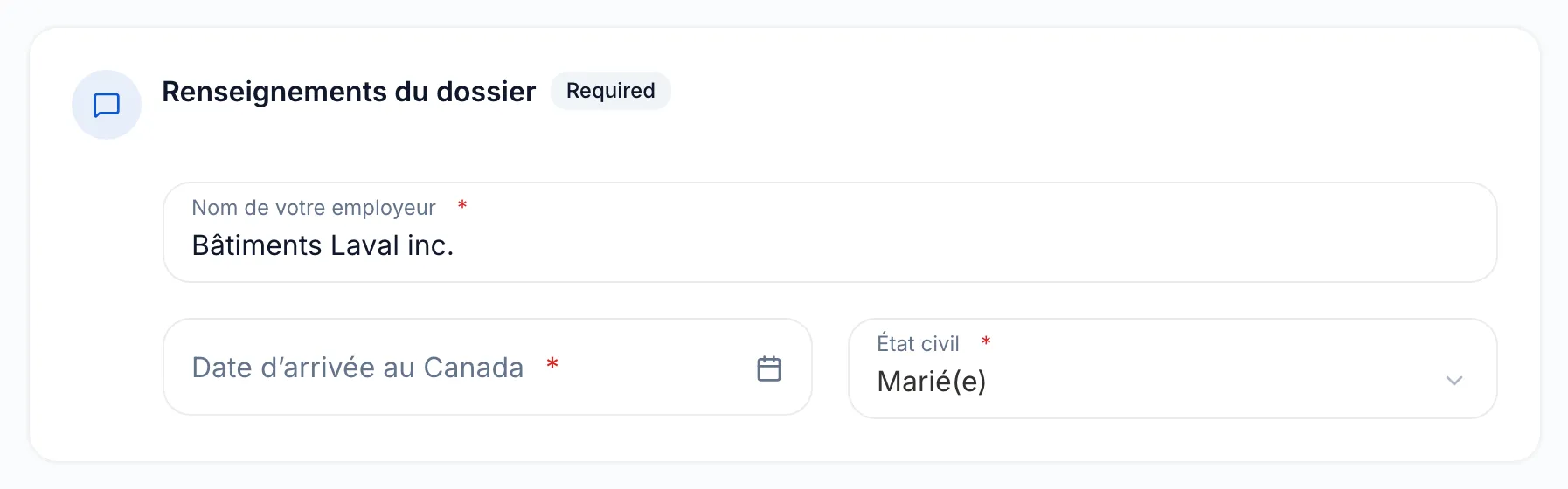
An information block asks your client one or more questions, for example the name of their employer or their marital status. Your client answers right in their portal, with no file.
Questions and their formats
Section titled “Questions and their formats”Create the block in a request, with Add an item then the Information block tile, or under Settings, Catalogue, Manage elements to reuse it. In the Questions column, each click adds a question:
- under Simple questions: Short text, Date, Email address, Phone number, Number, Single choice, Multiple choice, Protected text and Payment card;
- under Ready-made groups: Contact details, Address and Identity document, which add several questions at once.
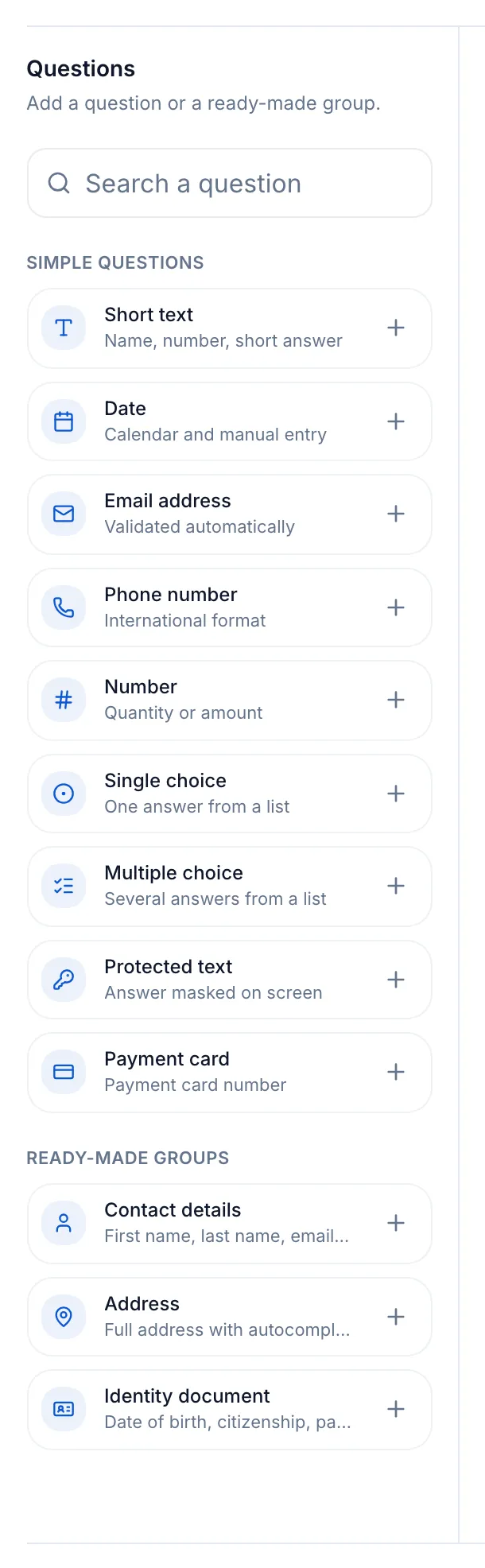
In Question settings, enter the Question label and, for a choice, its Options. Leave Required on if your client must answer before submitting. Protected text masks the answer on screen while your client types it, for example for a password.
Click the block’s title to open the Block settings: its Name, which your client sees as the title, a Description (optional), Instructions and the Block retention, one rule for all its answers (one year at the start). Multiple responses lets your client fill in the block more than once, for example once per child.
The Payment card question
Section titled “The Payment card question”A Payment card question collects a credit card. Your client enters it in a secure window of their portal, and meo never keeps the full number or the security code. You choose how long to keep the card, up to 12 months after it is received; at the end of that period, meo deletes it automatically. See Ask your client for a credit card.
Contact details
Section titled “Contact details”The Contact details block, provided by meo, asks your client for their contact information in 14 questions, from their name to their address. It cannot be edited in the catalogue. Its answers update the contact’s record; an email address or phone number already on file stays as it is. See Can you change the contact detail fields asked of your client?
What your client sees
Section titled “What your client sees”Your client sees the block’s name, then your questions in the order you chose. Once the required questions are filled in, the card shows Completed. If the block accepts multiple responses, they click Add a response for each person concerned. Until they have sent something or started answering, they can also choose I don’t have it.
What you receive
Section titled “What you receive”Answers are encrypted. In the request, the block’s row shows “received on” and the date. The answers are shown when a team member with access to clients’ sensitive information clicks the item, and each display is logged. They also appear in the Info tab of the contact’s record.