
Ask for a correction
A document that is unreadable, incomplete or not the right one? Ask for a correction: your client reads your reason in their portal and sends a new version.
Before you start
Section titled “Before you start”A correction targets a document, an information block or a statement already received, never a signature document or a handout. If Request a correction does not appear, a correction is already waiting for your client on this item, or your role does not allow you to edit the request.
A signature document is not corrected: while signatures are still expected, open the ⋯ menu on its line, click Cancel this envelope, then add a new Signature document. See Prepare a document for signature.
Ask for the correction
Section titled “Ask for the correction”-
Click Requests in the left menu, then click the request. On the line of the received item, open the ⋯ menu and click Request a correction. On the line of a single file, only that file is chosen.
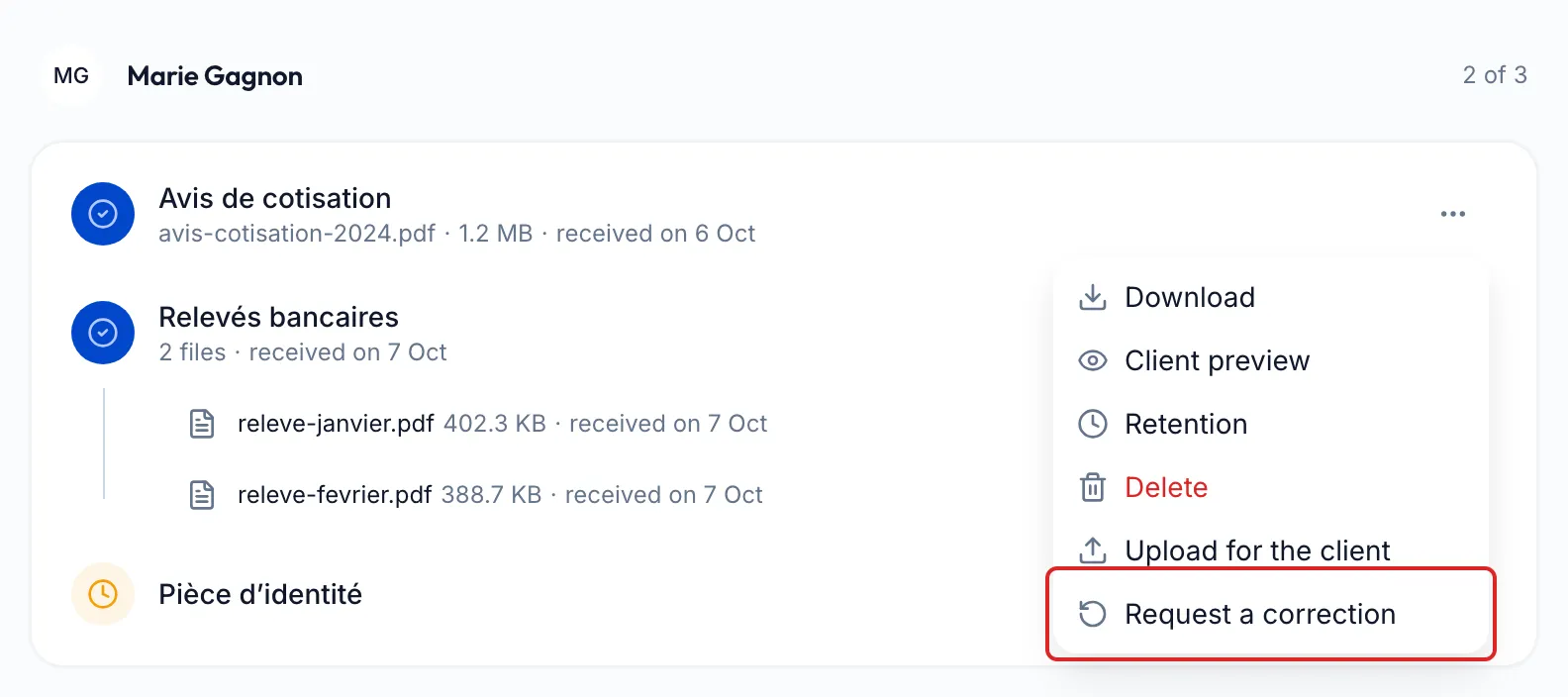
-
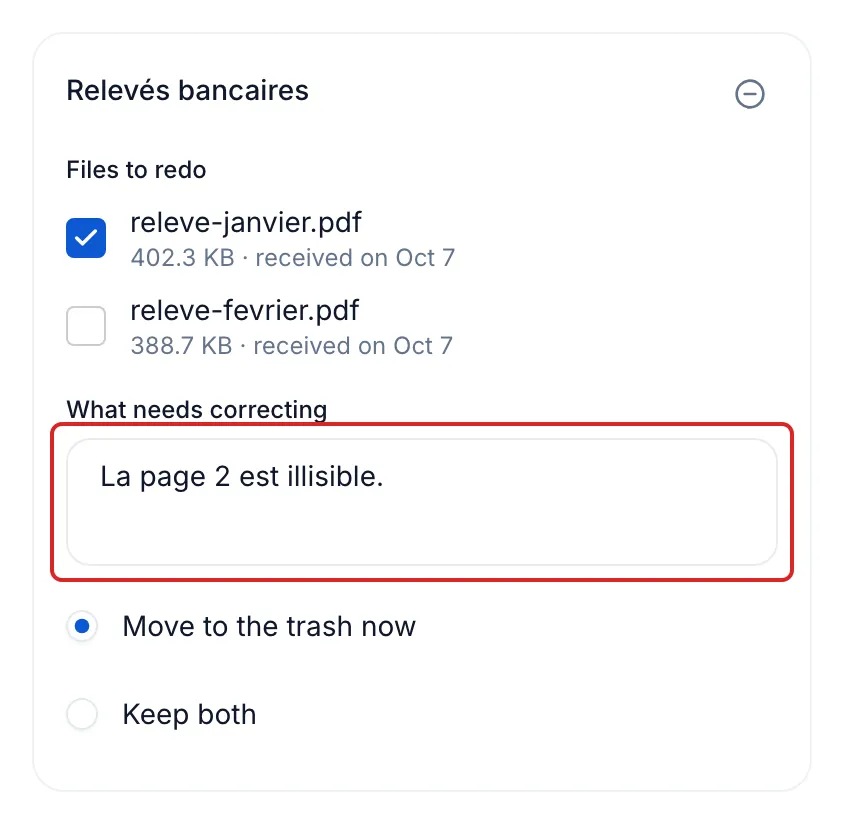
The Request a correction pane opens. Under Files to redo (or To redo for answers), keep the files or answers to redo checked.
-
Under What needs correcting, write the reason, for example “Page 2 is unreadable”. Your client reads this text as written.
-
For the old file, choose Move to the trash now (the default) or Keep both, which leaves it in the request, marked rejected. Without the right to delete files, only Keep both is offered.
-
For other items, repeat step 1: they are added to the same draft.
-
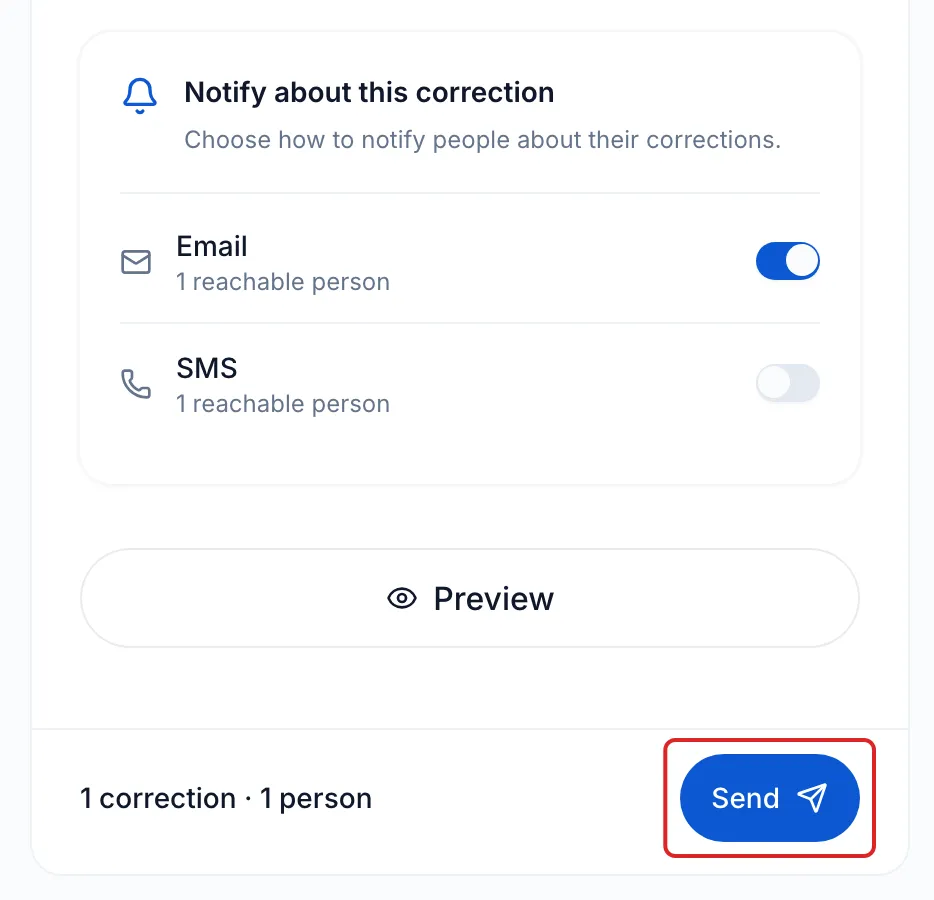
Under Notify about this correction, leave Email or SMS on. Preview shows what each person will see.
-
Click Send, check who will be notified, then click Send again.
What your client receives
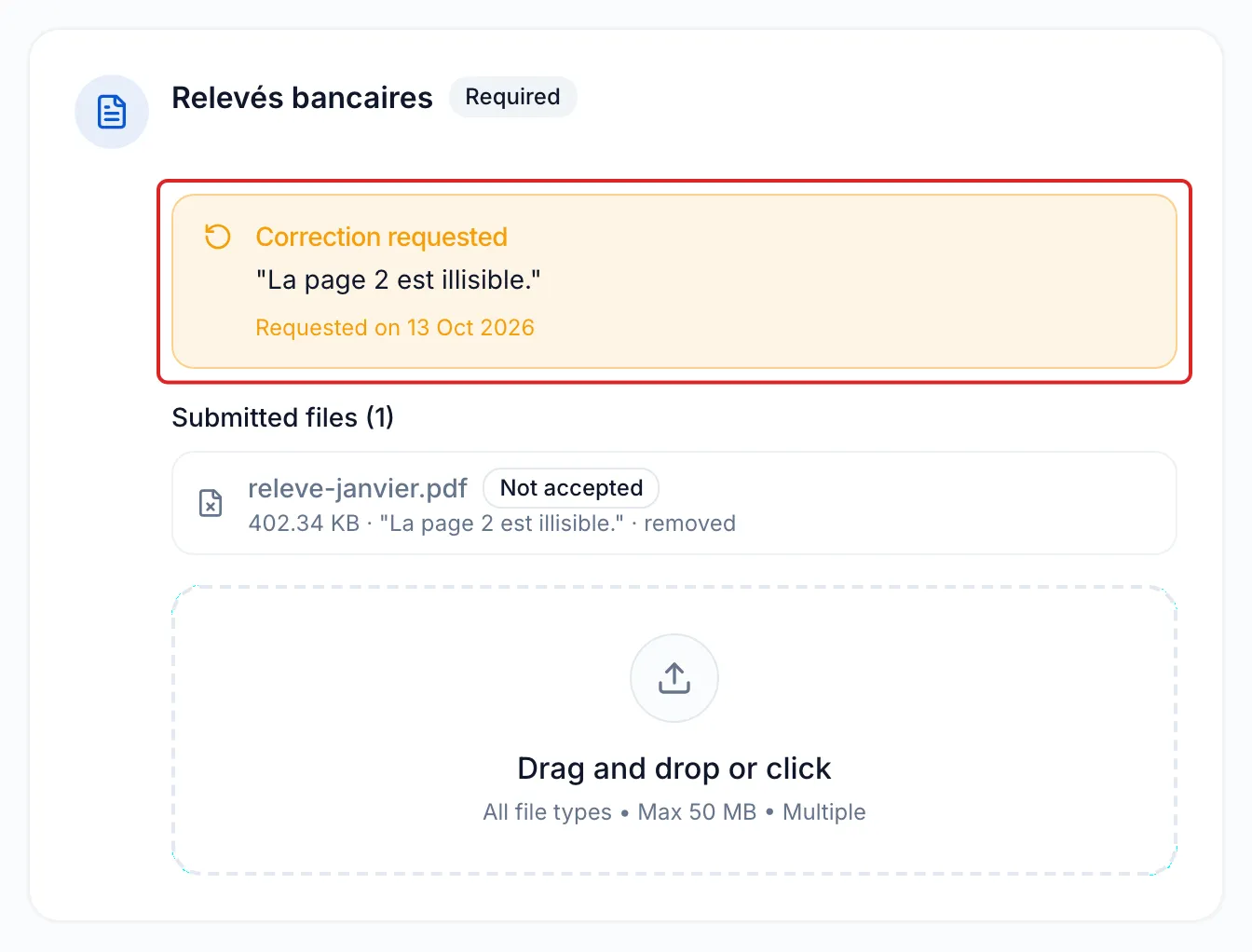
Section titled “What your client receives”A “Correction requested” email lists each item with your reason, and a text message follows if SMS is on. In the portal, the item comes back under To do with the Correction requested notice; the old file is marked Not accepted, “removed” or “kept”. Your client then sends a new file, a new answer or a new statement.
Due date and reminders
Section titled “Due date and reminders”- Open request. The due date does not change. Automatic reminders start over for the person concerned. If the item is required, a person who had finished everything is back in progress.
- Closed request. It does not reopen: sending creates a follow-up, “Follow-up - ” and the request’s name, with its settings and a new link. Your client gets the same time as between the original request’s sending and its due date (at least one day; seven days otherwise).
Result
Section titled “Result”The item’s line shows To correct, your reason and the date of the request, then “corrected on” and the date when your client answers.
Good to know
Section titled “Good to know”- The draft is saved as you go and the whole team sees it. Nothing goes out before Send. The Correction draft button, bottom right, reopens the pane.
- On a closed request, Follow up, then A correction, also opens the pane.
Frequently asked questions
Section titled “Frequently asked questions”- Can you add items to a request that has already been sent?
- Can you send a request link yourself, without meo’s emails?
- How do you make an item required?