
Organisation access or space access
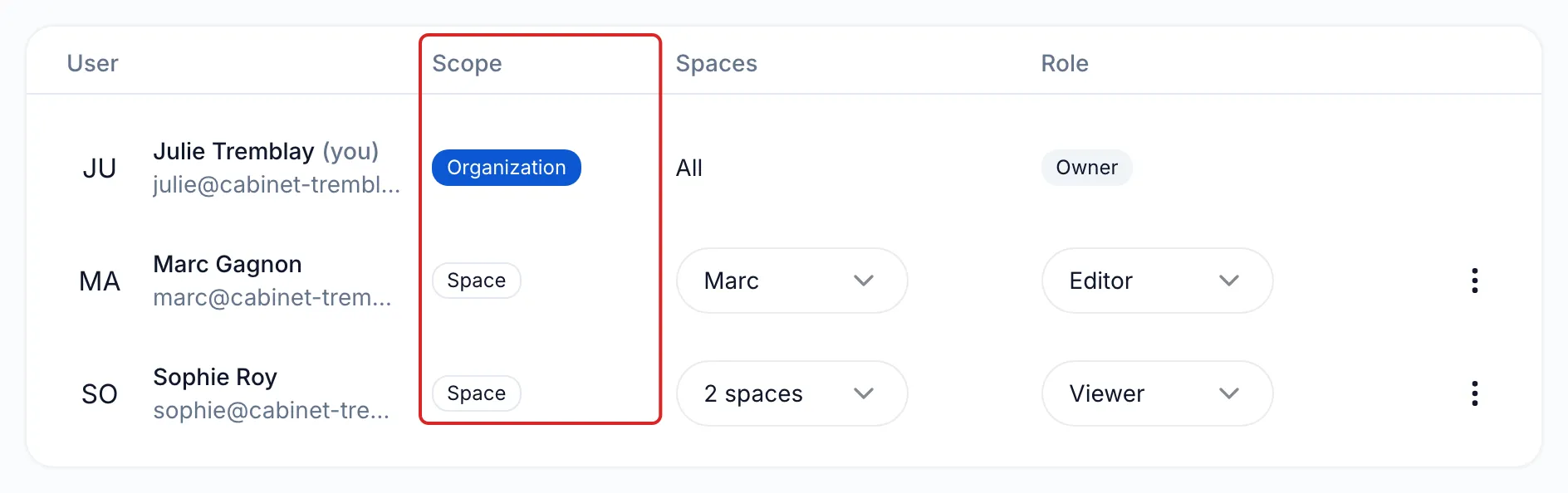
Each user has two settings: their scope, meaning the spaces they can access, and their role, meaning what they can do there. In Settings, on the organisation’s Users page, the Scope column shows Organization or Space.
The two scopes
Section titled “The two scopes”| Organization scope | Space scope | |
|---|---|---|
| Accessible spaces | Every space, current and future. The Spaces column shows All. | Only the spaces checked for this person. |
| New space | Automatic access. | No access until someone checks the space for them. |
| Settings | Space section and organisation section. | Space section only. |
| Space menu at the top left | Always shown. | Shown from two spaces. |
| For whom | The owner and the person who assists everyone. | Everyone else. |
Who should have organisation access?
Section titled “Who should have organisation access?”Besides the owner, the Organization scope suits the person who assists everyone, such as an assistant or an office manager. Everyone else gets the Space scope, with the spaces where they work.
The Organization scope gives access to every space, current and future. The day the owner wants a private space, that person must move to the Space scope, with every other space checked. From then on, check each new space for them. See Change a user’s scope.
The roles
Section titled “The roles”A user has one role. It applies to the organisation, or to every space the user can access, current and future: there is no role per space.
Roles have the same names at both levels, but their reach changes. Here is the description meo shows for each.
| Role | Organization scope | Space scope |
|---|---|---|
| Administrator | Manages members, the subscription and organization settings. Full access to all spaces. | Manages the space’s members and settings. Full access to contacts, documents and requests. |
| Editor | Editor access to all current and future spaces. No organization-level management permissions. | Creates and edits contacts, documents and requests. Ideal for day-to-day work. |
| Viewer | Can view organization information and the list of spaces. Read-only access. | Can view and download documents. Cannot edit or create content. |
The Owner is unique and has every right. Only the owner can appoint an administrator and hand the role over to an organisation administrator, with Transfer ownership on the organisation’s General page.
Each person manages only users whose role is lower than their own: the owner manages administrators, an administrator manages editors and viewers. Nobody can change the owner or their own access.
Change a user’s scope
Section titled “Change a user’s scope”A promoted person gets access to every space. A demoted person loses organisation access and keeps only the spaces chosen.
-
Click Settings at the bottom of the left menu, then Users in the organisation section.
-
On the person’s row, open the ⋮ menu on the right.

-
Choose Promote to organization or Demote to space.
-
To promote, choose their role, click Continue, then Confirm promotion. To demote, check their spaces and click Continue, choose their role and click Continue again, then Confirm demotion.
Result
Section titled “Result”The Scope column shows the person’s new level.
Frequently asked questions
Section titled “Frequently asked questions”- What is the difference between the organisation and a space?
- Does a person invited into one space see the other spaces?
- What does each user role allow?
- Can a user have a different role in each space?