
Choose who is notified and in which language
Each person on a request receives their own invitation, with their own link, in their language. On your side, the person who created the request and the colleagues who follow it are told what your client does.
Who receives the invitation
Section titled “Who receives the invitation”Everyone in the Participants card receives an invitation that lists only what is assigned to them under Assigned to. A person with nothing assigned receives nothing. When signatures happen One after the other, each signer is notified when their turn comes.
The channels you choose apply to each person: they receive the email if Email is on and they have an email address, and the SMS if SMS is on and they have a phone number.
Choose the channel and the language
Section titled “Choose the channel and the language”-
Compose the request, then click Continue to move to the Delivery step.
-
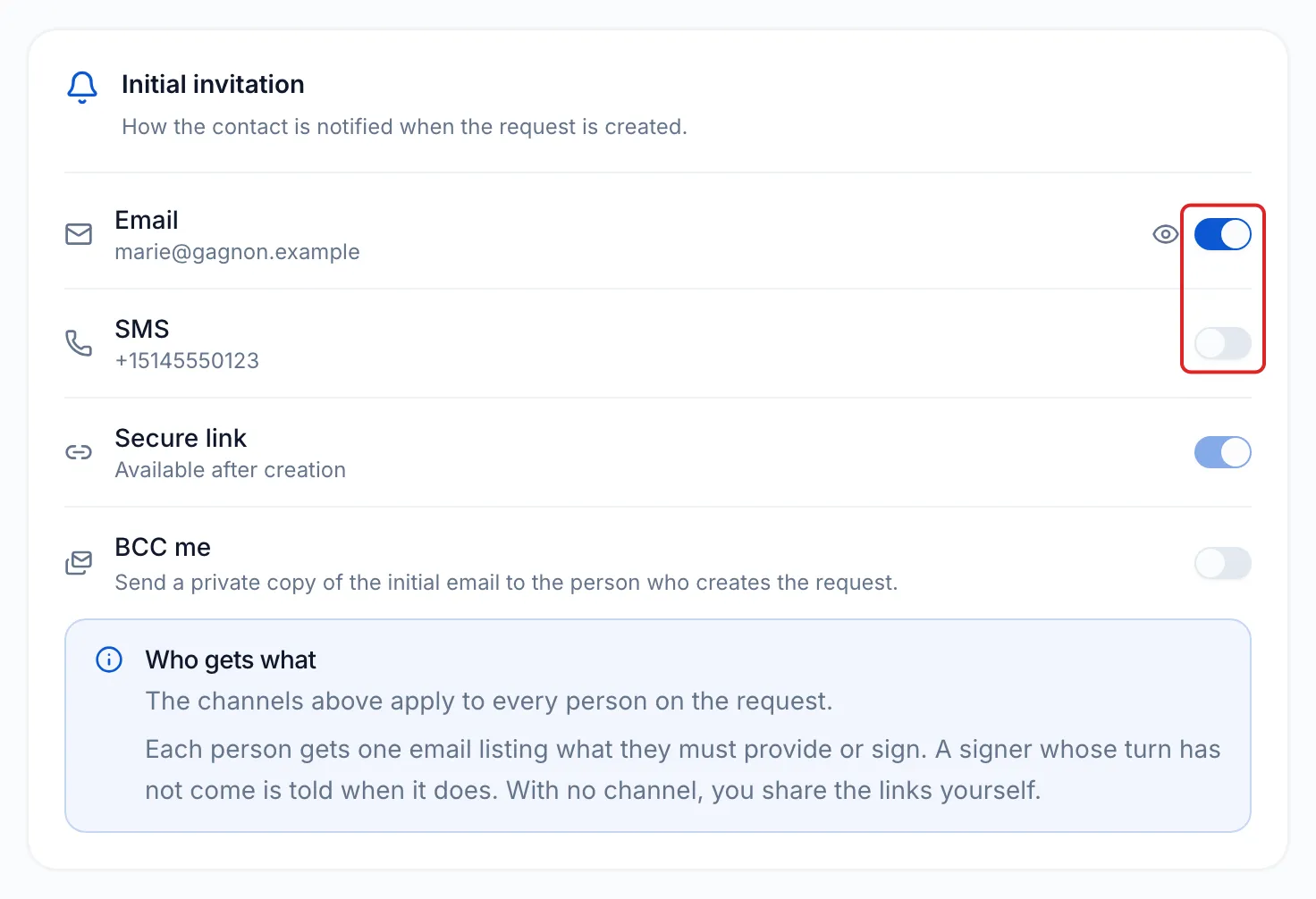
In the Initial invitation card, leave Email on, and turn on SMS if needed. Under each channel, meo shows the email or number of the person whose file holds the request; No email address or No phone number turns the channel off.
To receive a private copy of the invitation, turn on BCC me. The Automatic reminders card offers the same choice for reminders.
-
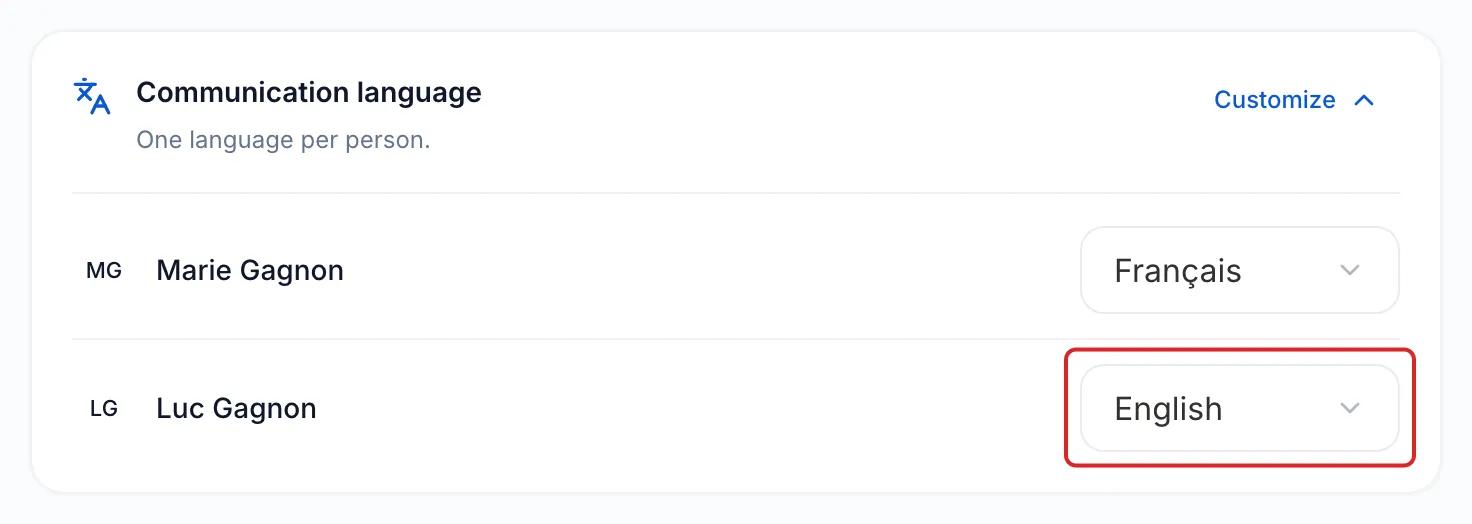
While closed, the Communication language card sums up the languages next to its title, for example “Français and English”. Click Customize: the card opens on one row per person. Choose Français or English next to each one. This choice is saved on the contact and used for their next requests.
-
Click Continue. On the Confirmation step, check what each person receives, then click Send.
With neither email nor SMS, meo sends nothing: copy each person’s secure link after creation and pass it on yourself.
Where a person’s language comes from
Section titled “Where a person’s language comes from”meo writes to each person in their contact’s language. On the contact’s page, Overview tab, the Communication language card shows Space default, Français or English.
By default, a contact follows the space’s Communication language, in the space’s Settings, General tab. A new space starts from the organisation’s Default communication language. Your client’s portal and sign-in code follow the same language.
Who on your team is notified
Section titled “Who on your team is notified”Notices about what your client does, such as a submission, a signature or a completed request, go by email to the people who follow the request. The person who creates a request follows it automatically, and a colleague can follow it too: see Follow a request created by a colleague. The space’s other users are not notified about this request.
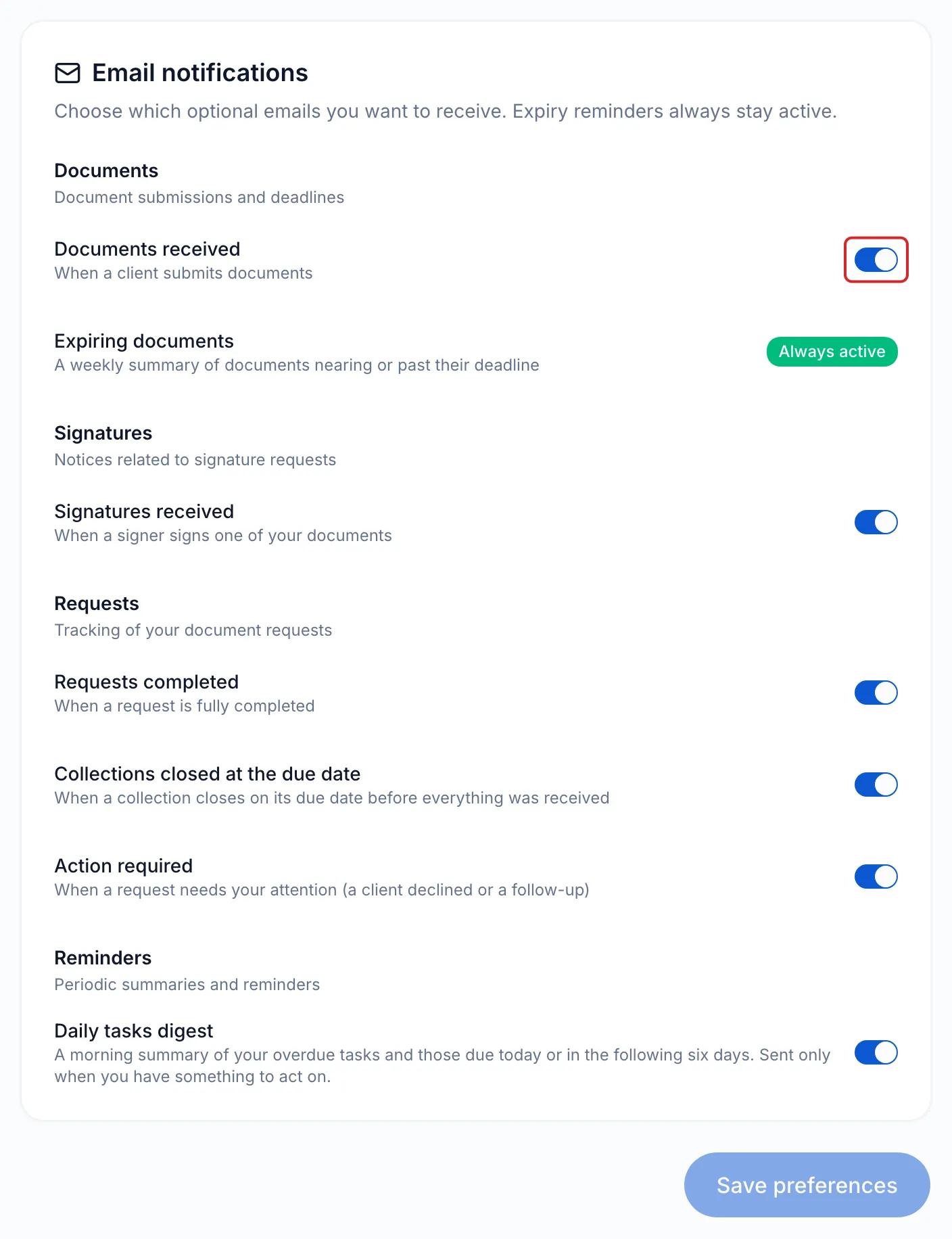
Each user chooses their emails in Settings, Account section, Notifications page: Documents received, Signatures received, Requests completed, Collections closed at the due date and Daily tasks digest are on by default. The weekly deadline summary, Expiring documents, cannot be turned off: it shows Always active. These choices apply to all your spaces. Save preferences stays greyed out until a switch changes: change your choices, then click it.
Result
Section titled “Result”In the request and in the request list, each person shows Pending, then Notified as soon as their invitation goes out.
Frequently asked questions
Section titled “Frequently asked questions”- Who receives notifications when your client uploads documents?
- Under what name do your clients receive meo’s emails?
- Can you receive a copy of the requests sent to your clients?
- How do your clients receive reminders?