
Create and apply an action plan
An action plan is a series of tasks you prepare once, then apply to a contact, for example to welcome a new client. meo creates each task with its date and its assignee.
Before you start
Section titled “Before you start”- Only the owner and administrators see Catalogue in Settings and create plans there. Every member of the space, except the Viewer role, can apply a plan.
- A plan created in the Organization catalogue is offered in all your spaces, marked Provided by your organization. It can only be edited in the organisation. In a space, Duplicate makes a copy of its own for that space.
Create the plan
Section titled “Create the plan”-
Click Settings at the bottom of the left menu, then Catalogue, in the Organization or Space section. Open the Action plans tab and click Create an action plan.
-
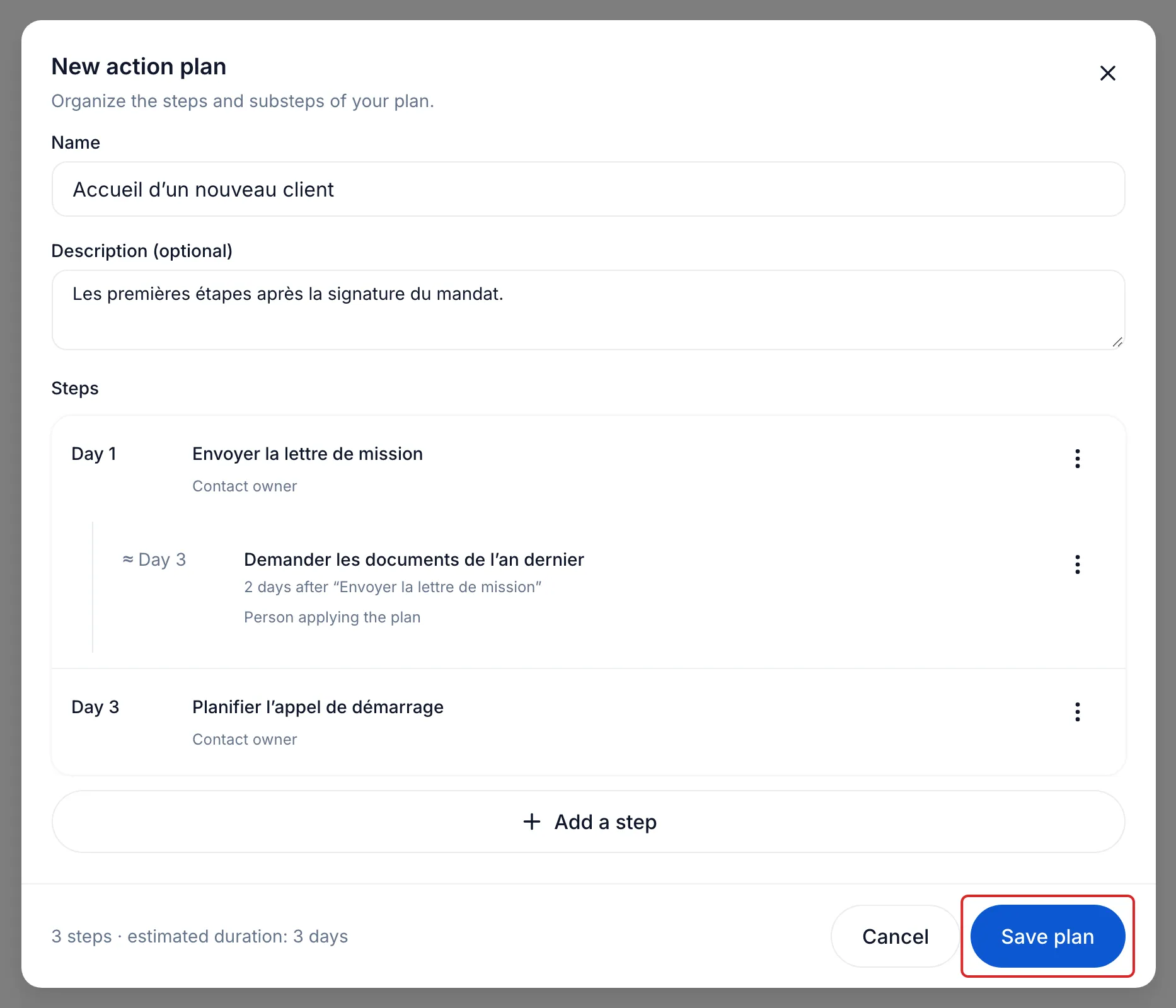
Enter the plan’s Name and, if needed, its Description (optional).
-
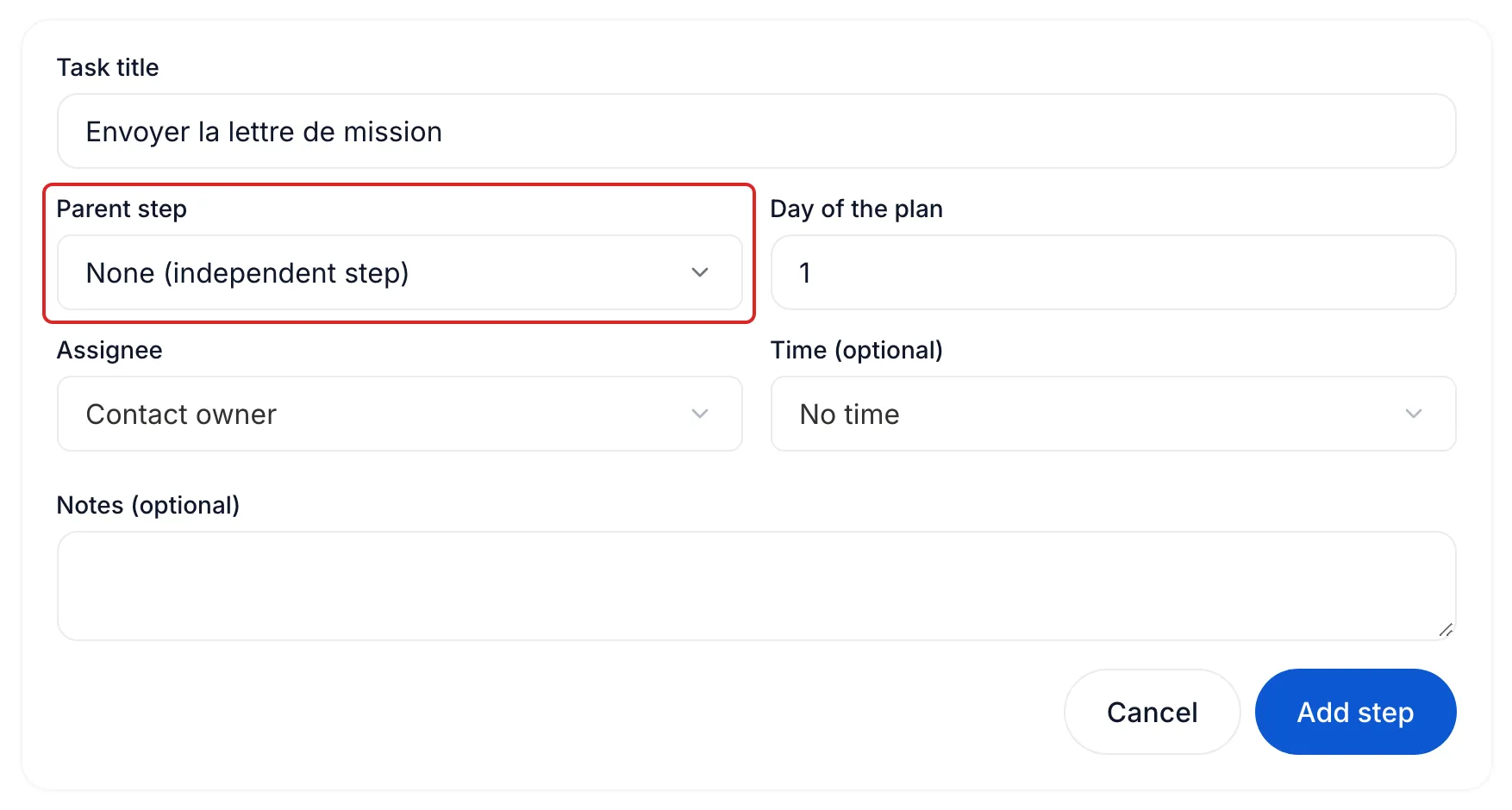
Click Add a step and enter the Task title. Leave Parent step on None (independent step) and enter the Day of the plan: day 1 is the start date.
-
Choose the Assignee: Contact owner (at first), Person applying the plan or Specific member. Add a Time (optional) and Notes (optional) if needed, then click Add step.
-
For a substep, add a step and choose under Parent step the one it must wait for. Enter the Days after the parent step: the substep starts once its parent step is completed or skipped.
-
Click Save plan.
Apply the plan to a contact
Section titled “Apply the plan to a contact”-
Open the Tasks page or the Tasks tab of the contact’s page. Choose the By action plan view, then click Apply a plan.
-
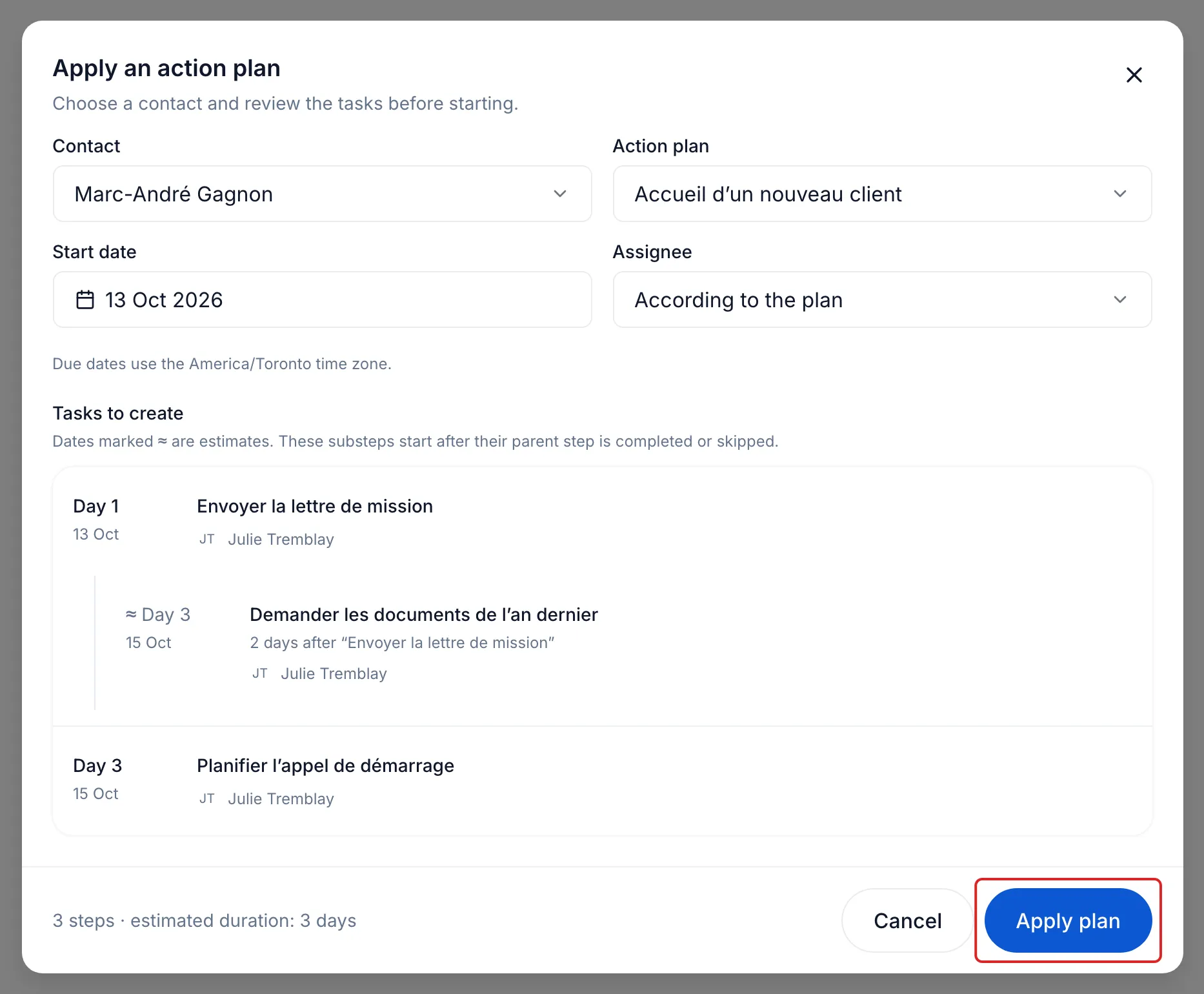
Choose the Contact, if it is not already chosen, the Action plan and the Start date, today at first. Under Assignee, According to the plan keeps the plan’s rules; a member you choose becomes the assignee of every task.
-
Check the Tasks to create: the ≈ sign marks the estimated dates of substeps. If the contact already has this plan under way, tick Create another instance for this contact to continue.
-
Click Apply plan.
Follow the plan
Section titled “Follow the plan”The By action plan view shows one card per applied plan: the contact, the progress of the steps and the next due date. Open the card to see the steps. A substep waits without a date, marked After, until its parent step is done. The plan becomes Completed when every step is completed or skipped.
The card’s ⋯ menu offers:
- Pause: the steps leave the task list and the morning digest. Resume moves their due dates by the length of the pause.
- Cancel plan: open and pending steps become Skipped; completed steps stay. Cancelling is final.
- View contact and View plan in catalogue.
To skip a step, click Skip in its row’s ⋯ menu. Restore task reopens it.
A plan edited in the catalogue only changes its future uses. Archive, in the plan’s ⋮ menu, stops it from being applied again; View archived action plans lets you Reactivate it.
Result
Section titled “Result”The plan’s tasks join their assignees’ lists, and each substep opens in turn.
Frequently asked questions
Section titled “Frequently asked questions”- Can you chain a series of tasks automatically for each new file?
- Can you create tasks with a due date?