
Manage your tasks
A task is something to do, with an Assignee and, if needed, a due date and time. It belongs to the space where you create it and can be linked to a contact.
Before you start
Section titled “Before you start”The Tasks page shows the tasks of the space chosen in the selector at the top of the left menu. With the Viewer role, you see tasks but cannot create or edit them.
Create a task
Section titled “Create a task”-
Click Tasks in the left menu, then New task. Other ways: New > New task, or the Tasks tab of a contact’s page.
-
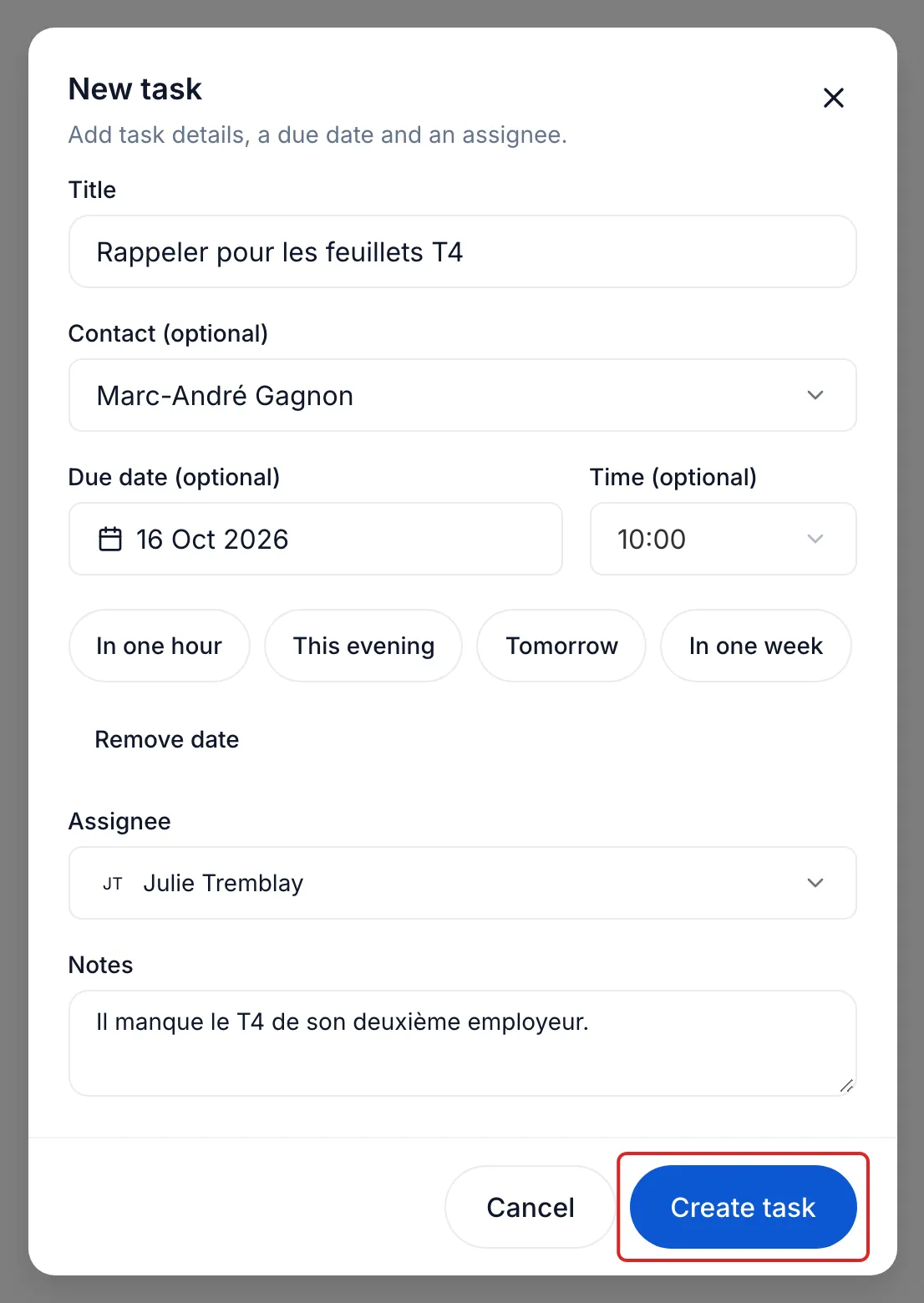
Enter the Title. Under Contact (optional), choose a contact if needed: their owner becomes the task’s Assignee. The contact no longer changes once the task is created.
-
Choose the Due date (optional) and the Time (optional) if needed, or click a shortcut such as Tomorrow. Check the Assignee, add Notes if useful, then click Create task.
Find your tasks
Section titled “Find your tasks”The All tasks view sorts open tasks under Overdue, Today, Upcoming and No date, then finished tasks under Completed. A task with a time moves under Overdue once that time has passed; without a time, the next day.
- The only filter, Assignee, shows Me at first. Choose Whole team or a colleague.
- The magnifying glass searches for a task by its title.
- The Display and options button, the settings icon, offers Expand all and Collapse all.
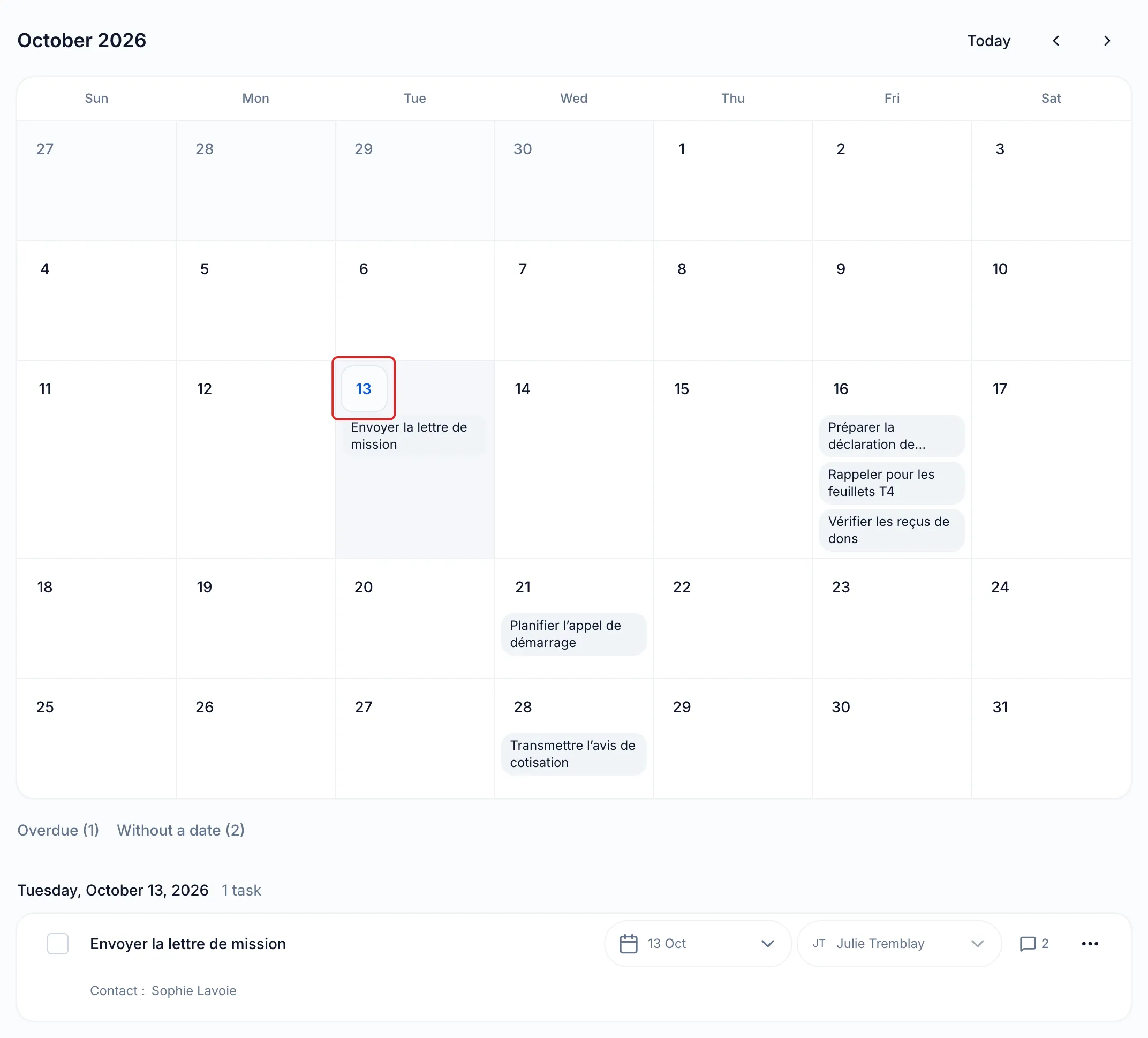
The Calendar view places open tasks on the month, in weeks from Sunday to Saturday. Click a day to show all its tasks under the calendar. The Overdue and Without a date links take you back to the list.
Postpone, complete or delete a task
Section titled “Postpone, complete or delete a task”-
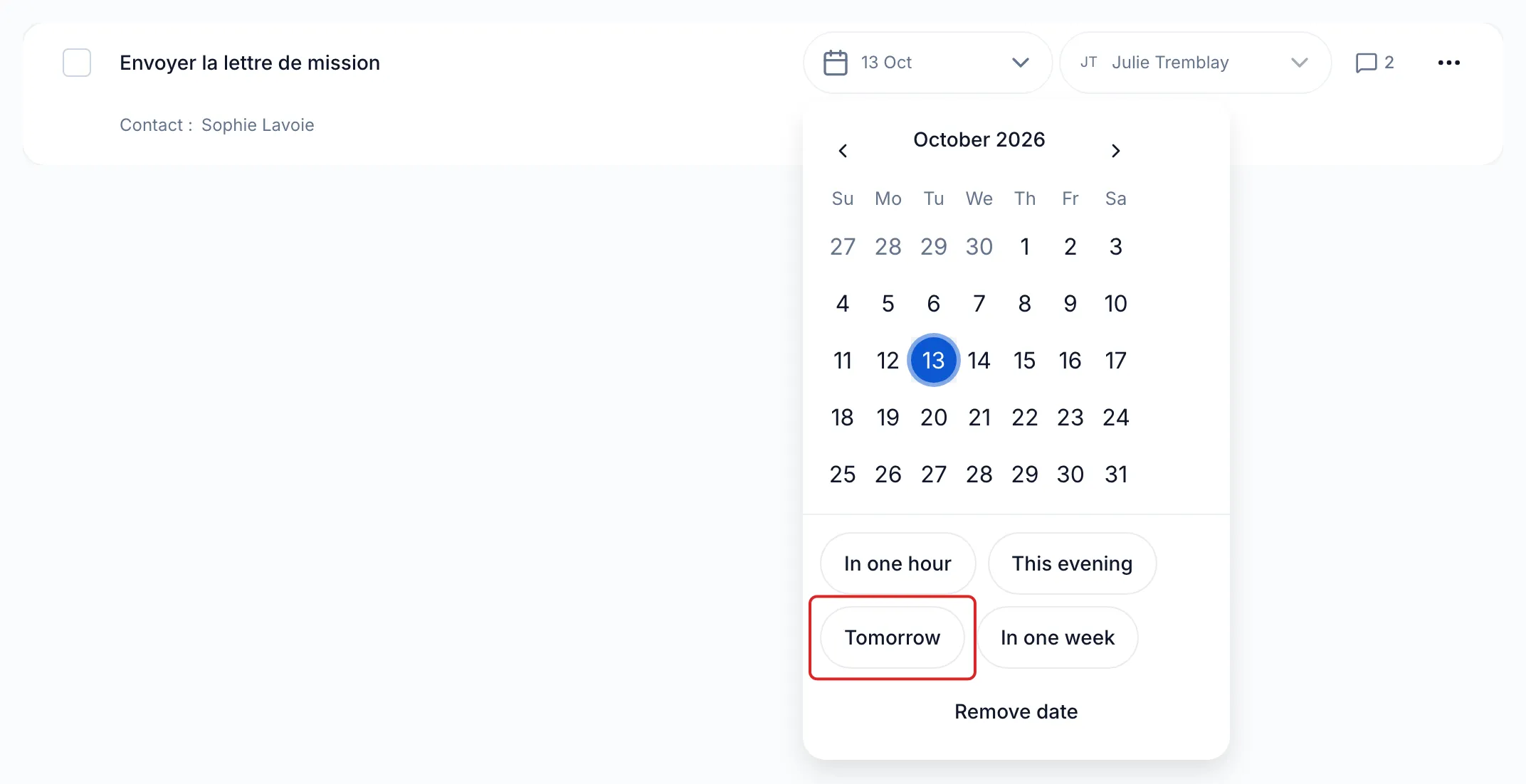
To postpone a task, click its date in the row. Choose a day or a shortcut: In one hour, This evening (18:00, offered before that time), Tomorrow or In one week. Remove date files it under No date.
-
To hand it to a colleague, click the assignee’s name in the row and choose someone else.
-
Once the task is done, tick the box at the start of the row. It moves under Completed. Tick it again to Reopen it.
-
To erase it, open the row’s ⋯ menu, click Delete, then confirm. A step of an action plan cannot be deleted: its menu offers Skip instead.
Click a task’s title to open its Task details, then Edit to change it.
A contact’s tasks
Section titled “A contact’s tasks”A task linked to a contact also shows on the Tasks tab of their page, where the Assignee filter shows Whole team at first. Their three oldest open tasks appear under To do, on the Overview tab, with the View all tasks link.
The morning digest
Section titled “The morning digest”Each morning you are the assignee of tasks that are overdue, due today or in the following six days, meo sends you the “Your tasks for today” email. To stop it, turn off Daily tasks digest in Settings > Notifications.
In the menu, the number next to Tasks counts your tasks that are overdue or due today in the space.
Result
Section titled “Result”Your tasks are sorted by due date, and each one opens, moves or completes from its row.
Frequently asked questions
Section titled “Frequently asked questions”- Can you create tasks with a due date?
- Do your clients see your tasks or notes?
- What is the difference between a note and a task?