
Prepare a document for signature
A signature document is a PDF your client signs online, inside a request. You upload the PDF, then place on it the fields to fill in: signature, initials, date, name or text. The same request can also ask for documents and answers to questions.
Before you start
Section titled “Before you start”- Each person who signs needs an email address: the signing link is sent to them by email.
- The document is a PDF of 50 MB at most, with no password.
Prepare the document
Section titled “Prepare the document”-
In a new request, add the person who signs in the Participants card, with their email address. See Send a request to a client.
-
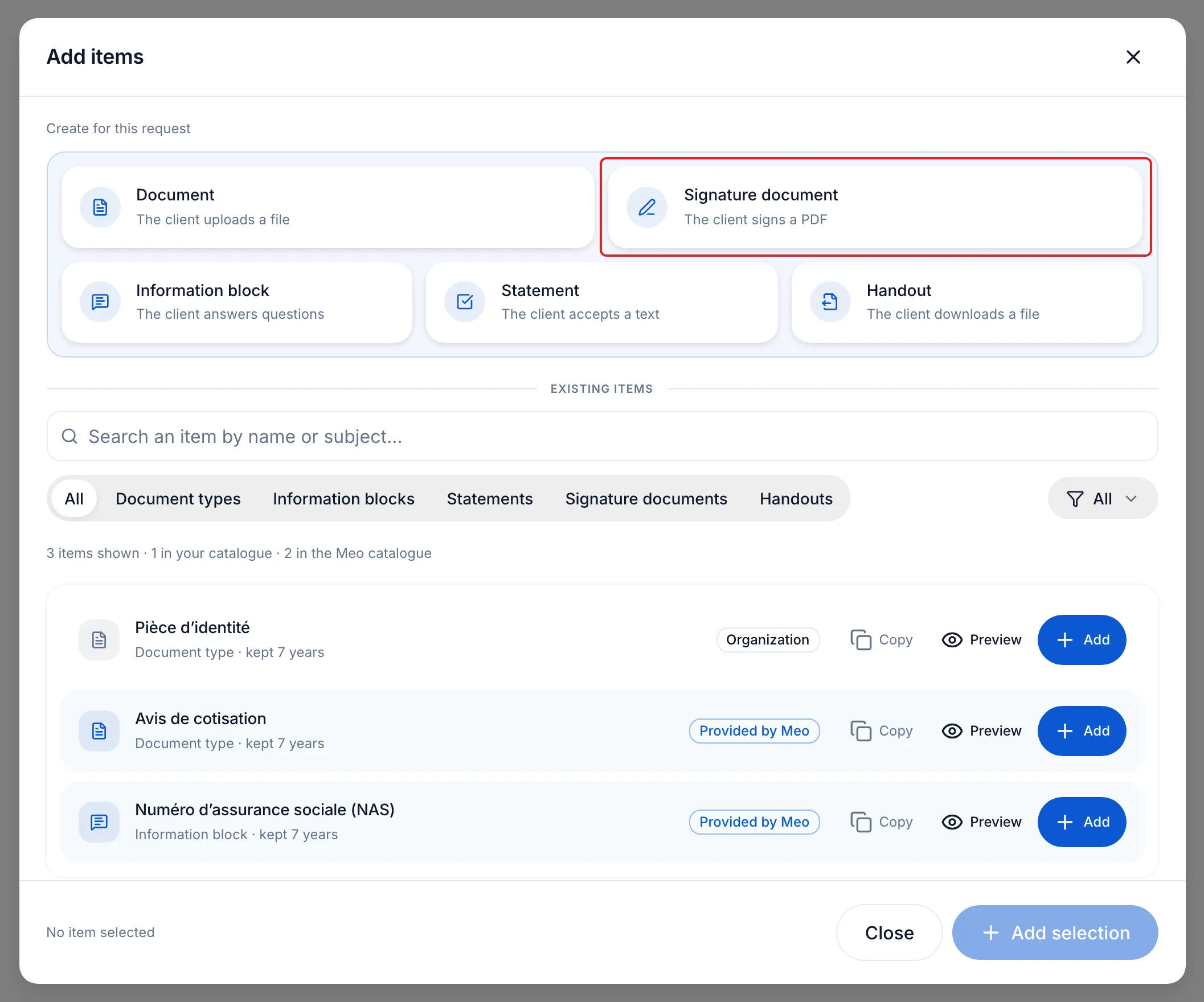
In the Request contents card, click Add an item. Under Create for this request, click the Signature document tile.
-
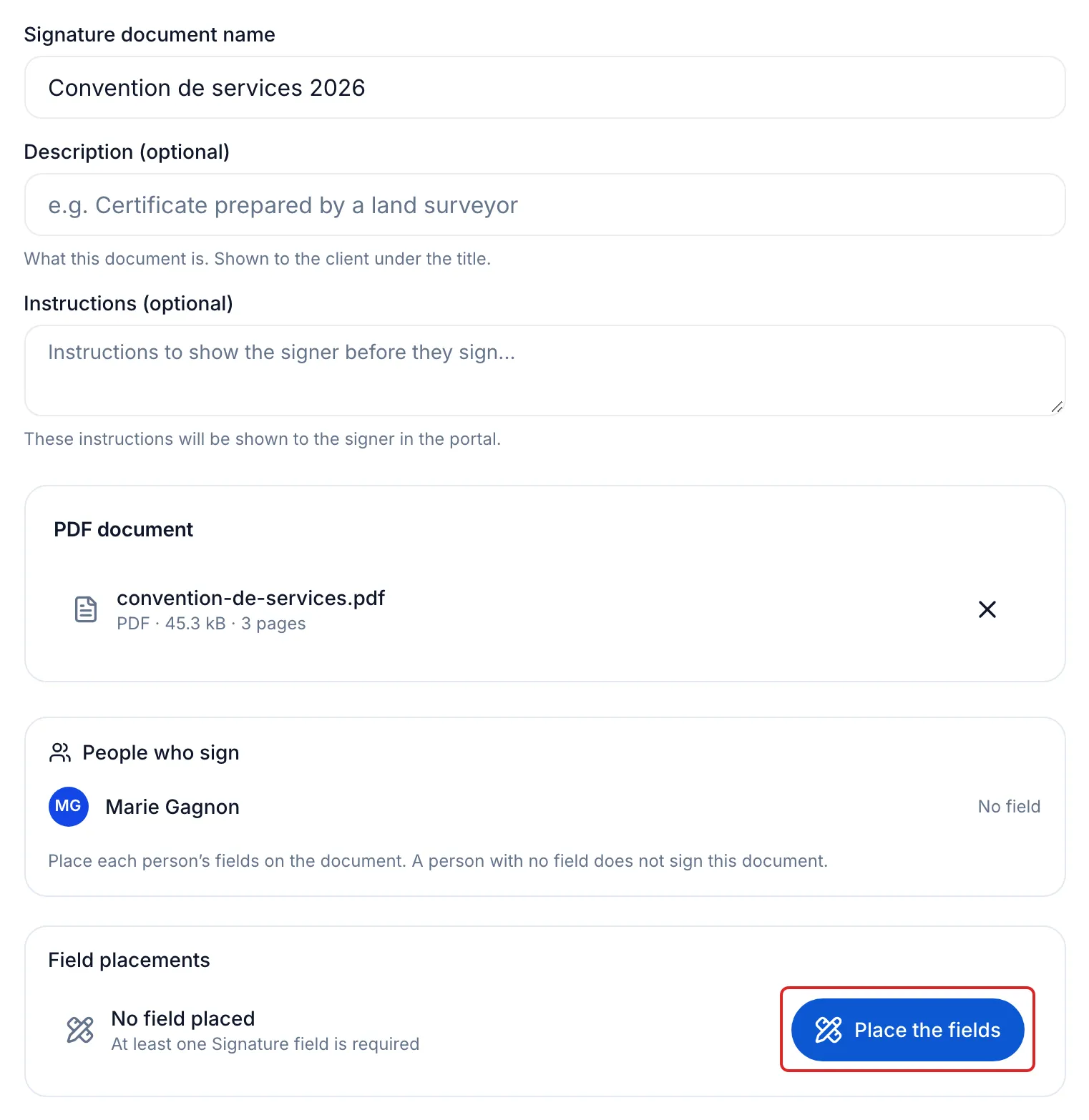
Enter the Signature document name, for example “Service agreement 2026”. Add Instructions (optional) if useful: the person reads them in their portal before signing. Under PDF document, drag your PDF or click to browse your files.
-
Under Field placements, click Place the fields. The editor opens on your PDF.
-
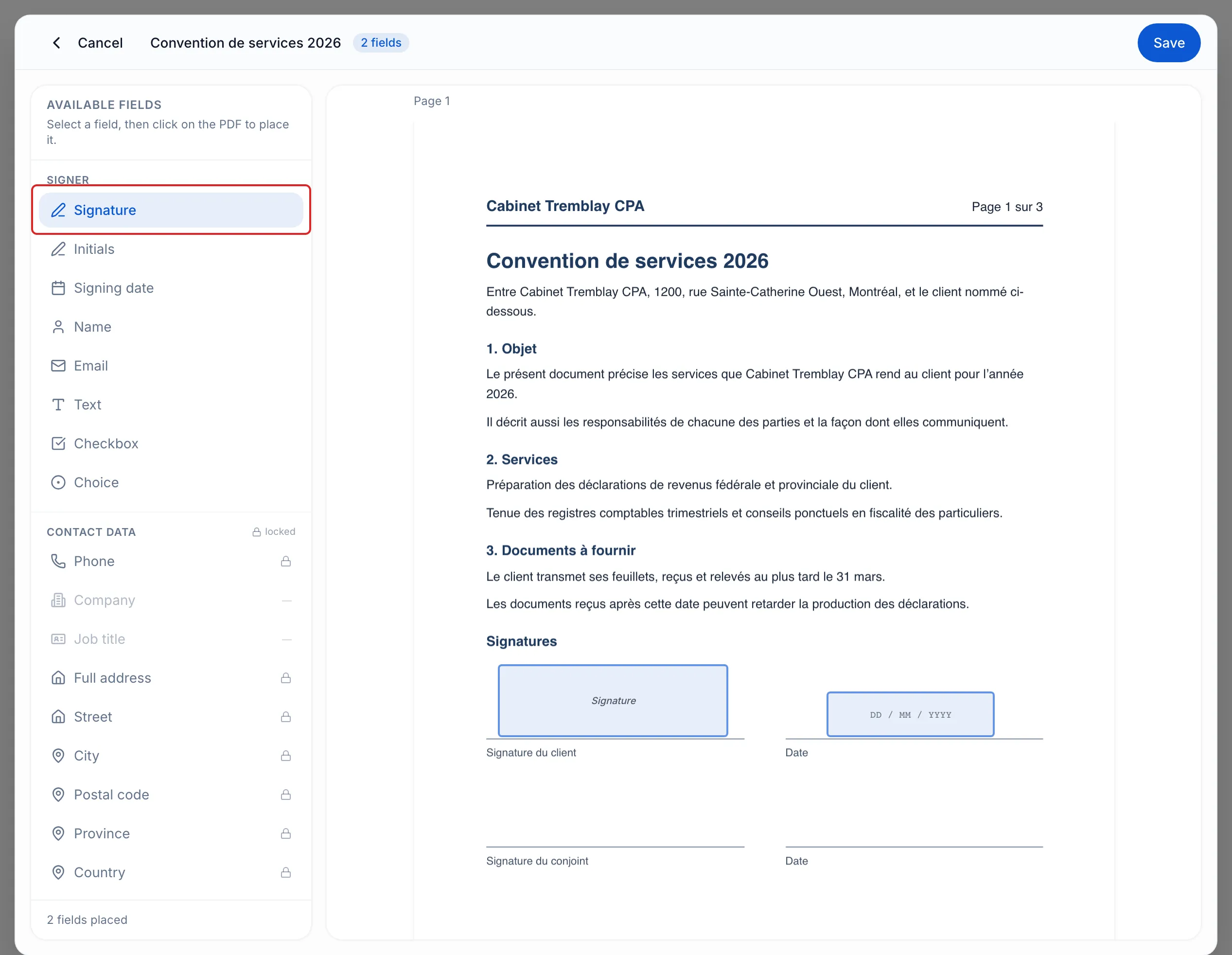
Under Available fields, click Signature, then click on the PDF where the person signs. Add the other useful fields the same way, for example Signing date or Initials. Drag a field to move it.
-
Click Save, at the top right of the editor.
-
Under Accepted signature methods, all three methods are offered: Drawn, Typed and Uploaded. Click Edit only to remove one.
-
Click Add to the request. Then finish the request and send it.
Result
Section titled “Result”The signature document is added to the Request contents card. When the request is sent, the person receives their invitation to sign by email.
What the person who signs sees
Section titled “What the person who signs sees”They open the link received by email, then enter a one-time code sent by email or text message. They accept the Electronic Signature Terms once per request, then meo guides them from one field to the next. To sign, they draw their signature, select a handwriting style or upload an image, then click Finish.
Good to know
Section titled “Good to know”- Signature and Initials are required by default; the other fields are optional. At least one Signature field is needed to add the document.
- Signing date shows the date the person signs; they cannot change it.
- Under Contact data, fields such as Full address or Phone are filled in from the contact’s record. Locked text places a fixed text you write yourself.
- To reuse this document with other clients, turn on Save to the catalogue: the button becomes Add and save. See Create a reusable signature document.
- Before sending, expand the document’s row in Request contents and click Edit fields to correct a field.
- Once everyone has signed, meo seals the document, files it in the client’s folder under the name ”… - signé.pdf” and sends a copy to each signer.
Frequently asked questions
Section titled “Frequently asked questions”- Can you have a document signed in meo?
- Are meo’s electronic signatures legally valid?
- Do signers receive a copy of the signed document?