
Switch from one space to another
meo shows one space at a time. The Home, Contacts, Documents, Requests and Tasks pages show the content of the selected space. To work in another space, switch with the space menu.
Before you start
Section titled “Before you start”The space menu appears at the top of the left menu as soon as you have access to two or more spaces, or have organisation access. If you only see the meo logo there, you have access to a single space.
On a computer
Section titled “On a computer”-
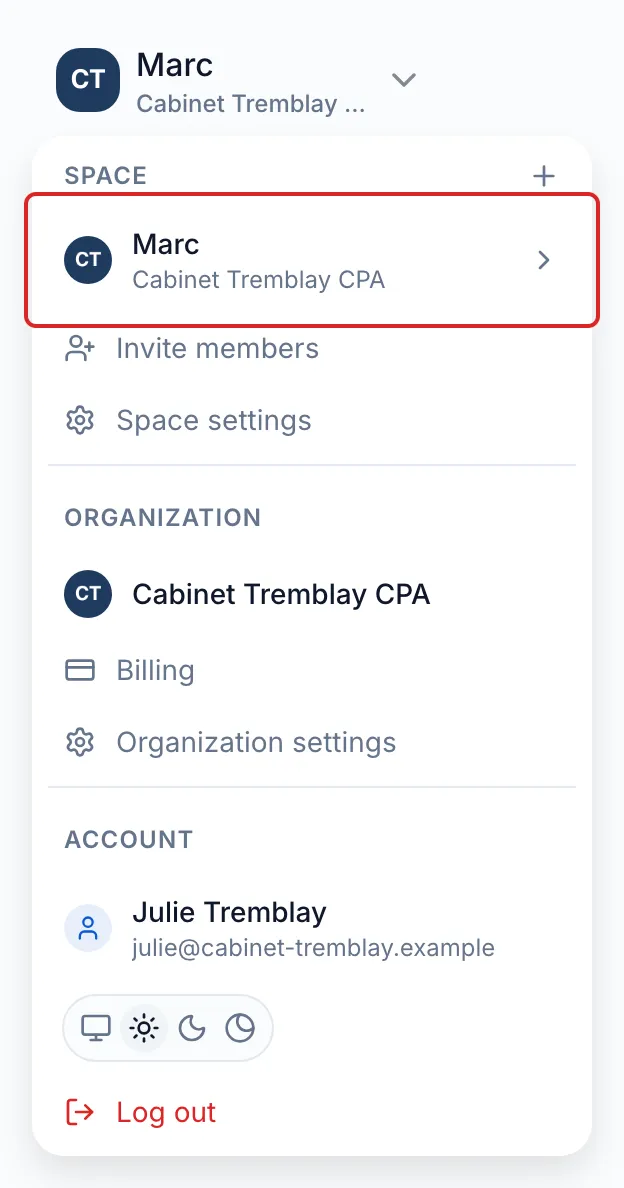
At the top of the left menu, click the name of the current space. The menu opens with the Space, Organization and Account sections.
-
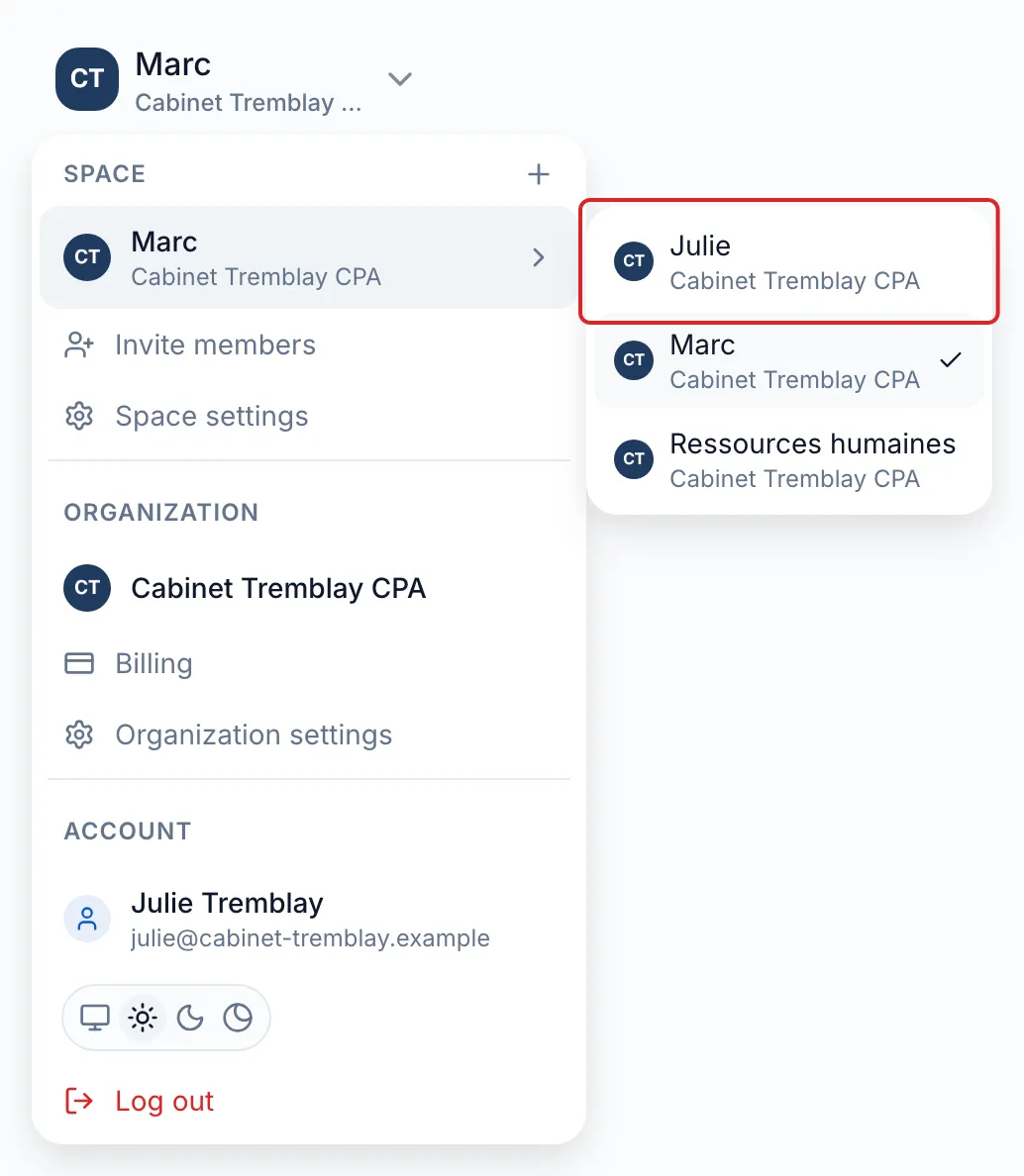
In the Space section, point to or click the current space row, the one with an arrow. The list of your spaces opens to the right. From four spaces, a Search for a space… field is added at the top of the list.
-
Click the space you want.
On a phone
Section titled “On a phone”-
Tap the menu icon at the top left of the screen.
-
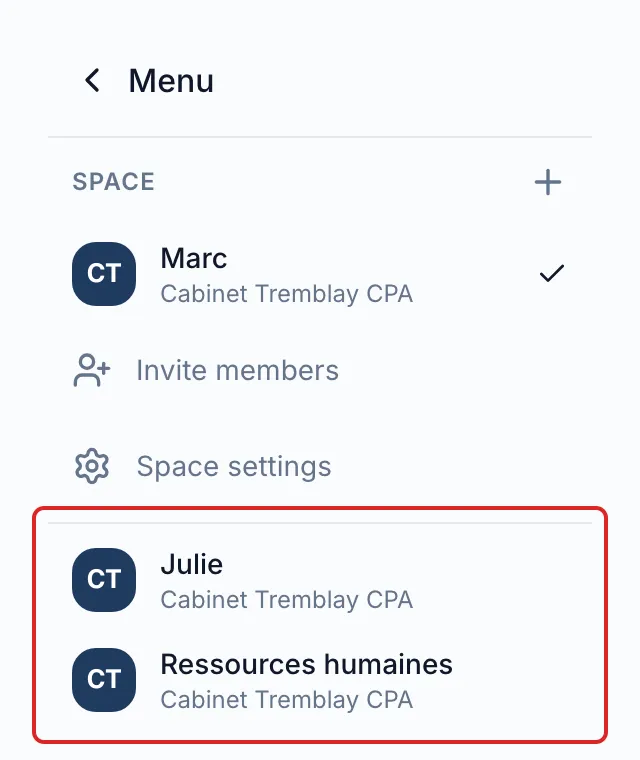
Tap the name of the current space at the top of the menu.
-
Under Space, tap the space you want in the list of your other spaces. To go back without switching, tap Menu.
Result
Section titled “Result”The name of the new space appears at the top of the left menu and every page shows its content.
Good to know
Section titled “Good to know”- When you have access to two or more spaces, the menu shows each space’s internal name first and its public name below.
- meo reopens the last space you chose on this browser.
- If you are in a space’s settings, switching spaces shows the same page for the new space.
- If you open a link to a contact or a request in another of your spaces, meo switches spaces for you and shows a “Switched to the … space” message with the space’s public name.
- If you belong to several organisations, the Organization section of the same menu lets you choose the organisation; meo then opens one of its spaces.
Frequently asked questions
Section titled “Frequently asked questions”- What is the difference between a space’s public name and its internal name?
- Does a person invited into one space see the other spaces?