
Create a contact
A contact is a person your space works with. meo creates a folder for them, named after them, in the Clients folder of the Documents page.
Create the contact
Section titled “Create the contact”-
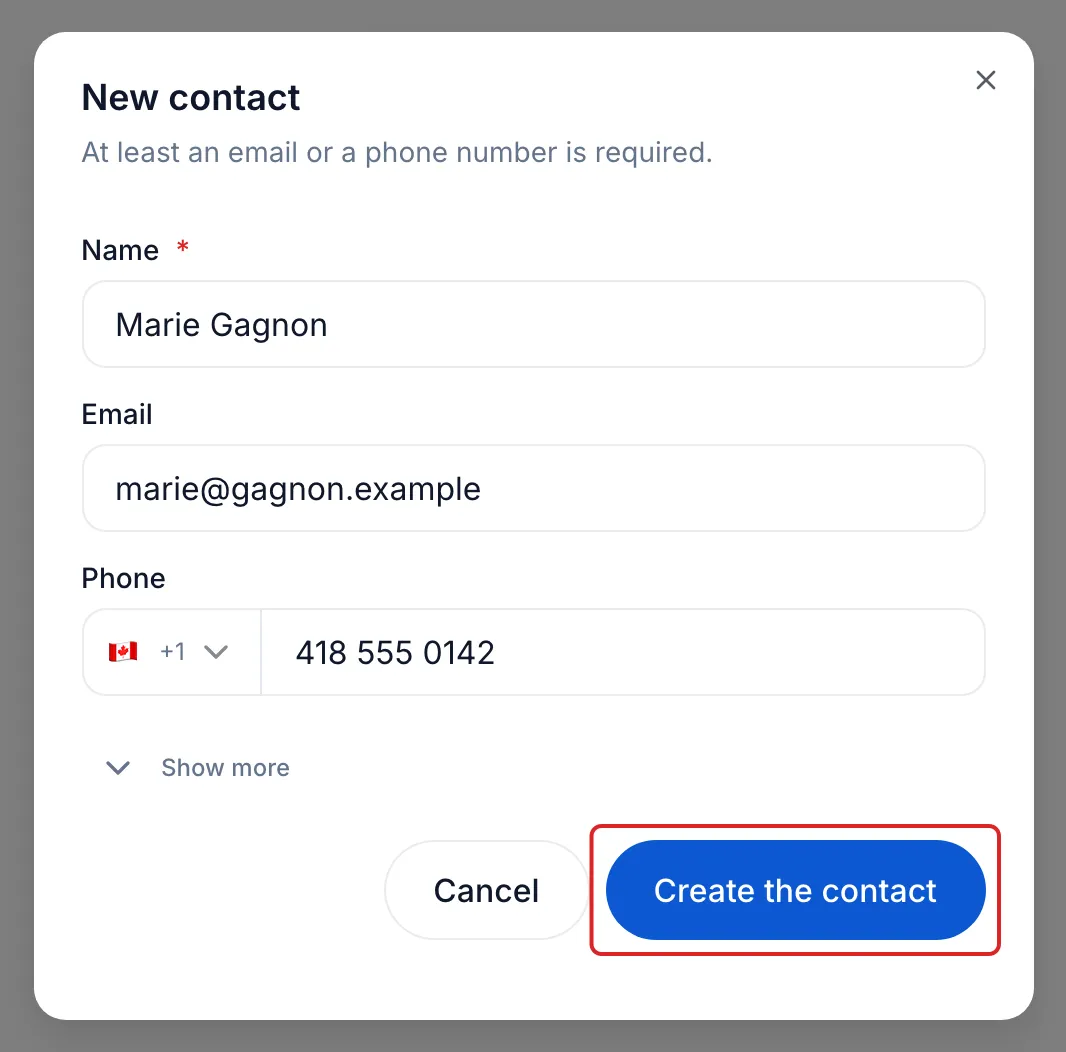
Click New, at the top of the left menu, then New contact. Another way: on the Contacts page, click New contact. If the option is greyed out, you do not have permission to create contacts in this space.
-
Enter the contact’s full Name, then their Email or their Phone. At least one of the two is required.
-
If needed, click Show more to fill in the contact’s other fields. See The fields under Show more.
-
Click Create the contact.
The fields under Show more
Section titled “The fields under Show more”Show more reveals the contact’s other details, all optional, in this order:
- Communication language: the language of the emails meo sends to this contact and the language their portal opens in. Left on Space default, it follows your space’s default language, shown in brackets. You can also choose Français or English.
- Company and Job title.
- Date of birth.
- Sex: Not provided, Male (M), Female (F) or Non-binary (X).
- Address and Apartment / Unit, then City, Postal code, Province and Country. As you type the address, meo suggests addresses in Canada and the United States; pick a suggestion to fill in the other fields automatically.
- Internal notes: free text about this contact, up to 5,000 characters.
You can change all of these fields later on the contact’s Overview tab: the language in the Communication language card, the others with Edit in the Contact details card.
Result
Section titled “Result”meo shows “Contact created” and offers three next steps: Upload documents to their folder, View the contact or Create a request for them.
If meo flags a duplicate
Section titled “If meo flags a duplicate”If the email or phone already belongs to a contact in the space, meo shows “A contact already exists with this email.”, with the name of the contact found, and Create the contact stays greyed out. Close the window and open the existing record with Search…, at the top of the screen. In a new request, the same alert offers Select instead, to add that contact to the request.
If the person is on your team
Section titled “If the person is on your team”If the email belongs to a user of your space, meo shows ”… is part of your team.” and offers Add this member instead of creating a contact. A team member does not show on the Contacts page. To add them to a request, use the My team tab of the Add a person window.
Frequently asked questions
Section titled “Frequently asked questions”- How do you quickly find a contact?
- Can you enter yourself the information a client gives you by phone?
- How do you delete a contact?