
Customise the portal with your branding
The client portal carries your space’s branding: its logo, its public name and its email address. The emails and text messages sent to your clients use the same name and logo. Each space has its own branding: to present several brands, create one space per brand.
Before you start
Section titled “Before you start”Only the owner and the administrators can change the branding. Other users see the tab with the note “You do not have permission to edit this space”.
Change the branding
Section titled “Change the branding”-
If you have several spaces, choose the space to change in the space menu, at the top left.
-
Click Settings at the bottom of the left menu: the space’s settings open.
Another way: in the space menu, click Space settings.
-
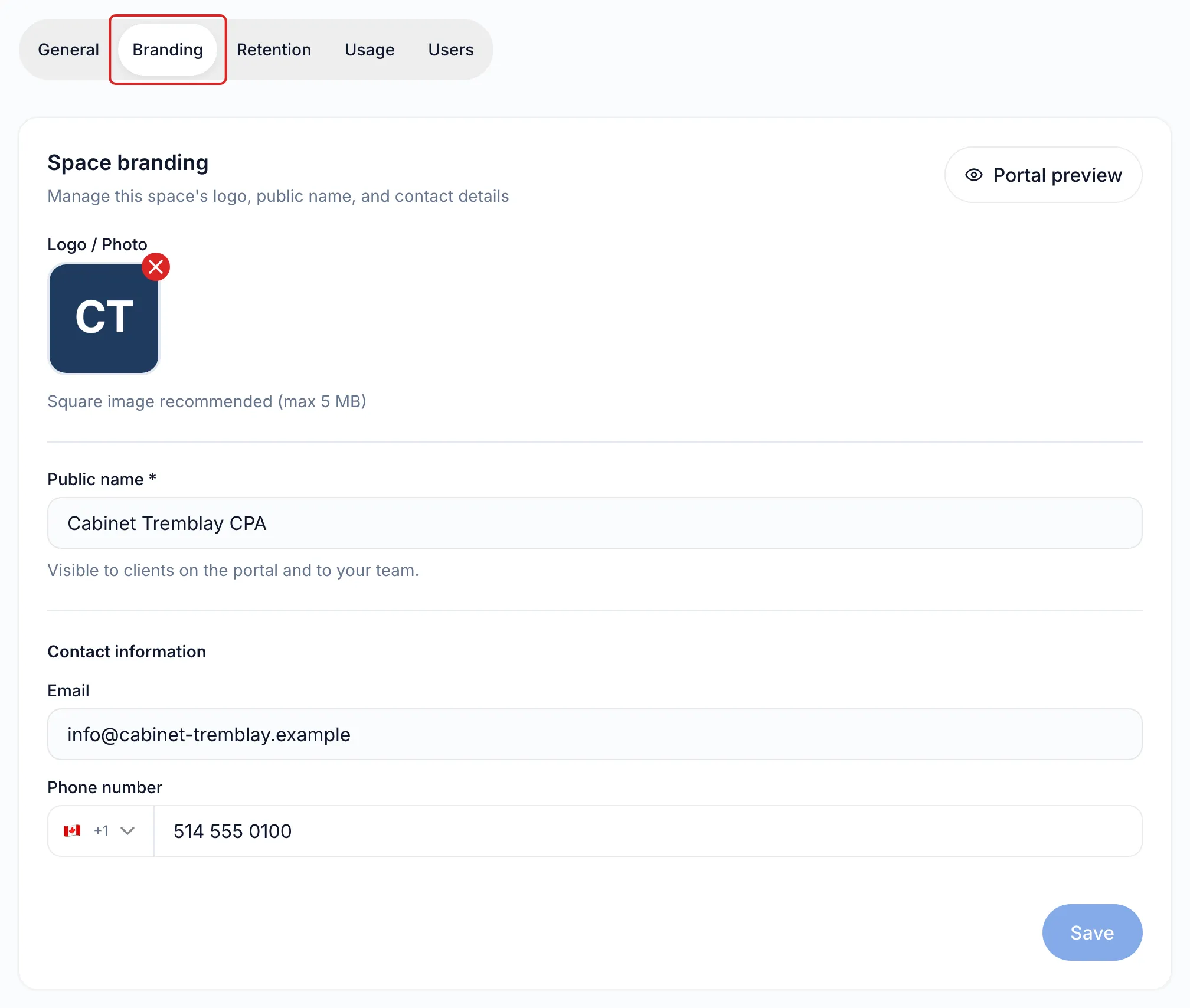
Click the Branding tab.
-
Under Logo / Photo, click Upload and choose a square image of 5 MB or less. To replace a logo, first remove the current one with the × at the top right of the image.
-
Enter the Public name, the name your clients see, for example your firm’s name.
-
Under Contact information, add an Email and a Phone number if needed.
-
Click Save.
-
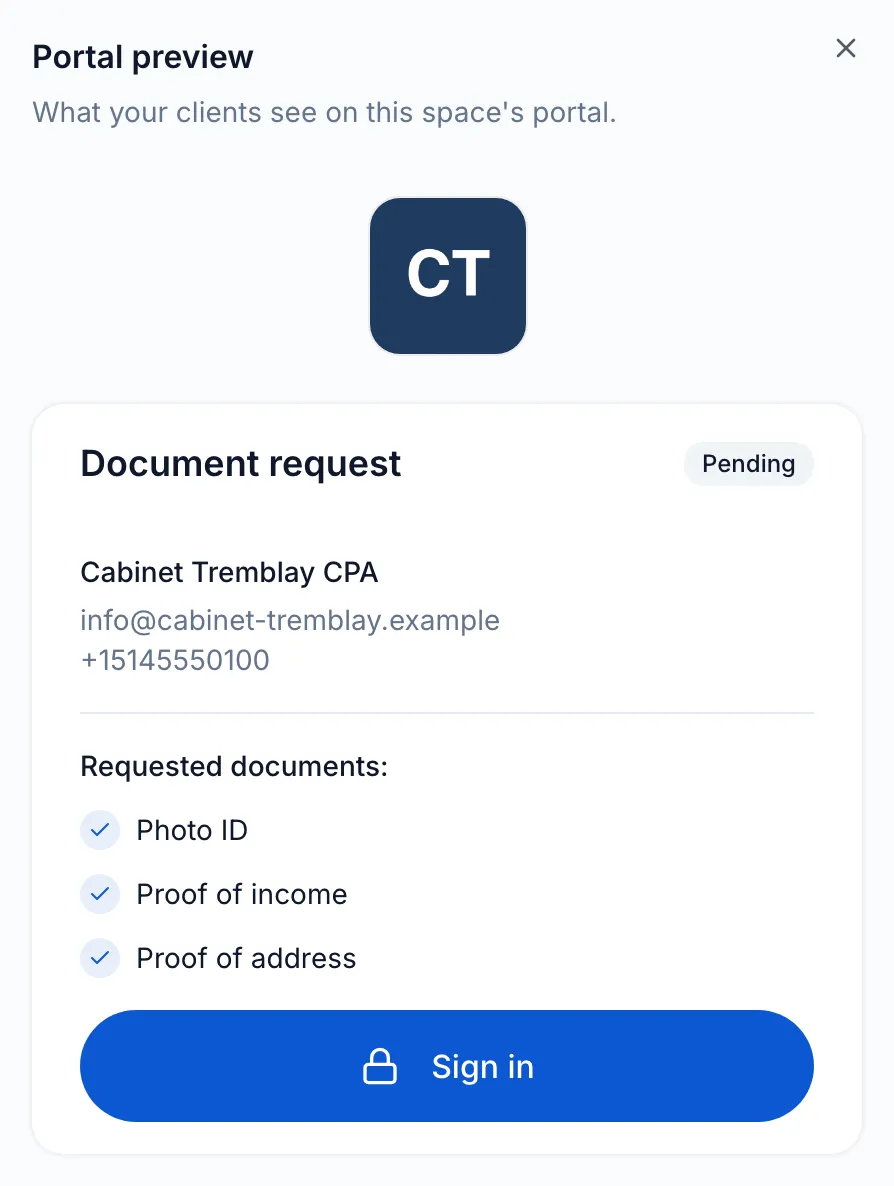
Click Portal preview to see this information on the portal’s welcome page. The preview shows a sample request, with the Pending label and three sample documents, not your space’s requests.
Result
Section titled “Result”meo shows “Space updated successfully”. The next emails and the next portal visits show the new branding.
What your clients see, and where
Section titled “What your clients see, and where”| Place | What appears |
|---|---|
| Request emails and reminders | Your logo at the top, the sender “public name via Meo”, the public name in the text |
| Text messages | The public name at the start of the text |
| Portal welcome page | The logo, the public name and the space’s email address |
| Request page | The logo and the public name, with the request title |
| Consent | The public name, as the recipient of the information |
| Confirmation page | The logo and the public name, to whom everything was sent |
Good to know
Section titled “Good to know”- The portal shows your logo in a square: a very wide logo looks small there. Check the result with Portal preview.
- When a client replies to a request email, the reply goes to the person who created the request. If that person no longer has access to the space, it goes to the space’s email address.
- The verification code email is sent by meo, under the name “Documents Meo”, without your logo. The bottom of the portal shows “Secure connection • Documents Meo”.
- You choose the logo, the public name and the contact details; the portal’s colours stay meo’s.
- The organisation’s information is only a starting point when you create a space. Changing it does not change your existing spaces. See Create a space.
Frequently asked questions
Section titled “Frequently asked questions”- Can you use several brands or logos in your account?
- What is the difference between a space’s public name and its internal name?
- Is the client portal available in English?