
Organise your documents with your own folders
In Documents, you create the folders you want, next to the ones meo manages for you, and move your files into them.
Before you start
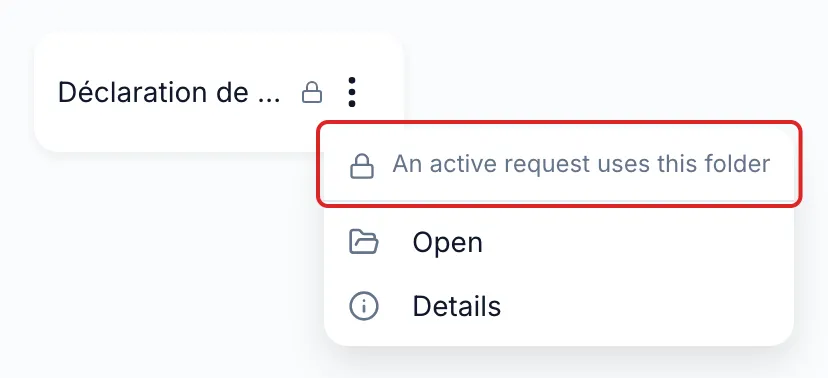
Section titled “Before you start”meo manages three kinds of folders: Clients, each contact’s folder and the folder of an active request. Their ⋮ menu says why they are locked and offers only Open and Details. You cannot rename, move or delete them, but you can create your own folders inside a contact’s folder.
Create a folder
Section titled “Create a folder”-
Open the place where you want the folder:
- for a folder of your firm, click Documents in the left menu and open the folder you want;
- for a folder specific to a client, open their contact page in Contacts, then the Documents tab.
-
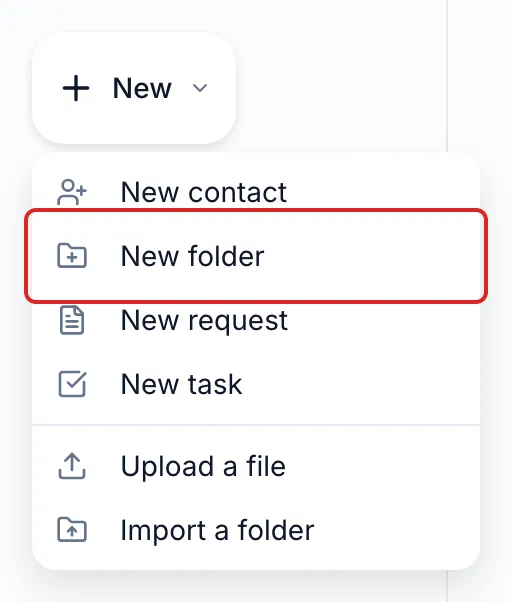
Click New at the top of the left menu, then New folder.
-
Enter the Folder name and click Create. The folder is added to the open folder.
Move documents
Section titled “Move documents”-
Open the file’s or folder’s ⋮ menu and click Move. For several items, select them first, then click the Move icon in the selection bar.
-
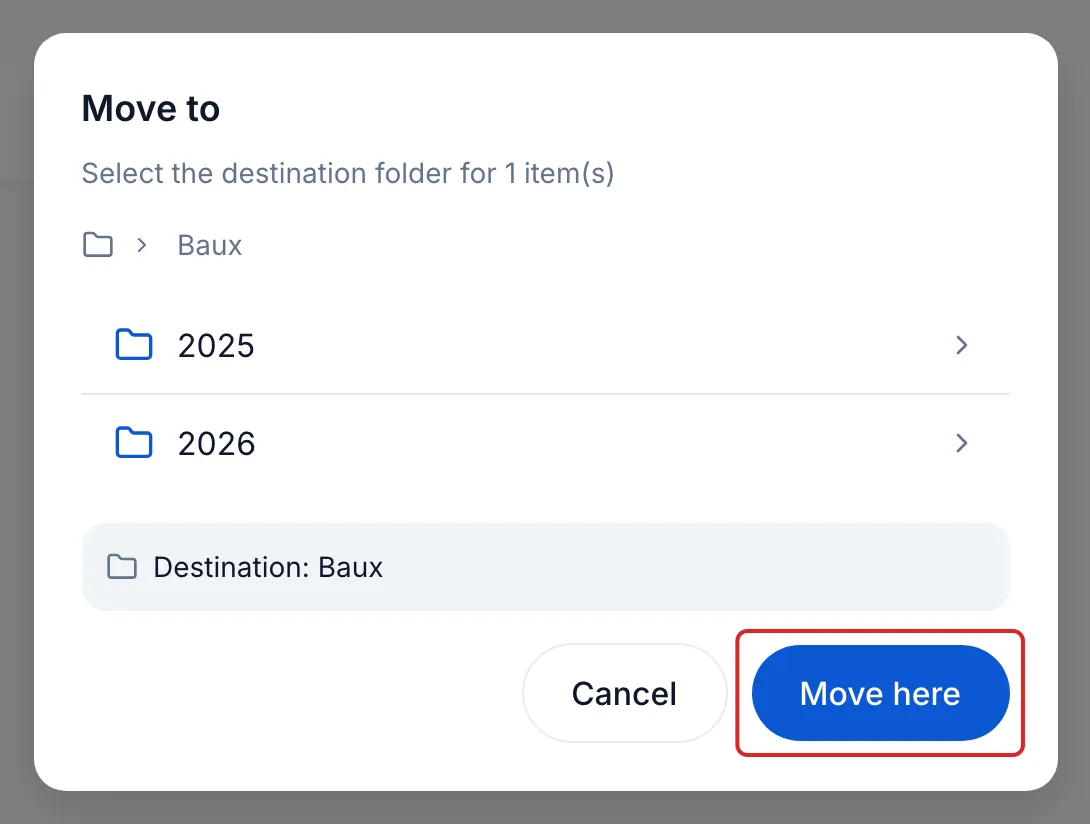
In the Move to window, open the destination folder. Under the list of folders, meo shows the chosen folder, for example “Destination: Baux”. Click Move here.
-
If you move documents out of a contact’s folder, meo asks for a Reason: Refiling, Wrong contact or Other. Choose it, then confirm.
On a computer, you can also drag items onto a folder.
Result
Section titled “Result”meo shows “Moved” and your documents are in their new folder.
Good to know
Section titled “Good to know”- A document placed in a contact’s folder is attached to that contact and appears in the Documents tab of their contact page. Under the destination, the Move to window says which contact the documents will be attached to.
- When documents leave a contact’s folder, meo also names the shares that will end.
- The Clients folder only holds the contacts’ folders: you do not create folders or upload files there.
- A request’s folder becomes an ordinary folder once the request is completed or cancelled.
- The ⋮ menu also offers Rename, Copy and Delete. A deleted item stays in the Trash for 30 days.
- For a file, Details, in the ⋮ menu, shows its information, its integrity fingerprint, which Verify now compares with the stored file, the signature evidence of a signed document, and its activity: who viewed, downloaded, renamed, moved or trashed it, and when.
- On a phone, Move is available, but not Copy.
Frequently asked questions
Section titled “Frequently asked questions”- Do you need a request to add a document?
- How are received documents organised?
- Can meo be your only storage space?