
Involve a client's accountant or another third party
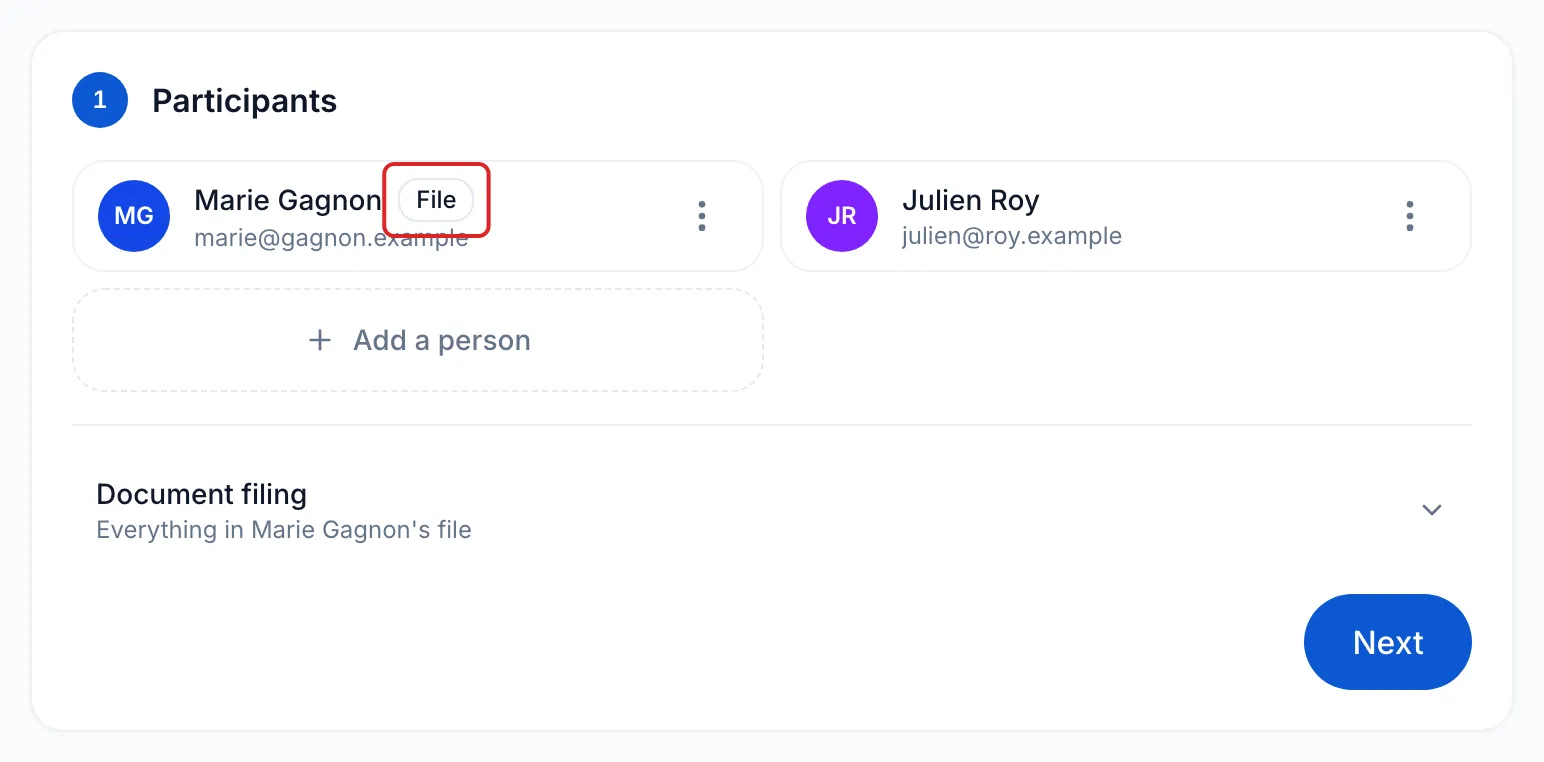
A request can bring several people together, for example your client and their accountant. Each one is a participant: they get their own link and only see what is assigned to them. Everything the request receives is filed in the folder of only one person, the one marked File: usually, your client.
If the accountant only needs to look at documents you already have, share a folder with them instead: see Share documents with a third party.
Before you start
Section titled “Before you start”Have the accountant’s email address or phone number at hand. If they need to sign a document, their email is required.
Add the accountant to the request
Section titled “Add the accountant to the request”-
In Contacts, open your client’s page and click New request. Your client is already in the Participants card.
-
Click Add a person. On the Contact tab, look for the accountant under Select a contact. If they are not in your contacts yet, enter their name and their email or phone number under or create a new contact, then click Create and add. They become a contact of your space. For a colleague, use the My team tab.
-
Check that the File mention is next to your client. If it is next to someone else, open your client’s ⋮ menu and click File the request under this person (offered for a contact who has an email). Click Next.
-
Fill in the Title and instructions card, then click Next.
-
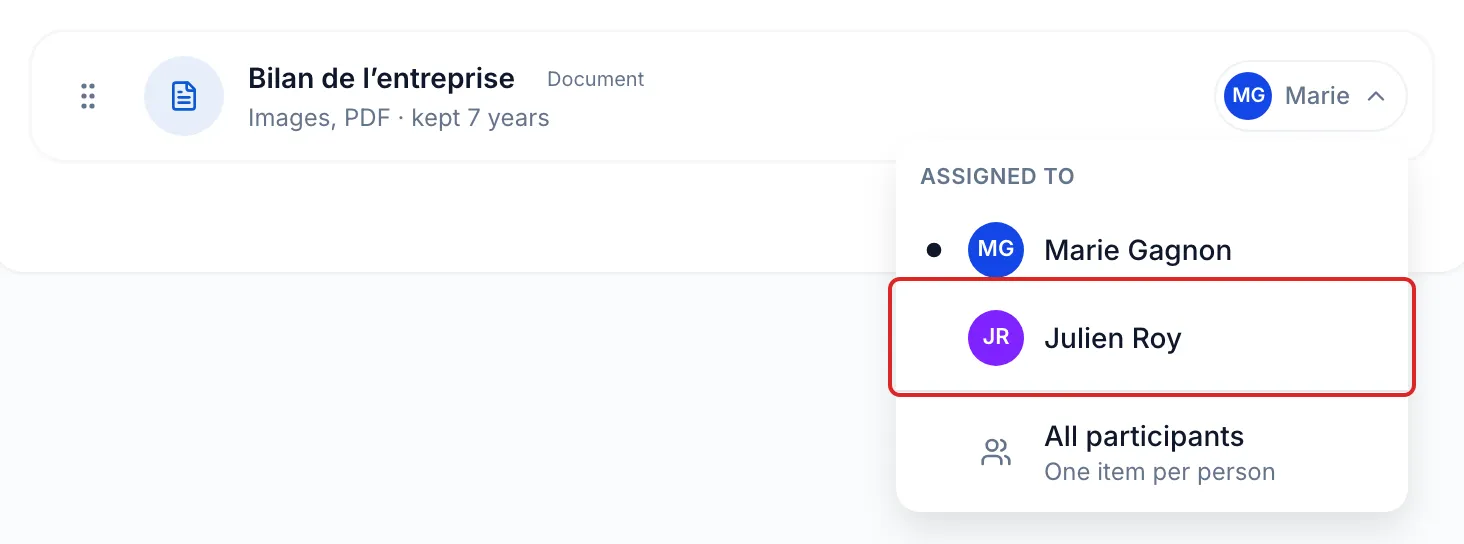
In the Request contents card, add the items. Each item has an Assigned to menu: at first, the person marked File. Choose the accountant for what they provide. When each person must provide their own, choose All participants, at the bottom of the menu under the people: meo then creates one item per person.
For a signature document, each person signs where you place their fields: see Have a document signed by several people.
-
Click Continue, then send the request as usual: see Send a request to a client.
Result
Section titled “Result”The accountant gets their own link, and everything they send is filed in your client’s folder.
What each person sees
Section titled “What each person sees”- Each person gets their link by email or text message and confirms their identity with a code, without creating an account.
- They only see the items assigned to them, those assigned to All participants and the documents they must sign. They do not see what the others send.
Where the documents are filed
Section titled “Where the documents are filed”- Everything the request receives, from the client as from the accountant, goes into a folder named after the request, inside the folder of the person marked File. Nothing is filed in the accountant’s folder. One folder per person is planned.
- The request also appears on the Requests tab of the accountant’s contact page.
- On the request page, each person has their own card: you follow what each one has sent.
Good to know
Section titled “Good to know”- After sending, the File mention no longer changes and you can no longer add a person. A person who has not sent anything yet can be removed. To involve someone else, create a follow-up once the request is closed: see Follow up after a request ends.
Frequently asked questions
Section titled “Frequently asked questions”- Can a request be addressed to several people?
- In which person’s file are a request’s documents filed?