
Discuss a task with your team
Each task has its discussion, including each step of an action plan. Your team talks it through in one place; your clients never see it.
Before you start
Section titled “Before you start”To write, you need to be able to edit the space’s contacts. With the Viewer role, you read the discussion without writing in it.
Write a comment
Section titled “Write a comment”-
In the task list, click the row’s comments icon, next to the assignee. The number shows how many comments there are. The Task details open on the Comments section.
-
Click in Write a comment… and type your message, up to 5,000 characters.
-
To get a colleague’s attention, type @ followed by the start of their name, then choose them in the list of the space’s members.
-
Click Post.
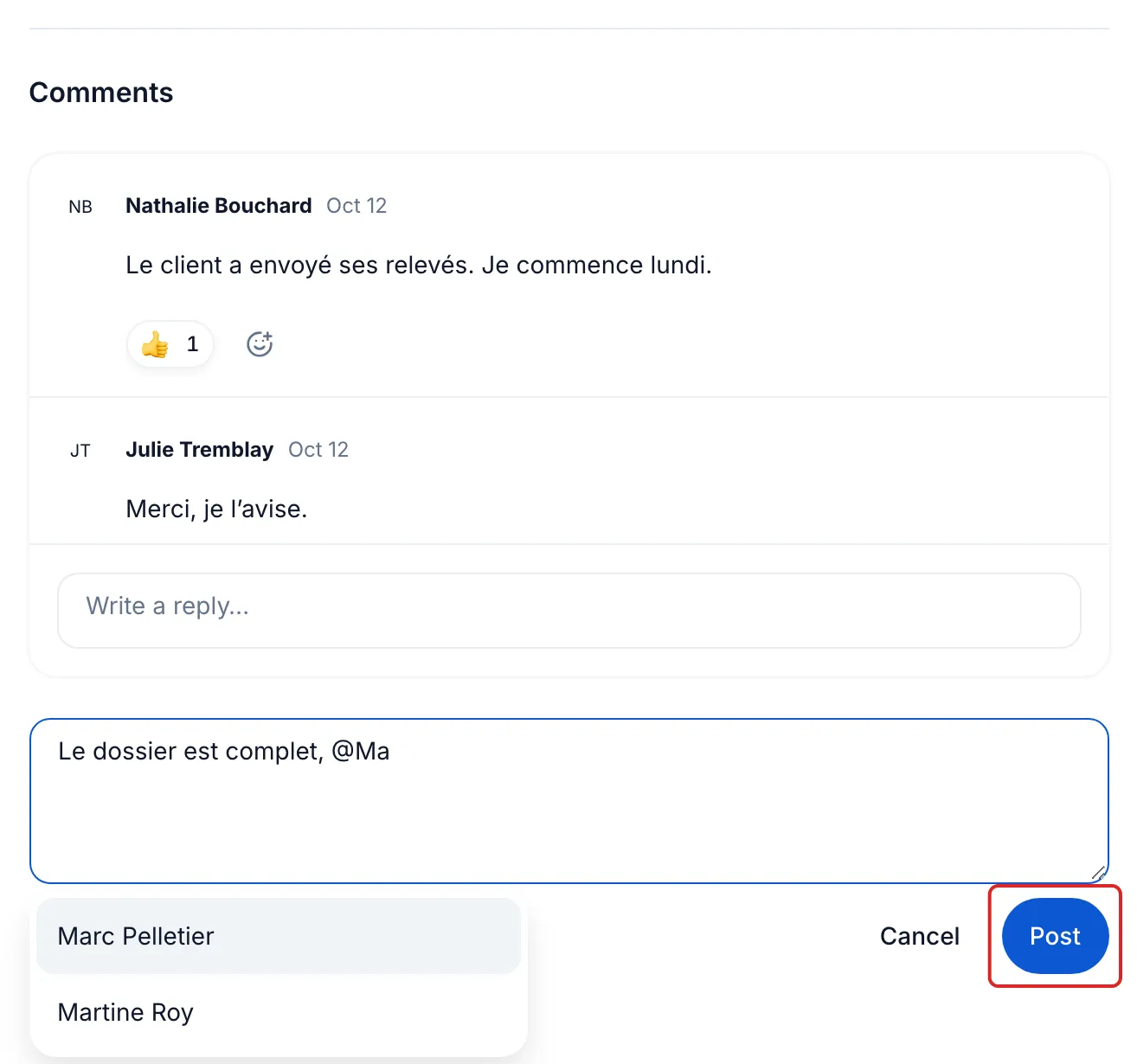
A draft you leave unfinished stays saved on this device.
Reply and react
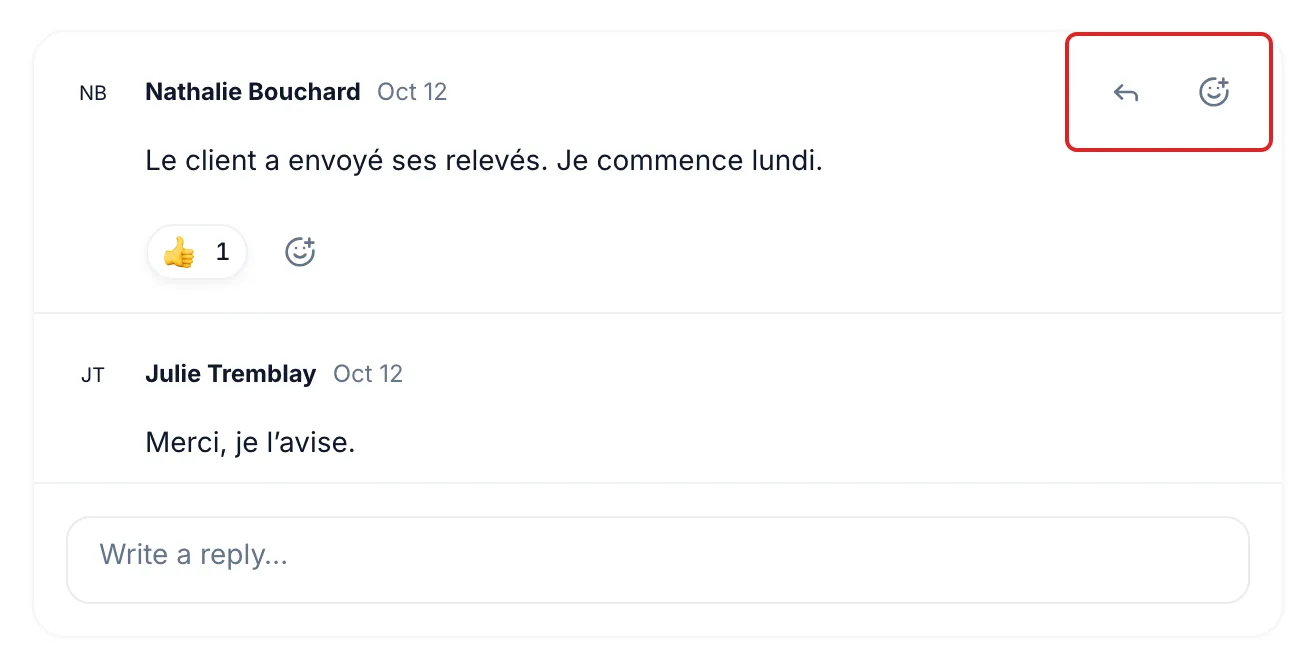
Section titled “Reply and react”Hover over a comment to show its buttons. On a touch screen, they stay visible.
- Reply takes you to the Write a reply… field, always shown at the bottom of the conversation. Replies stay grouped under the comment.
- Add a reaction offers six emojis: 👍, ❤️, 🎉, 😄, 👀 and 🚀. Click your reaction, under the text, to remove it.
- The ⋯ menu of your own comments offers Edit and Delete. The Edited label shows the previous versions. A deleted comment that has replies leaves the Comment deleted label, and its replies stay.
Follow what concerns you
Section titled “Follow what concerns you”The Notifications button, the inbox icon at the top of the screen, next to Search…, shows the number of tasks with something new for you. meo notifies you there of:
- a new comment on a task you are the assignee of or that you created;
- a reply in a conversation you started or replied to;
- a mention of your name.
Your own messages and reactions do not create notifications.
-
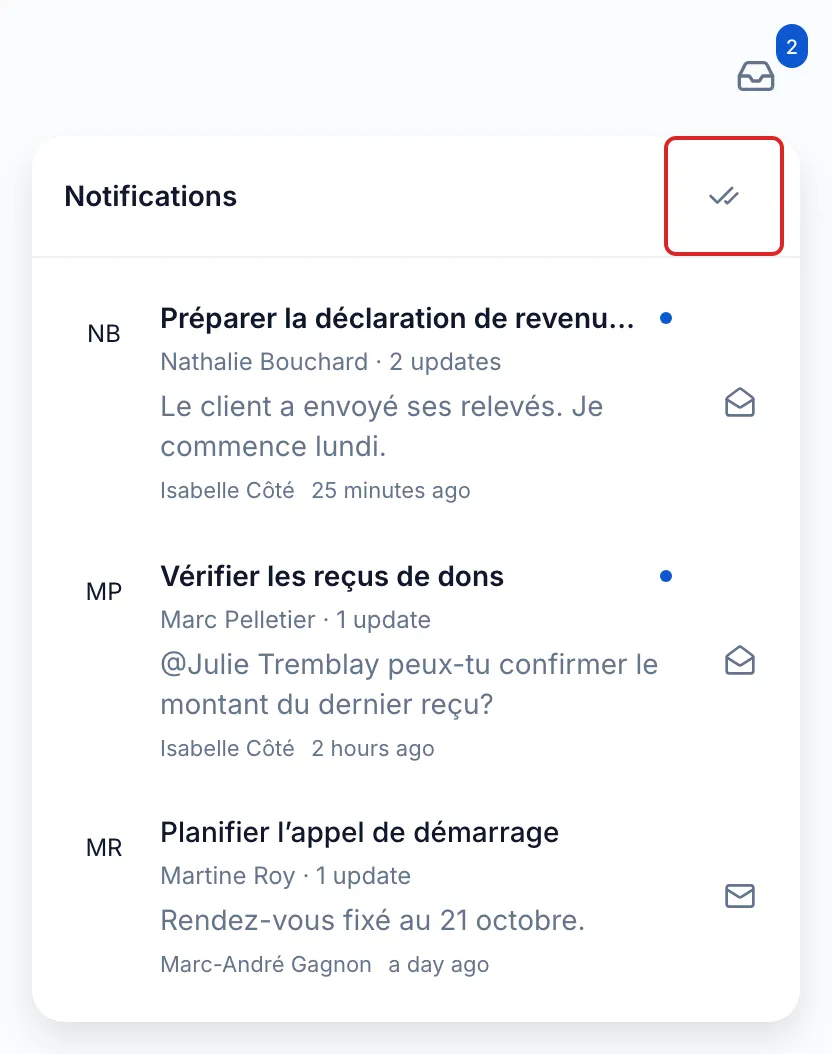
Click Notifications. Each row shows the task, the person who wrote, the number of updates and an excerpt of the latest comment.
-
Click a row: the task opens on the comment, and the row is marked as read.
-
If needed, click the envelope icon at the end of a row to mark it as read or unread, or Mark all as read, the icon at the top of the list.
Result
Section titled “Result”Your team discusses each task in one place, and everyone finds in Notifications the messages meant for them.