
Track your requests in progress
The Requests page shows where each request stands: who still owes something, what has been received and the due date. A request and its follow-ups, such as a correction or a hand-out, make up a single row.
Find a request
Section titled “Find a request”-
In the left menu, click Requests. The list opens on In progress: requests not sent, in progress and hand-outs in progress. Completed gathers the requests completed, closed at the due date or cancelled; All, everything.
-
In Search a request or a person, type the name of a request or a person.
-
Click Filter to narrow the list by Participants, Status, Progress (Nothing received, Partly received, All received) or Due date (Overdue, This week, This month, Date range…). Each active filter becomes a chip: click its × to remove it, or Clear all.
-
Click a row to open the request.
Spot what is waiting on you
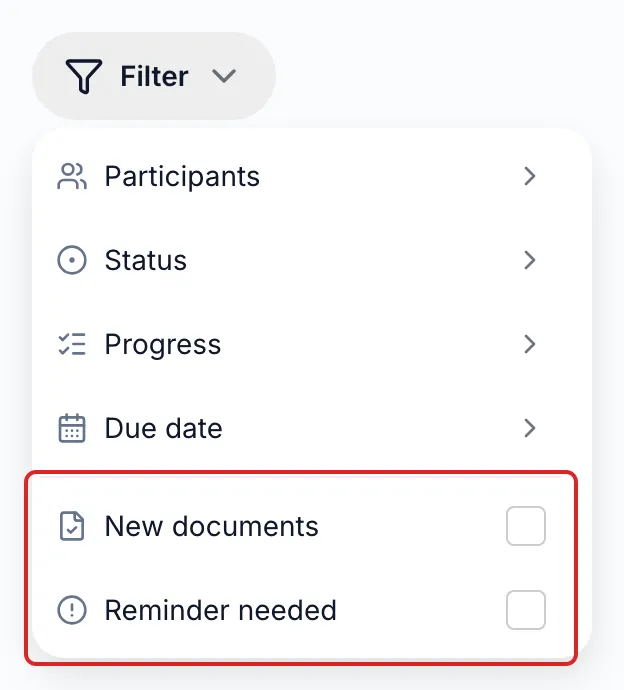
Section titled “Spot what is waiting on you”The Filter menu offers two boxes under the filters:
- New documents: the requests you follow where a person has acted since your last visit. A blue dot marks them in the list; it goes away when you open the request.
- Reminder needed: open requests for which no automatic reminder will come any more, because the reminders have run out, or because they are turned off and nothing has been received three days after sending. Remind the person yourself with Remind.
A clock next to the name flags a request sent three or more days ago with no response.
Act on several requests
Section titled “Act on several requests”-
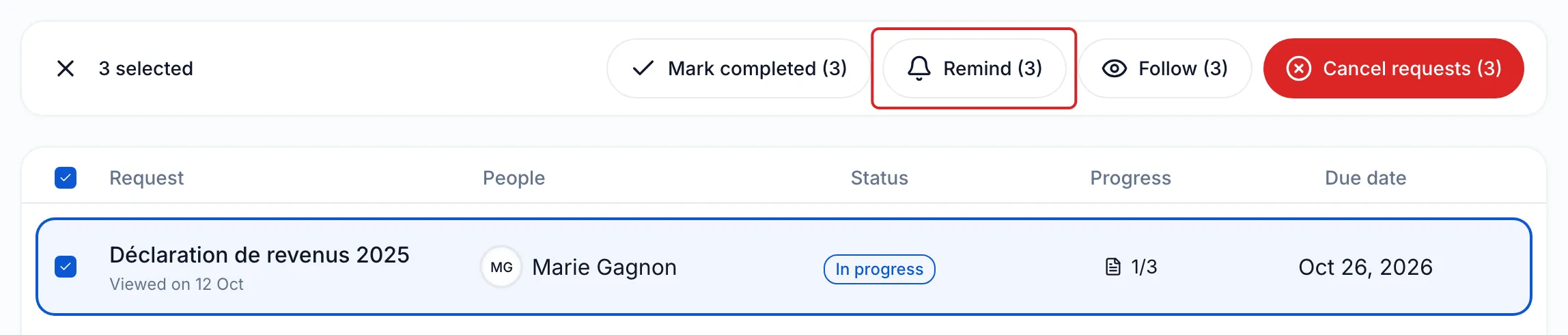
Tick the box of each request. The header box ticks the whole page; meo then offers Select all N requests, up to 500.
-
In the selection bar, click Mark completed, Remind, Follow or Cancel requests. The number in brackets shows how many requests the action affects. On a phone, these actions are in the ⋯ menu.
-
Read the confirmation, then confirm. meo names the requests it skips, for example those already closed. Keep the window open until it finishes.
A request marked completed receives nothing more, and your client is not notified. A cancellation is permanent; turn on Notify signers of the cancellation if you want meo to write to the people already notified.
Use the kanban view
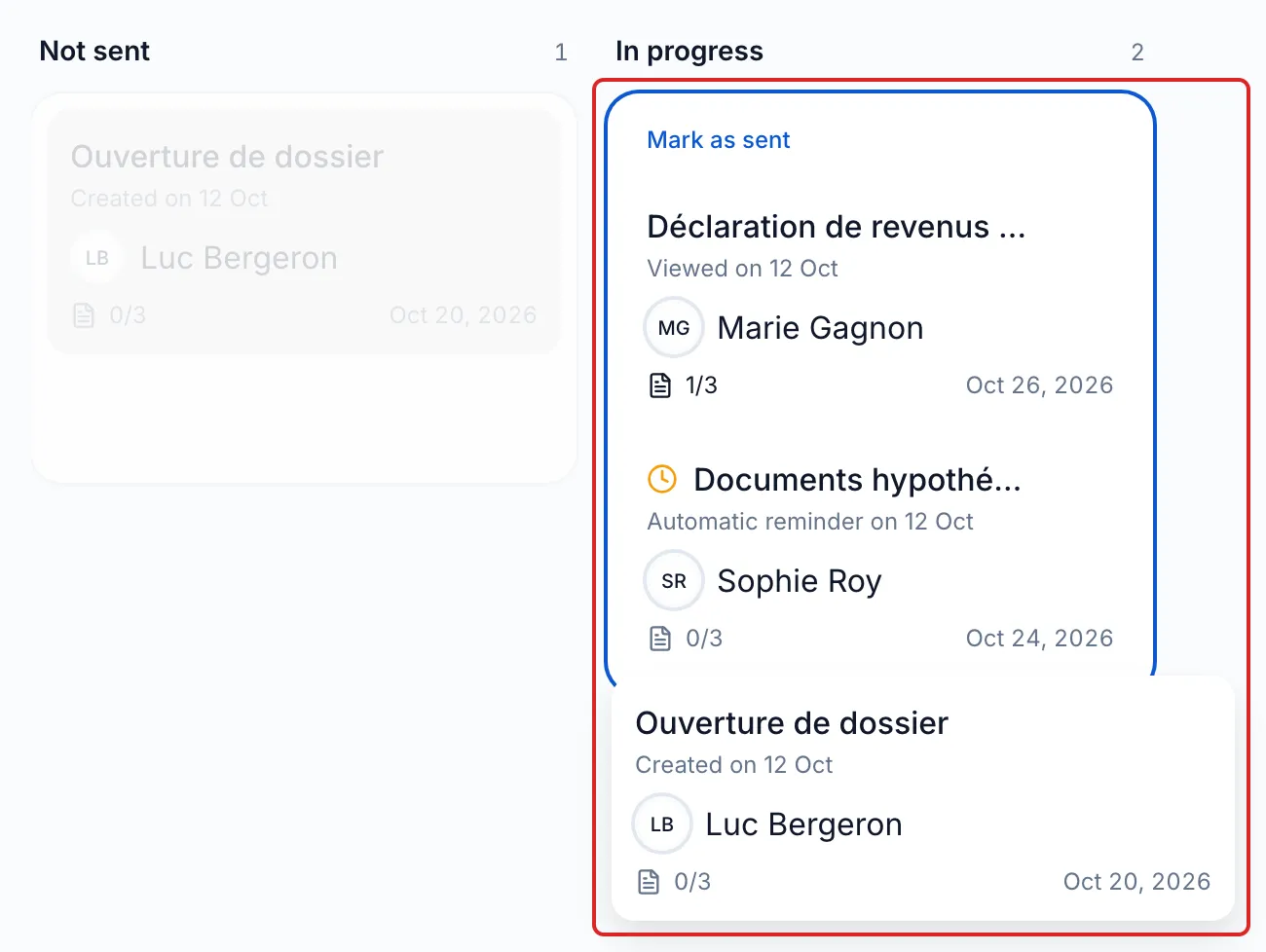
Section titled “Use the kanban view”Click Kanban view, to the right of the chips. Requests are arranged in five columns: Not sent, In progress, Hand-outs in progress, Completed and Cancelled. With the mouse, drag a card to In progress to mark it as sent (with no notice to your client), to Completed to mark it completed, or to Cancelled. A confirmation opens each time. With a keyboard or on a touch screen, use the card’s menu.
Result
Section titled “Result”You see at a glance what is waiting on your client and what is waiting on your team.
Frequently asked questions
Section titled “Frequently asked questions”- Can you send a request link yourself, without meo’s emails?
- How do you cancel a request, and what happens next?
- Can you add items to a request that has already been sent?