
Publish your public privacy portal
The public privacy portal is a page in your name, at app.documeo.ca/conformite/ followed by the name you choose. Your clients find your privacy officer there, the link to your privacy policy and a form to send you a request, without creating an account.
Before you start
Section titled “Before you start”You must be the owner or an administrator of the organisation. The Public privacy portal card offers Activate once the setup is complete: your privacy officer named and their contact details published, your policy analysed with all eight topics addressed, your internal governance policies documented and your three registers activated. See Set up the privacy tools.
Publish the portal
Section titled “Publish the portal”-
In the left menu, click Privacy. At the bottom of the page, on the Public privacy portal card, click Activate.

-
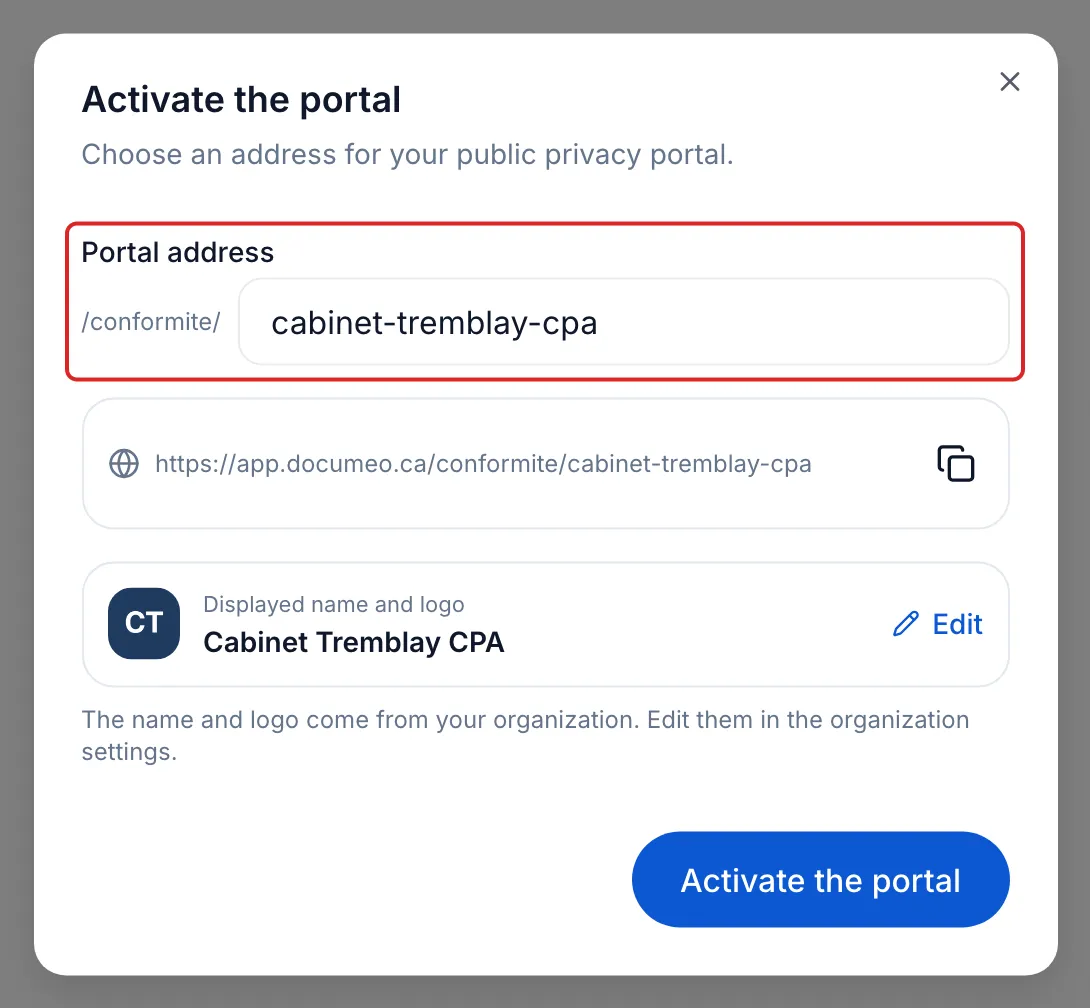
Under Portal address, check the name proposed after /conformite/. It has at least 3 characters: lowercase letters, digits and hyphens.
-
Check the Displayed name and logo. They come from your organisation: to change them, click Edit, which opens the organisation settings.
-
Click Activate the portal.
Result
Section titled “Result”meo shows “Portal published”. The card carries the Active mark and shows your portal’s address.
Share the portal
Section titled “Share the portal”Click Manage, then the copy icon next to the address. Add this link to your website, near your privacy policy, and wherever your clients look for a way to reach you about their information. View the portal opens the page as your clients see it.
What your clients see
Section titled “What your clients see”- Your name and logo, and your privacy officer with their title and email, under Privacy contact.
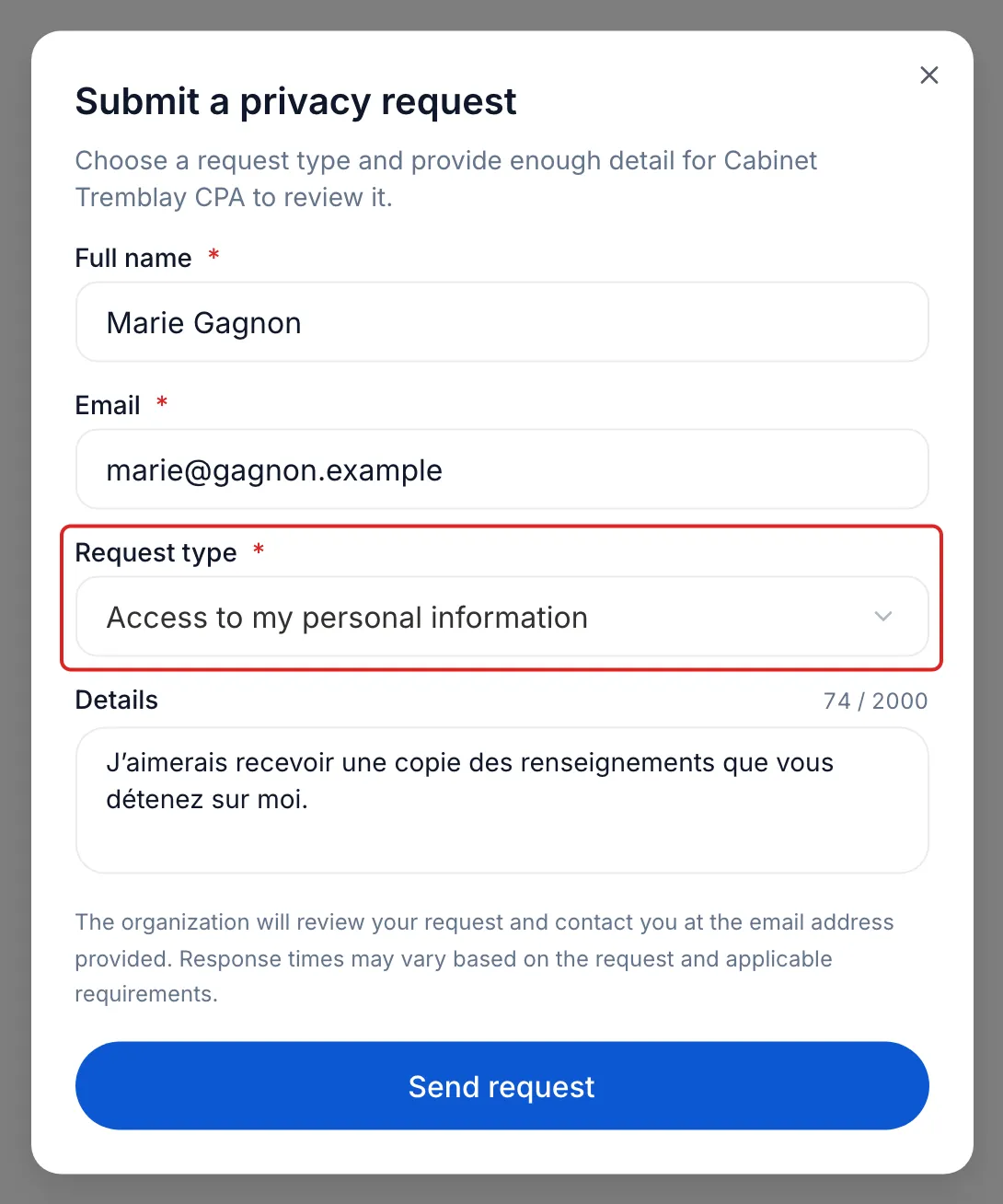
- The six request types: access, correction, deletion, withdrawal of consent, portability and de-indexing.
- The Submit a request button. Your client enters their Full name, their Email, the Request type and, if needed, Details, then clicks Send request.
- The link to your privacy policy, under Documents: it is the address you had analysed.
The name, the logo and the privacy officer are read from meo at every visit: if you change privacy officers, the portal shows the new one.
When a request arrives
Section titled “When a request arrives”It is added to the Request register, in Requests and rights, with the Pending status. Your privacy officer, the owner and the administrators of the organisation receive the “New rights request” email, with the View the request button. Open the request, handle it, then change its status to Completed or Refused. A refusal requires a reason.
Change or deactivate the portal
Section titled “Change or deactivate the portal”Click Manage. Change the Portal address and click Update: links to the old address stop working. Deactivate takes the page down; you can reactivate it later.
Frequently asked questions
Section titled “Frequently asked questions”- How do you respond to a client who wants to obtain or erase their information?
- Is meo enough to make your organisation compliant?