
Document type
A document type asks your client for a file, for example a driver’s licence, a notice of assessment or a void cheque. Your client uploads it in their portal, and meo files it in their folder. meo’s catalogue offers several, marked Provided by Meo, and you can create your own.
The settings
Section titled “The settings”Create a document type in a request, with Add an item then the Document type tile, or under Settings, Catalogue, Manage elements to reuse it. Only the owner and administrators save items to the catalogue.
- Identification: the Document type name, required, a Description (optional) shown under the name, and Instructions (optional) to guide your client.
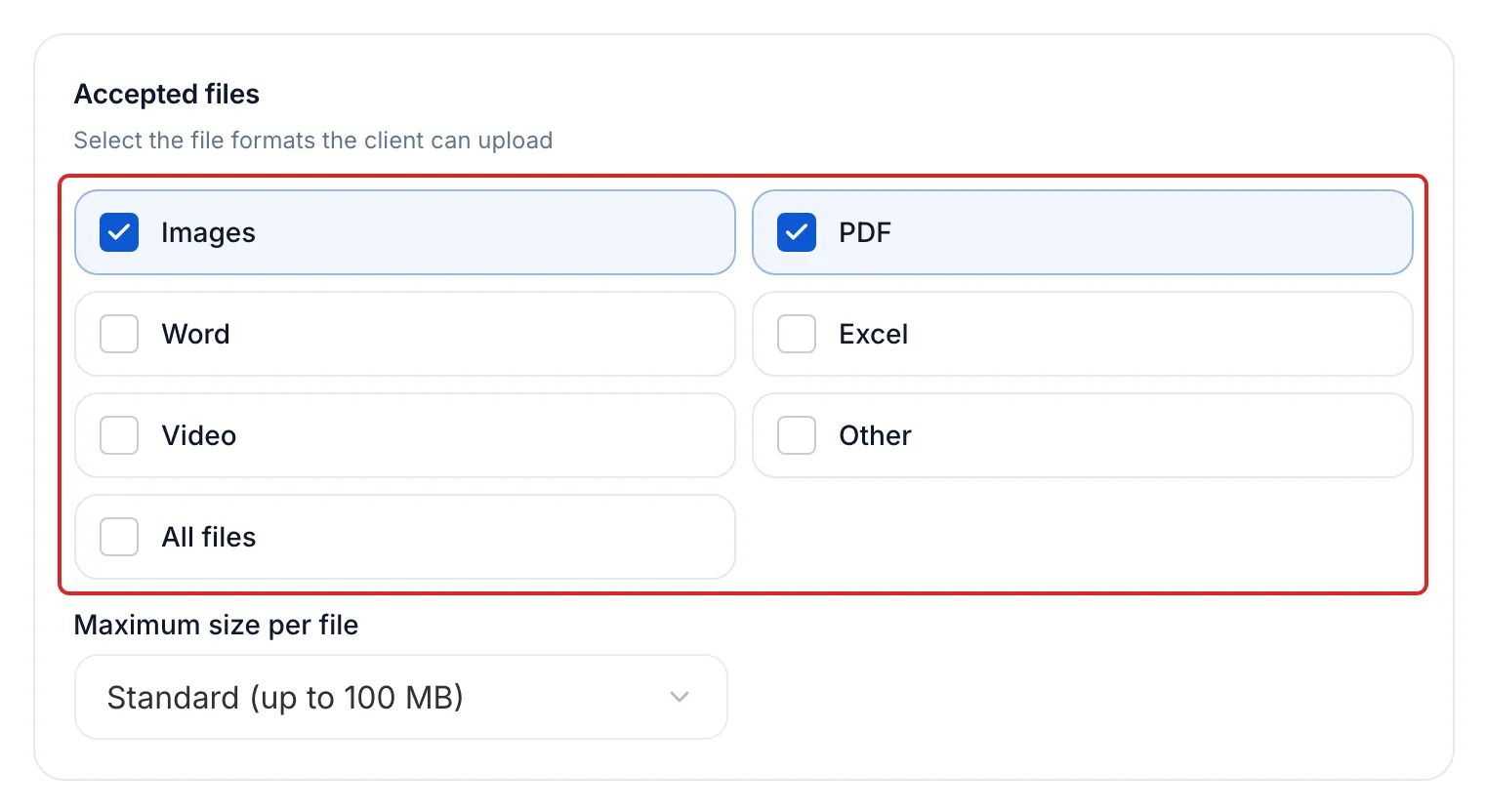
- Accepted files: tick Images, PDF, Word, Excel, Video or Other. At the start, All files is ticked; ticking a category unticks it. Under Maximum size per file, choose Standard (up to 100 MB) or Extra large (up to 25 GB).
- Minimum retention period: how long to keep each file received, in days, months or years, or Keep forever. A new document type starts at one year.
- Sample documents (optional): up to 5 JPEG, PNG, WebP or HEIC images of 10 MB each, to show what you expect.
In a request
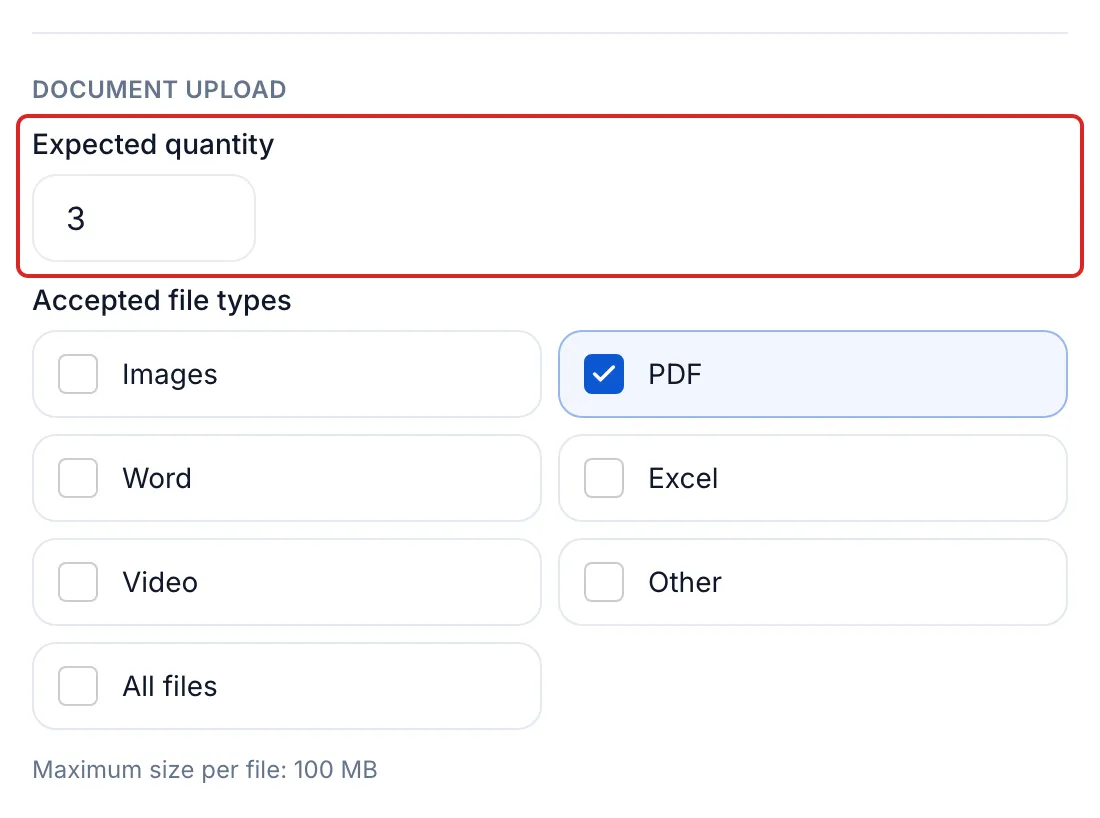
Section titled “In a request”In the Request content card, open the document’s ⋯ menu, then Settings. Under Document upload, the Expected quantity, from 1 to 100, tells your client how many files you expect, for example 3 for three years of notices of assessment. You can also change the formats and the retention there, for this request only. To make the document optional, turn off Required to complete the request.
What your client sees
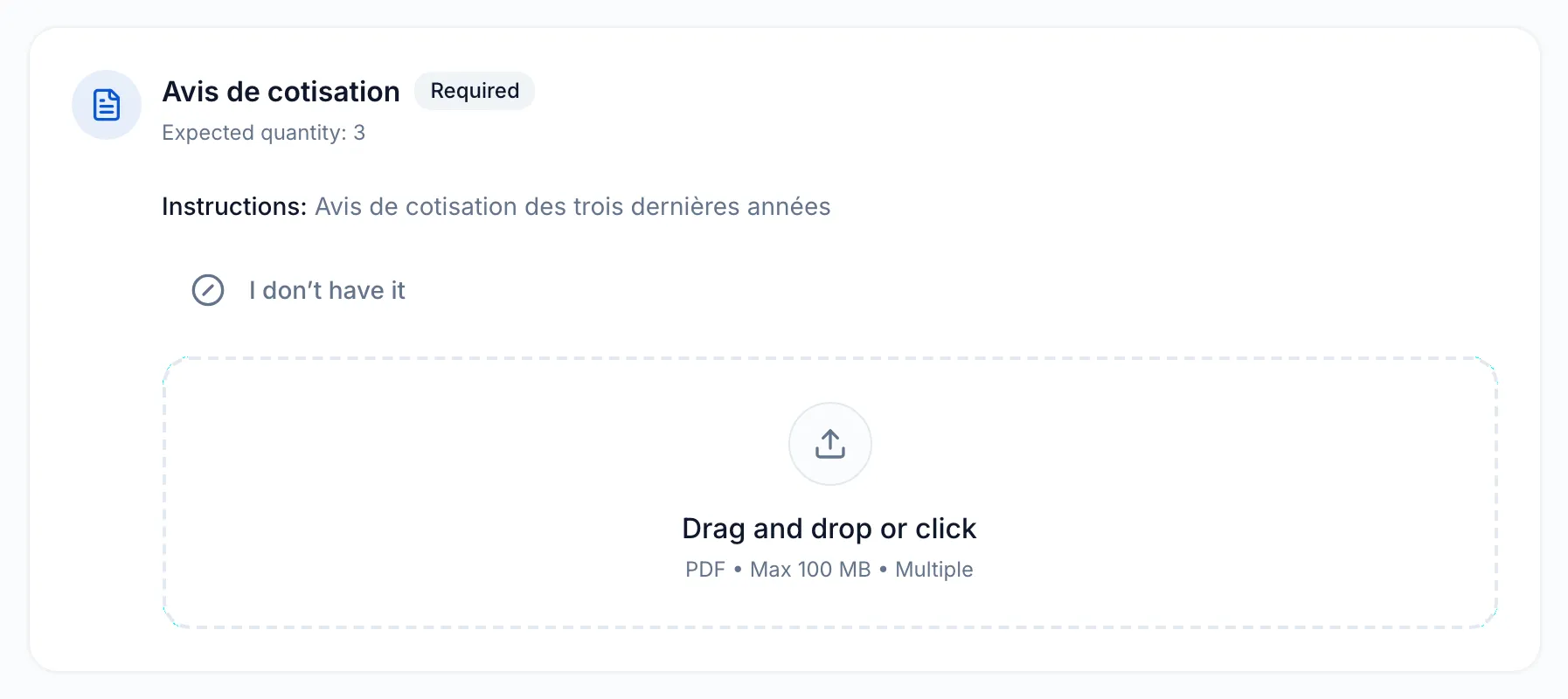
Section titled “What your client sees”The document’s card shows its name, the Required or Optional label, the description, “Expected quantity: 3” when you expect more than one file, your instructions and, if any, View examples. Your client drags their files into the drop area, which shows the accepted formats and the maximum size; they can drop several. Until they have sent something, they can also answer I don’t have it, with an optional note.
What you receive
Section titled “What you receive”- In the request, the document’s row shows “received on” and the date. Click it to view the file. The row’s ⋯ menu offers Download and Request a correction.
- The file is filed in the client’s folder, under Documents. meo records its SHA-256 fingerprint at upload.
- Each file received has an expiry date: its upload date plus the retention period.
- If your client answers I don’t have it, the row shows Not available, with their note.