
Invite a user into the organisation or into a space
Each person on your team has their own meo account. You invite them by email and choose what they can access and what they can do. To choose between organisation access and access to some spaces, read Organisation access or space access.
Before you start
Section titled “Before you start”- To invite someone into the organisation or into several spaces, you must be the owner or an organisation administrator.
- A space administrator can only invite into their own space.
From the organisation
Section titled “From the organisation”-
Click Settings at the bottom of the left menu, then Users in the organisation section.
-
Click Invite a user.

-
Under Emails to invite, enter one or more emails, separated by a comma or the Enter key. These people all get the same scope and the same role. Click Continue.
-
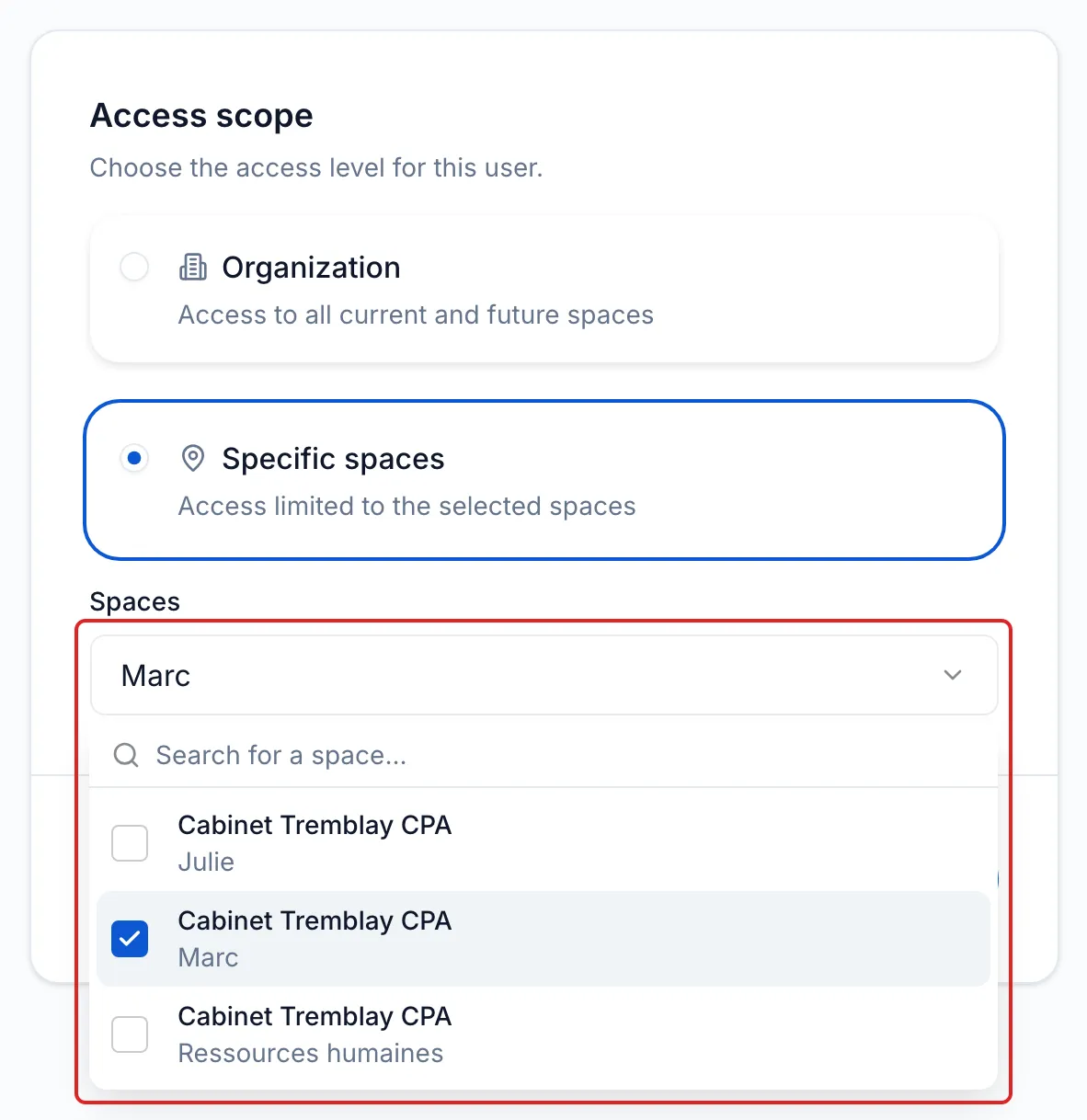
Under Access scope, choose Organization for access to all current and future spaces, or Specific spaces. In that case, check the spaces in the Spaces list. Click Continue.
-
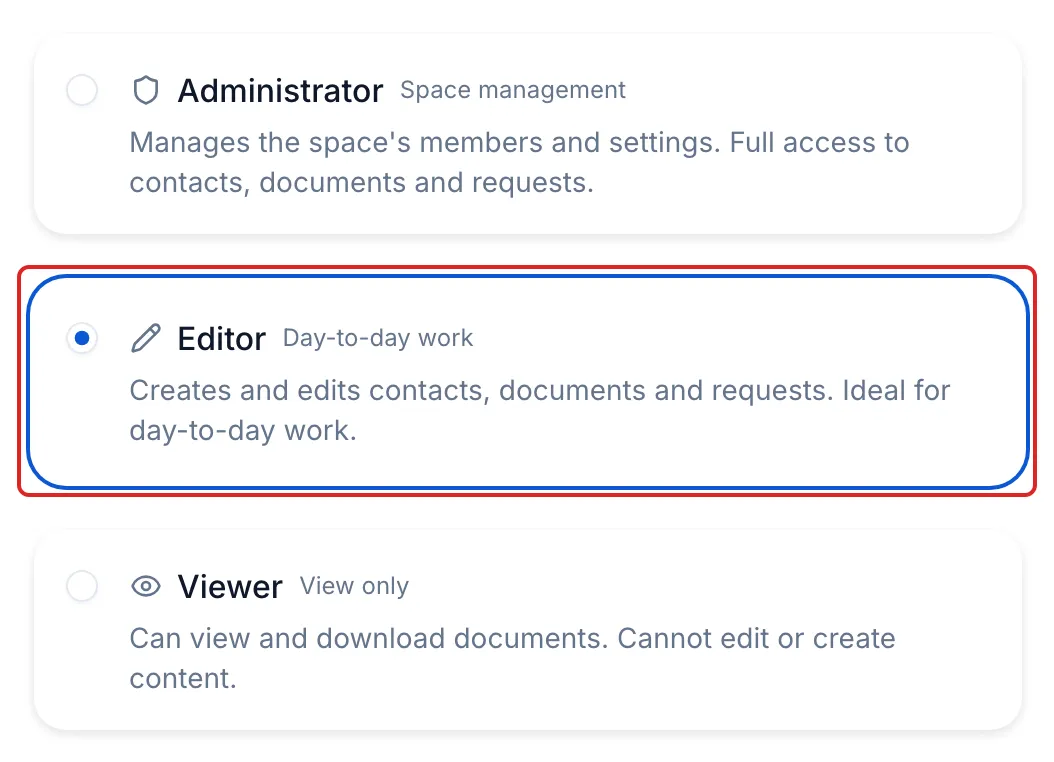
Under Role, choose Administrator, Editor or Viewer. Each role’s description adapts to the scope you chose. Click Continue.
-
Review the Confirmation step, then click Send invitation.
From a space
Section titled “From a space”-
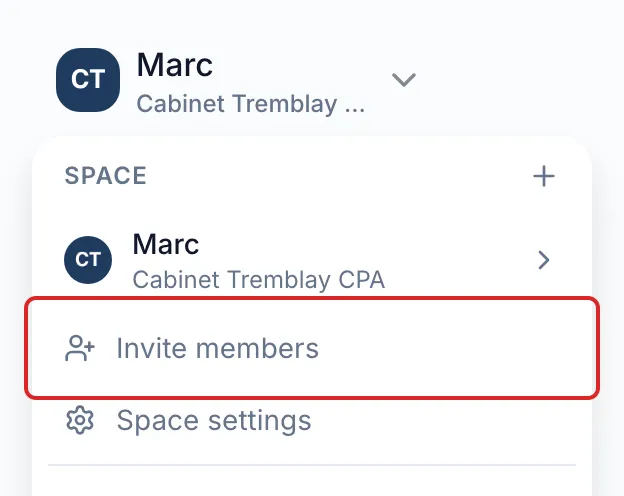
Select the space, then click Settings at the bottom of the left menu and Users in the space section. If the space menu appears at the top left, Invite members leads to the same page.
-
Click Invite a user, enter the emails, then click Continue. Access is limited to this space.
-
Choose the Role, click Continue, then Send invitation.
To add someone who is already part of the organisation to this space, enter their email. meo shows “Already in the organization, will be added to this space”. They keep their role, the button becomes Add and no invitation is sent. Add one existing person at a time.
Result
Section titled “Result”Each invited person receives an email and appears at the top of the list marked Pending.
What the invited person sees
Section titled “What the invited person sees”Here is what the invited person sees, in order.
-
The invitation email. meo tells them who is inviting them and to which organisation or space. They click the button in the email. The invitation is valid for three days.
-
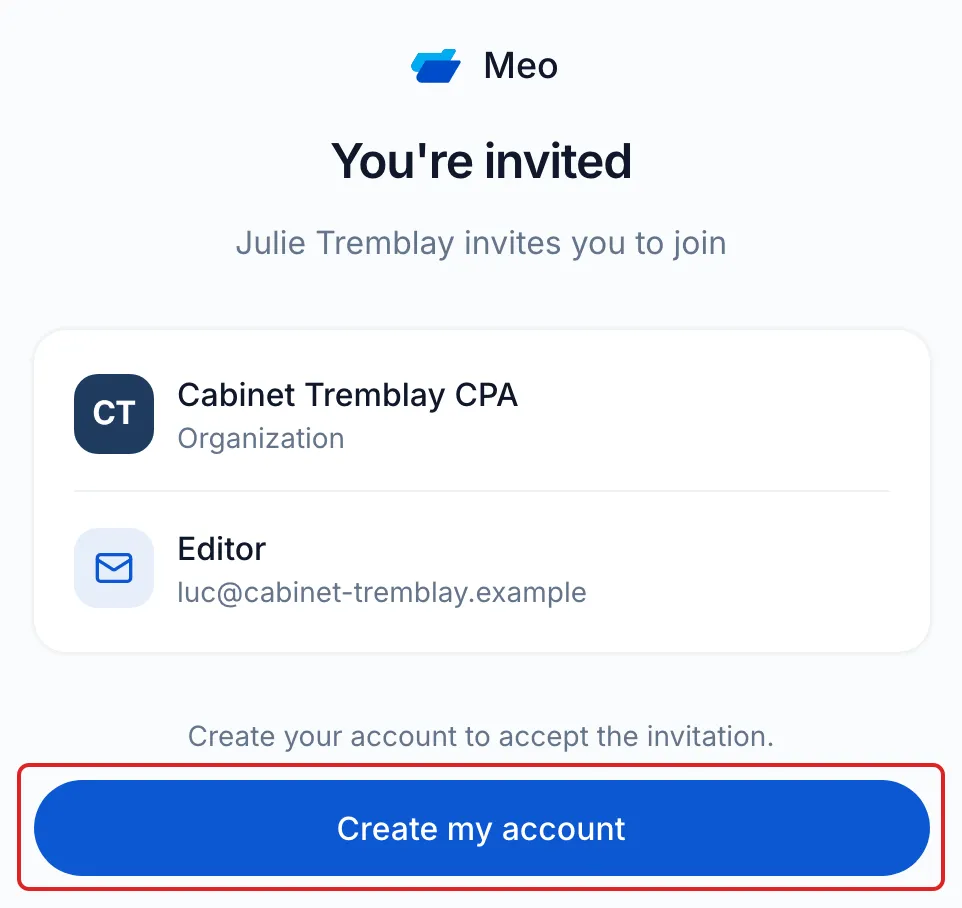
The invitation page. meo shows “You’re invited”, your organisation’s name and logo (or the space’s, for an invitation into a space), their role and their email. If they have no meo account, they click Create my account. If they already have an account with this email, they click Sign in.
-
Creating the account. The Join the team page opens with their email already filled in. They enter their Full name and a password, tick the terms box and click Create my account. They can also sign up with Google or Microsoft. With a password, they then enter the 6-digit code received by email and click Verify email.
-
The confirmation. meo takes them back to the invitation, which shows “You’re invited!”. They click Accept the invitation. meo shows “Welcome!”, then opens their Home page.
If they sign in with an email other than the one invited, meo shows “Wrong account”: they click Try again with the right account.
Good to know
Section titled “Good to know”- If your plan has reached its number of users, meo offers to add more before you continue.
Frequently asked questions
Section titled “Frequently asked questions”- You received an invitation: do you need to create an account?
- What should you do if a colleague’s invitation has expired?
- Does a person invited into one space see the other spaces?
- What does each user role allow?